Key Functions
- Creating an Engagement from the Dashboard
- Creating an Engagement from the Client Page
- Engagement Settings
Creating an Engagement from the Dashboard
If you have not setup your Clients and Templates before creating your Engagement, it is recommended to do so. See the Adding a Client Guide and the Setting up Templates Guide first.
- From the dashboard page click the "New Engagement" button
- This will bring you to the "General Information" page, fill in the necessary details about your Engagement and click 'Next' to go to an optional step or 'Create' the engagement.
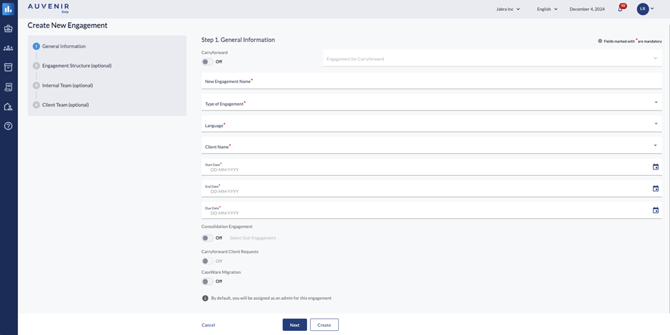
- The following 3 steps are optional and can be done/changed within the Engagement.
- In the Engagement Structure, click and drag across the templates you want in your Engagement.
You also have the option to upload a "New File" directly into the Documents Section or Copy from Engagement.
Copying from Engagement will allow you to choose from a previously created Engagement and use that Structure.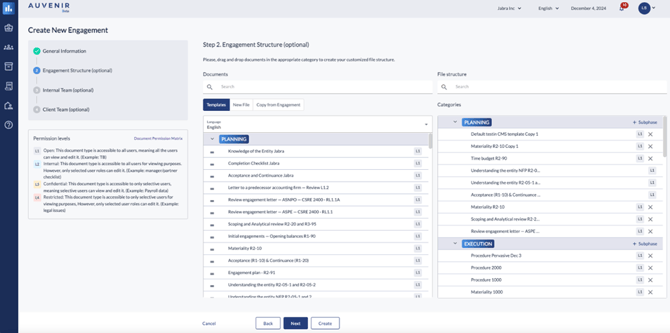
- After adding in your templates into the 'File Structure' click 'Next'.
- From the Internal Team, you can add any members you have added into your account by clicking "Add Team Member" and finding them from the dropdown menu.
- After you have added relevant Team Members, you can update the roles each member has.
- After adding your team members, click "Next"
- You can now add the Client you want associated with the Engagement, click "Add Client" to do so.
- Finally, click create to finish the creation.
Creating an Engagement from the Client Page
- Select the client you want to make an Engagement for.
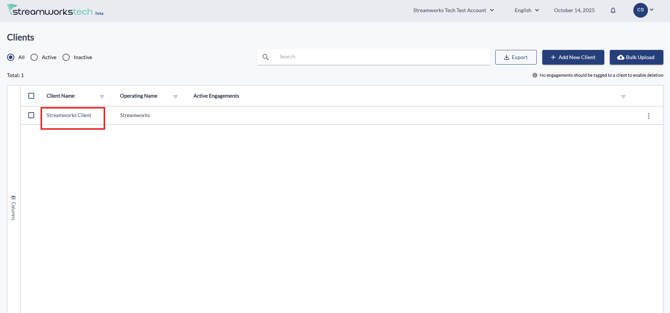
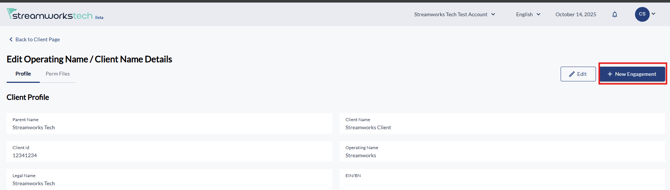
- Click 'New Engagement' in the top right.
Engagement Settings
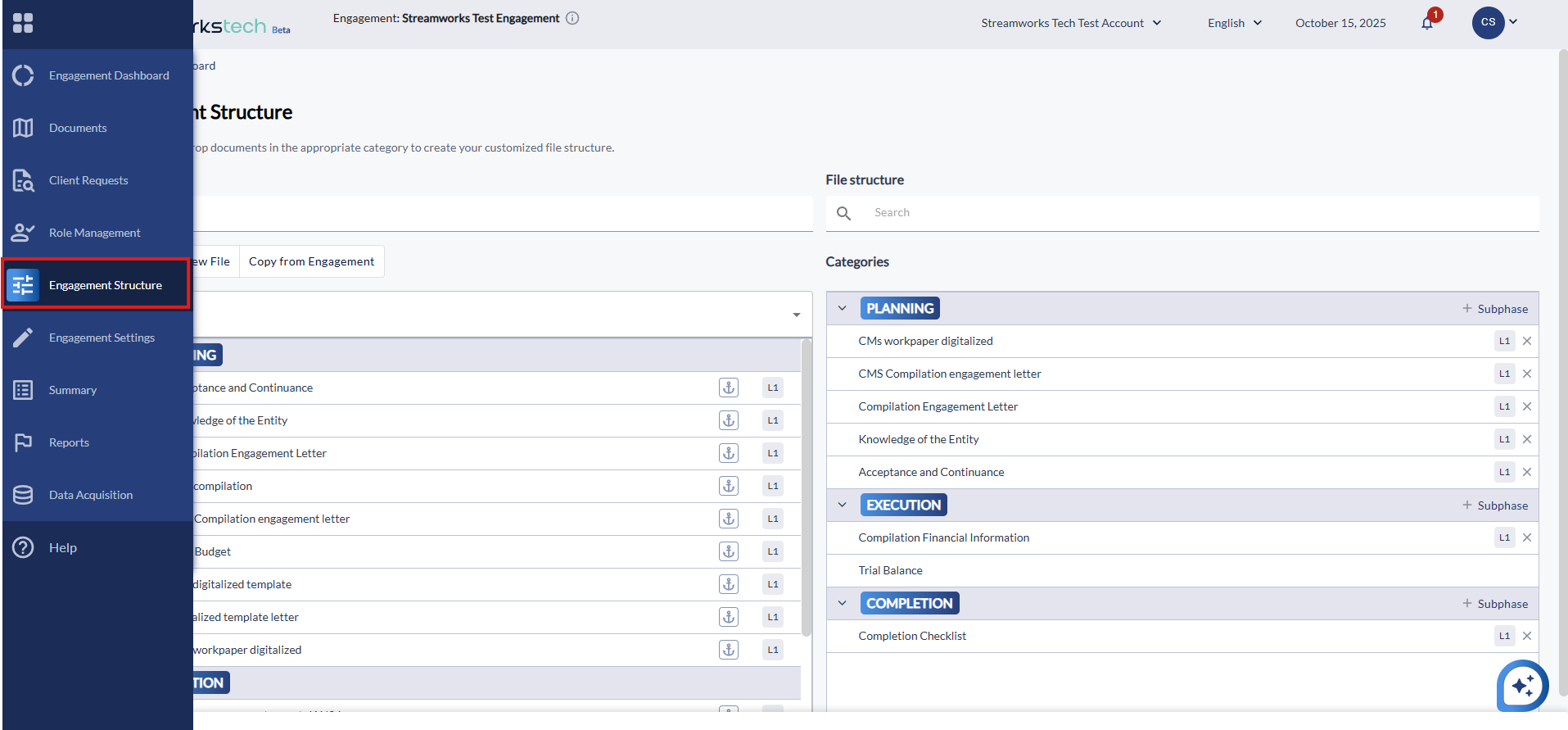
Any optional steps you had during the creation can be further edited in the Engagement itself, when the Engagement is created, the navigation sliding bar will be replaced with an Engagement specific version: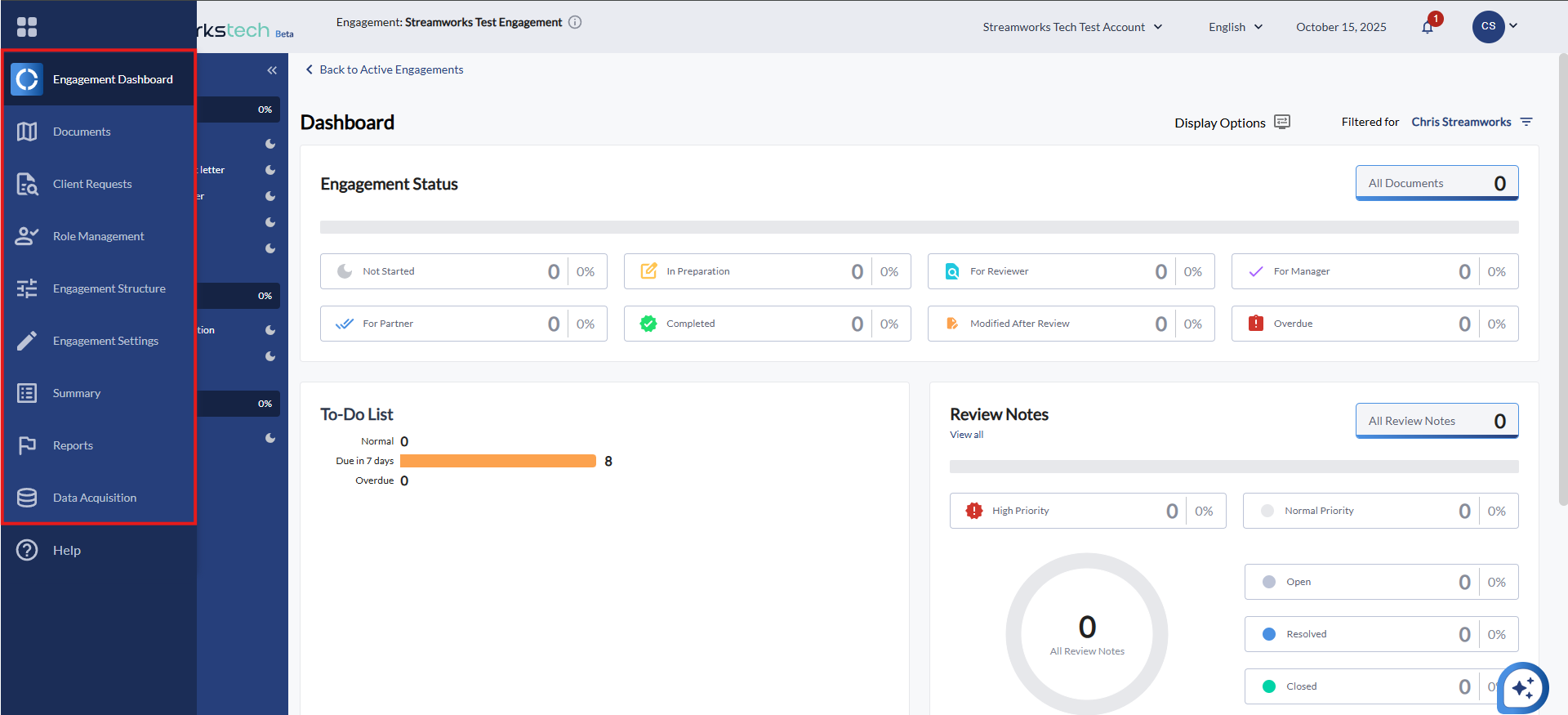
For instance, if you need to add templates into your Engagement, you can go to the 'Engagement Structure' tab to do so: