
Key Functions
- Templates Overview
- Accessing Templates
- Publishing Templates and Making them Default
- Editing Templates
Video Guide
Templates Overview
- Templates need to be setup so that you can use them in your Engagements.
- Templates will need to be published to the firm so that they can be used in the Engagements structure.
- Templates can be set to "Default" so that when you create an Engagement a set of standard templates will always be included upon Engagement creation.
- You will be provided with a list of 'Templates' in your list. These are stock standard templates that cannot be edited or deleted, however, they can be copied to be edited.
Accessing Templates
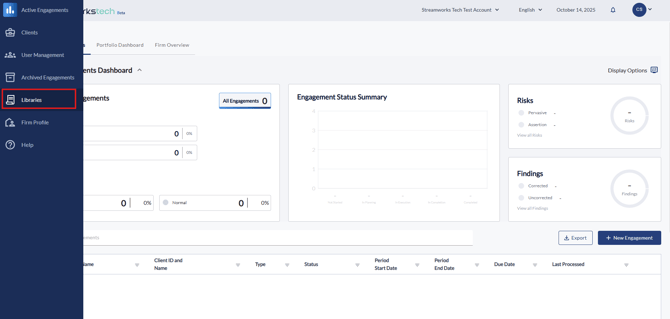
- Highlight over the left navigation bar and click 'Libraries'
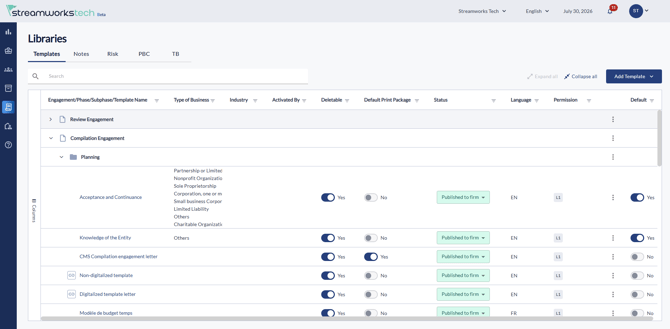
- Your list of templates will show in the table for you to access.
Publishing Templates and Making them Default
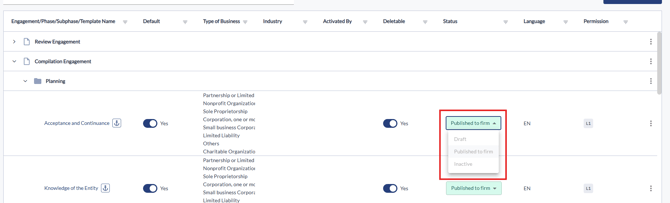
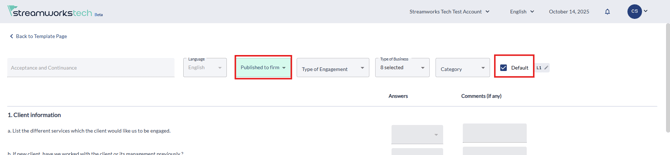
- If your template is ready to be used in an Engagement, you can click the dropdown menu in the line and select 'Published to Firm'.
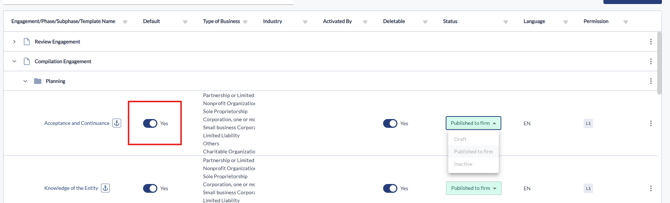
- By marking the template as default with the slider, this will make the template included in every Engagement structure you create.
- You can also adjust both of these options inside the template itself.
Editing Templates
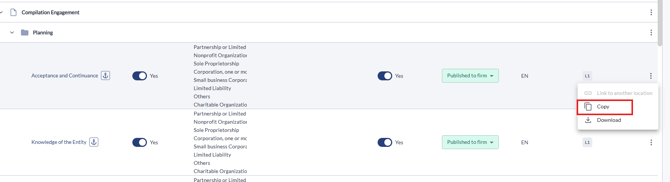
- If the template is an Anchor template it will need to be copied first by clicking the 3 dots to the far right, this will create a editable instance of the template.
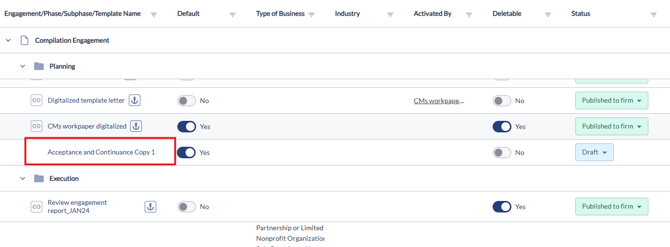
- For the template you want to edit, click the name of the template.
- Click the edit pencil in the far right for each section you want to edit any terminology of.
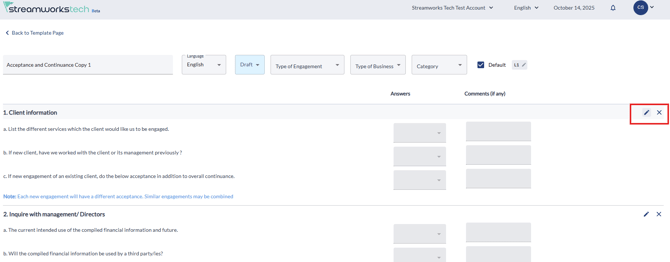
- Each template will have a different function to edit, for instance you can edit the Financial Statement report information and in Acceptance and Continuance you can edit specific questions to be answered.