Key Functions
- Access Admin Portal
- Adding Team Members
- Editing Permissions and Updating User Information
Access Admin Portal
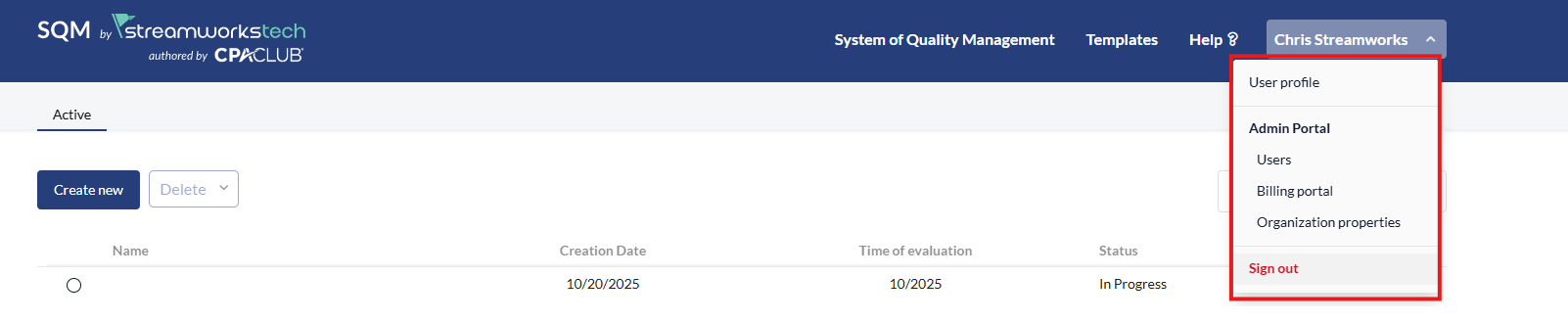
- In the top right hand corner, click your name with the dropdown menu.
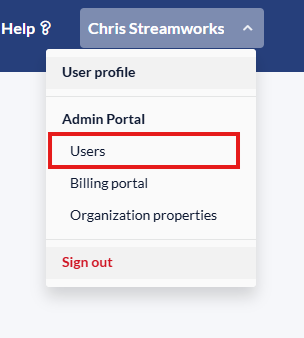
- Select 'Users' from the dropdown menu to access the Admin Portal.
Adding Team Members
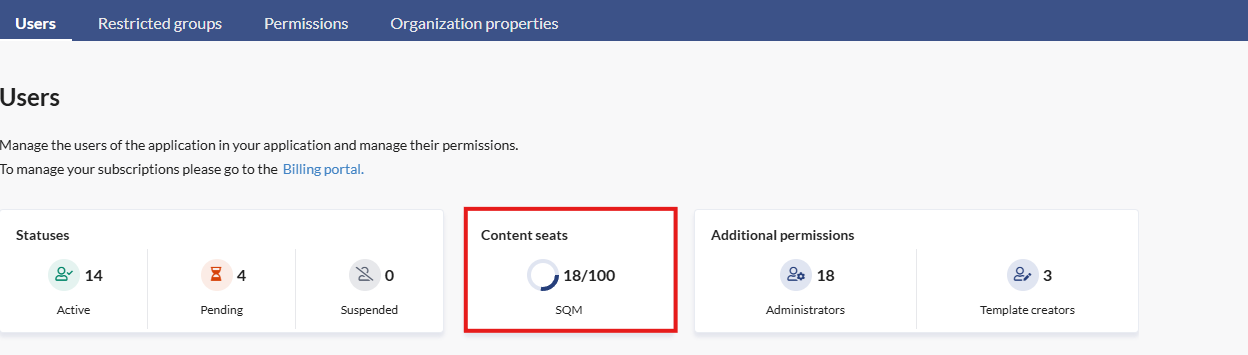
You must have the seat count available to invite new users. You will see in the Admin Portal the seat count how many seats you have available to add new users.
If you need to purchase more seats, you can go to your 'Billing Portal' and update the subscription, to find the 'Billing Portal', go to this guide here.
- From the 'Users' section of the Admin Portal, click 'Invite New User'.
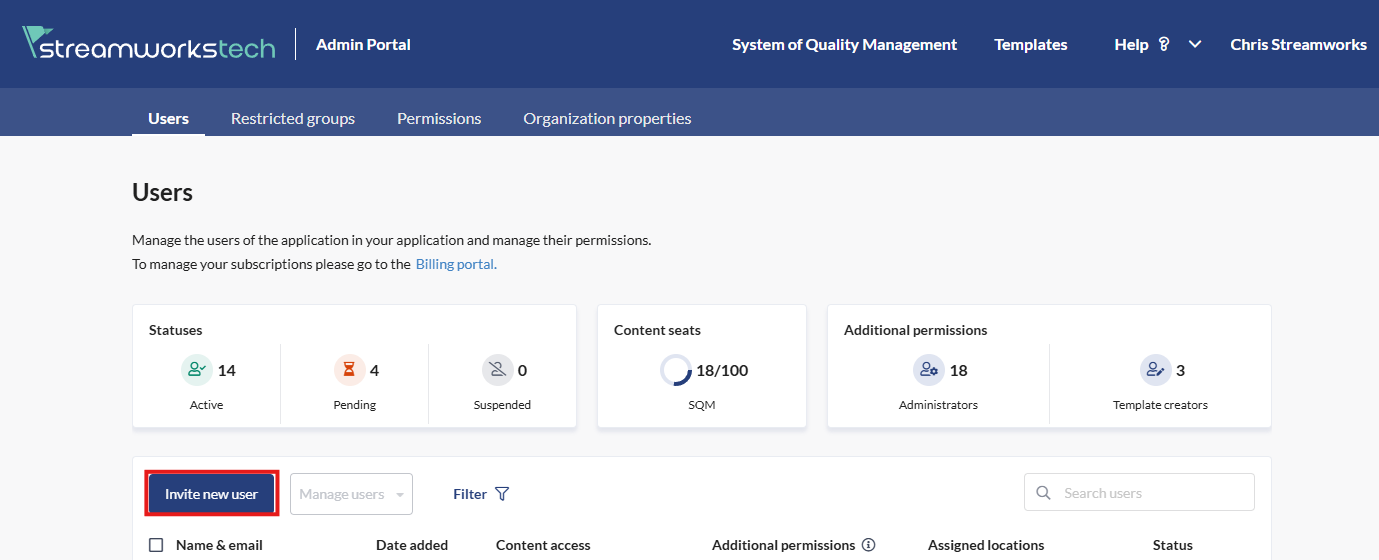
- From the pop up menu, fill in the required information and click 'Send Invitation'.
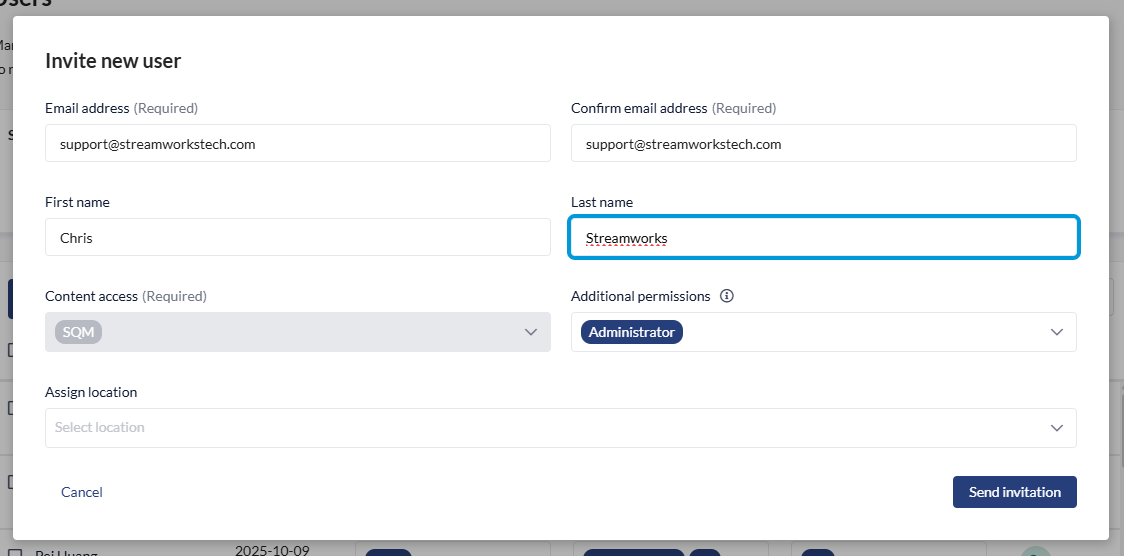
- An invitation will be sent to the new user to setup their account, please advise them to check their spam/junk inbox in case the invite went there.
Editing Permissions and Updating User Information
- After adding a user and they have accepted they will appear in the table in the Admin Portal.
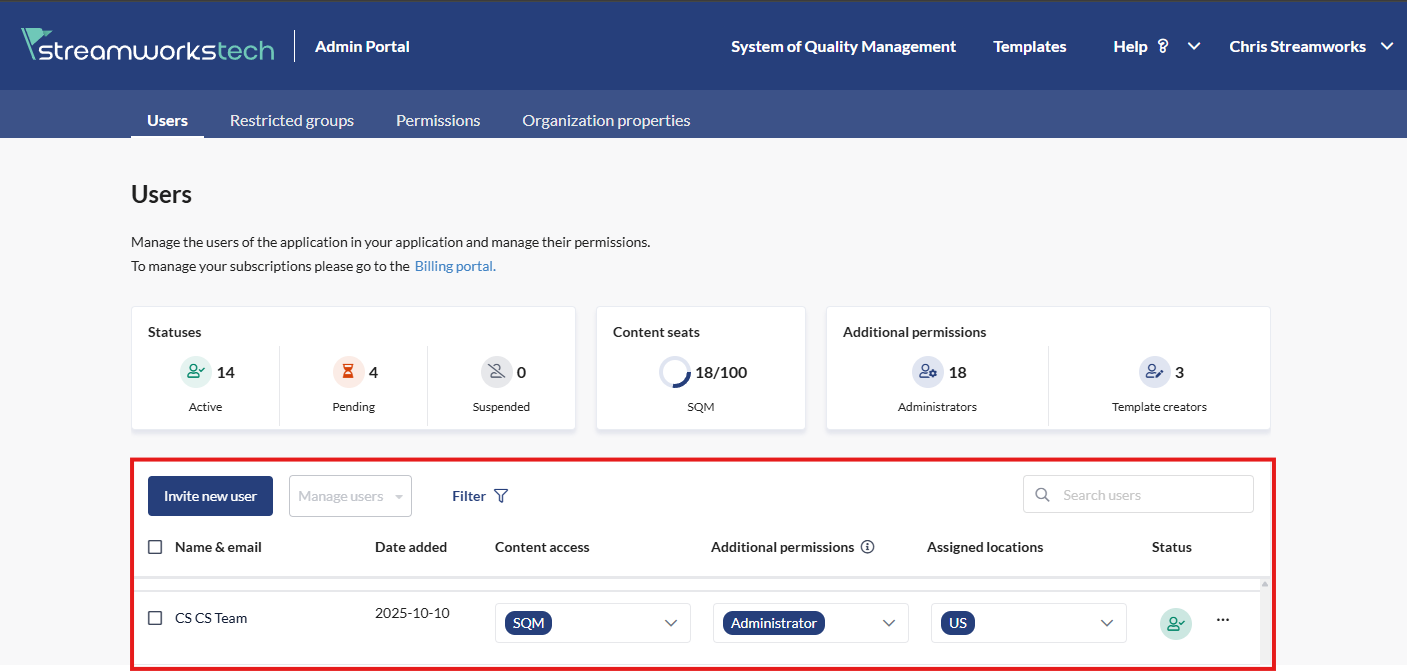
- To update the user with an 'Administrator' permission or 'Template Creator' permission, you can update 'Additional Permissions' dropdown.
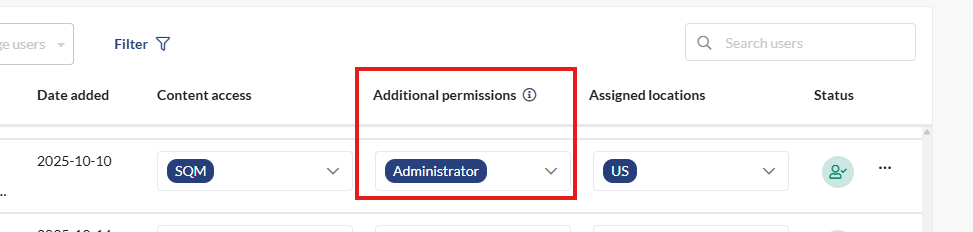
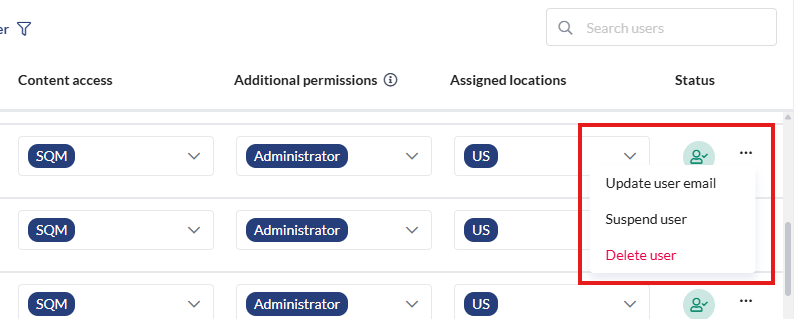
- You can update an email or deactivate a user by using the 3 dot menu on the far right.