
Key Functions
- Uploading a Trial balance
Before beginning, make sure the Trial Balance and Financial Statement templates are in the Engagement Structure. You can check out the How to Create an Engagement Guide on how to do that.
This guide will cover manually uploading a trial balance from your computer, however, you can also request data from our following current integrations:
-QuickBooks
-Xero
Video Guide
Uploading a Trial Balance
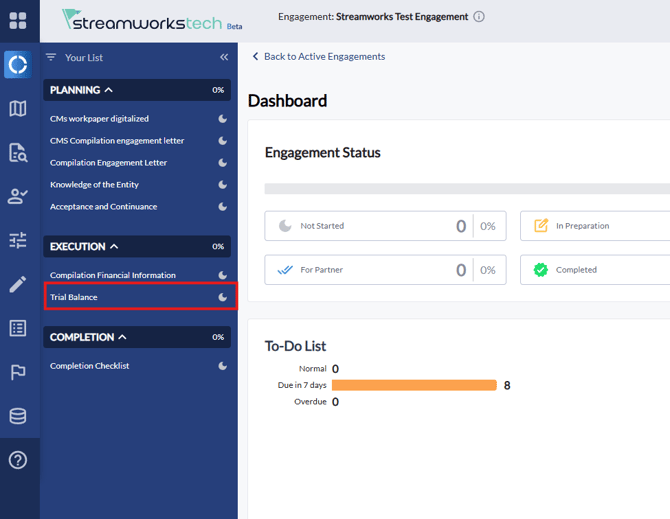
- Navigate to the 'Trial Balance' option in your Engagement Structure
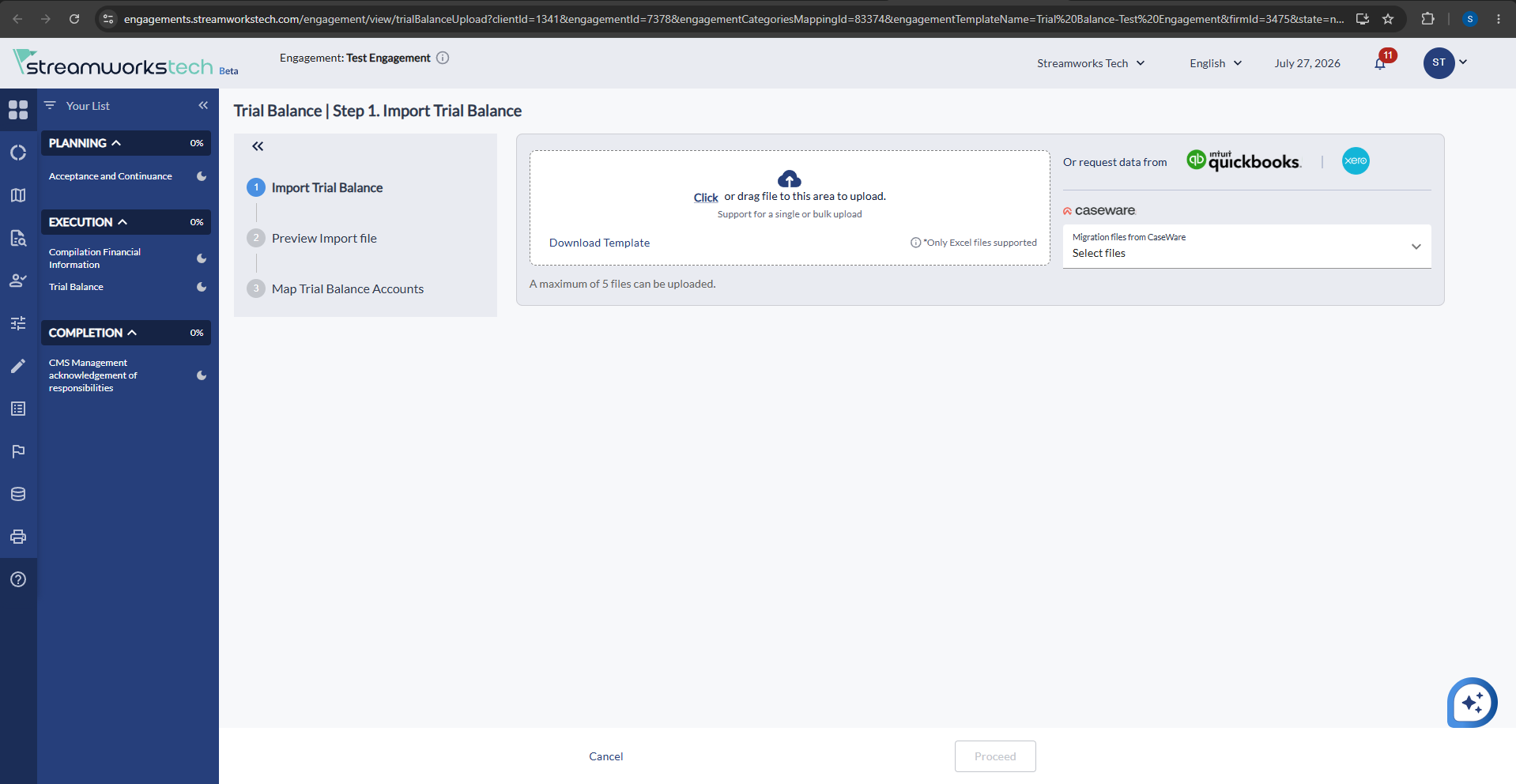
- In the upload section, drag and drop the Trial Balance excel sheets or use the 'Click' button to find them on your PC. You can select in the dropdown whether it is Current Year or Prior Year information, and select the relevant dates for the Prior Year.
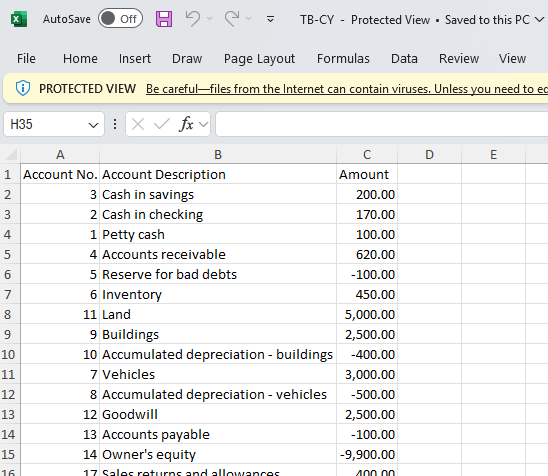
- Here is the example of the Trial Balance uploaded:
- When you click next you will need to specify how the excel sheet is setup so the software can read the information correctly:
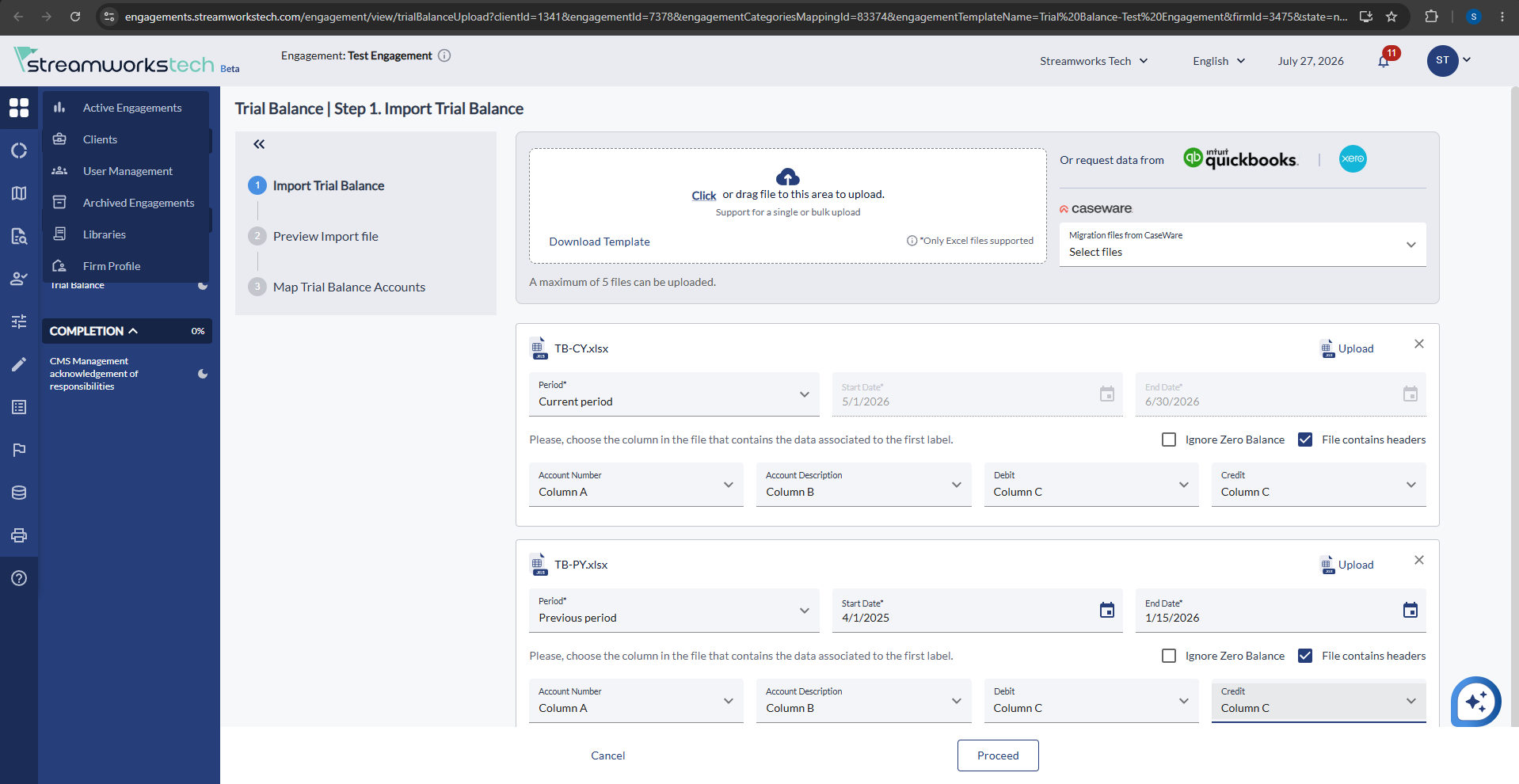
- In this instance, Account Number was in column A, the description was in Column B and the Amounts both Debit and Credit were in Column C.
- You can then preview your mapped accounts by clicking 'Next'.
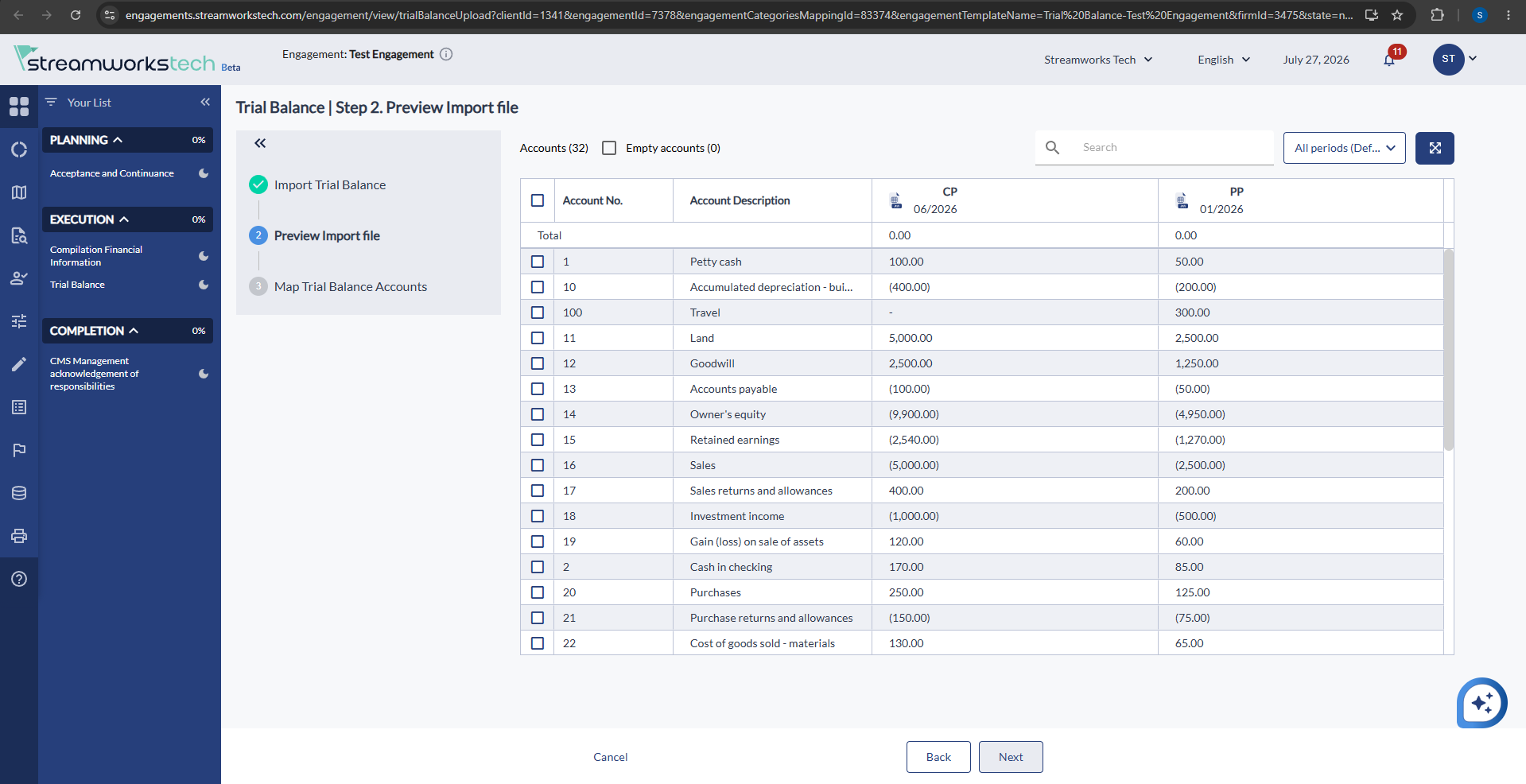
- You can now map the relevant accounts to the system by dragging and dropping them individually OR you can use the 'AI Automap' feature in the top right hand corner.
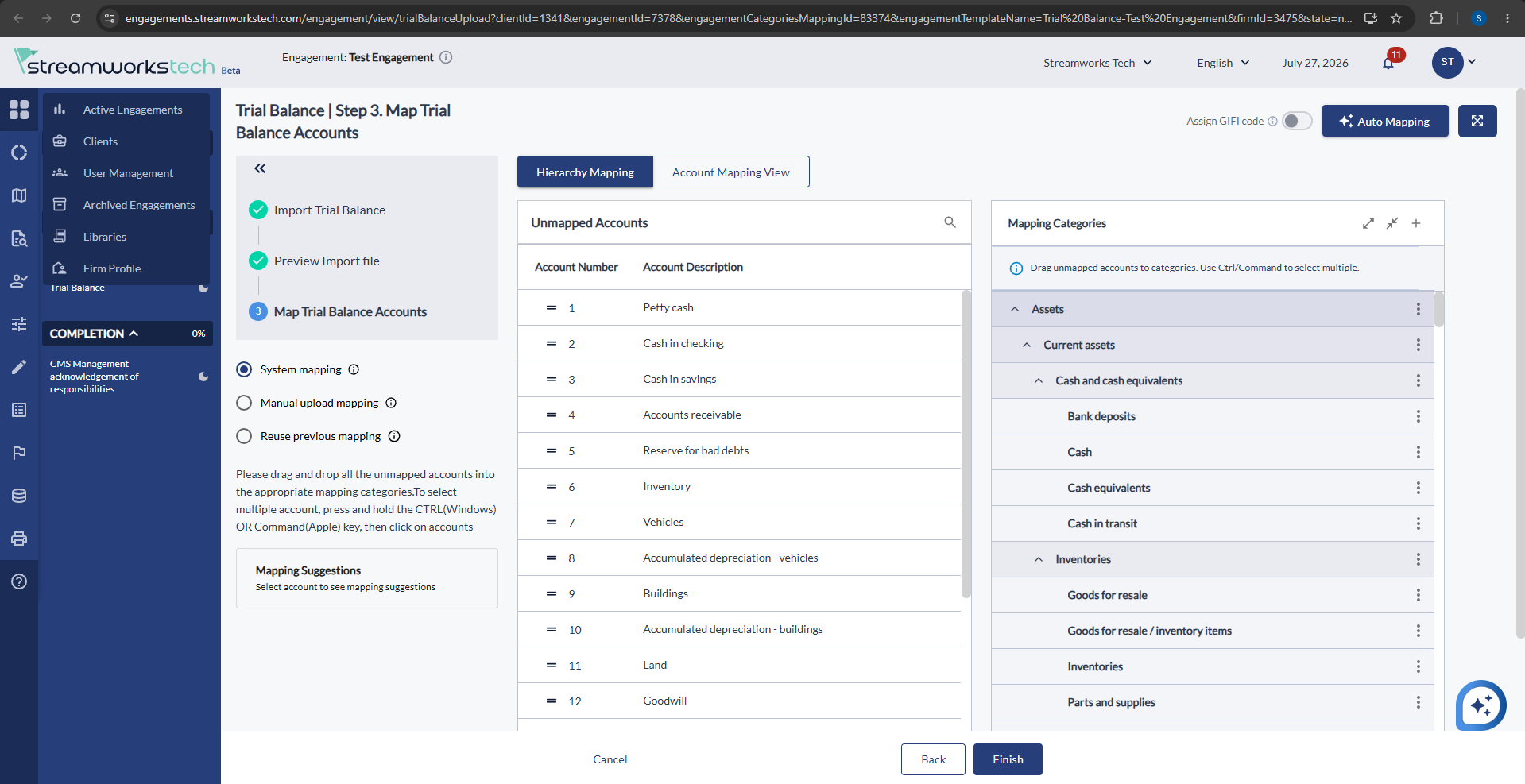
- If you use the Automap feature, you will still have the ability to double check any auto mapping done.
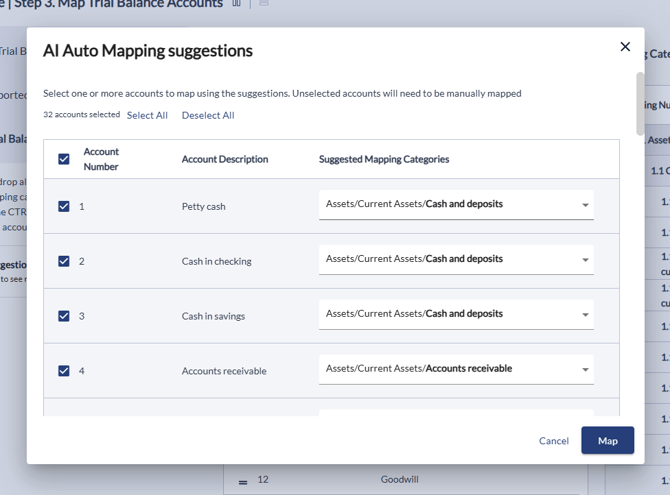
- Confirm the mapping by clicking 'Map' and then click 'Finish' to complete the Trial Balance upload.