Before beginning, make sure the Trial Balance and Financial Statement templates are in the Engagement Structure. You can check out the How to Create an Engagement Guide on how to do that.
Before working in the Financial Statement, it is recommended to minimize the navigation bar to see the whole table: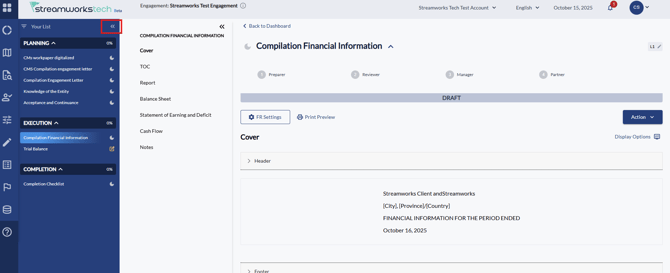
Video Guide
Key Functions
- Editing the Pages
- Financial Statement Settings
- Editing Information
- Managing Line Items
- Downloading the Financial Statement
Editing the Pages
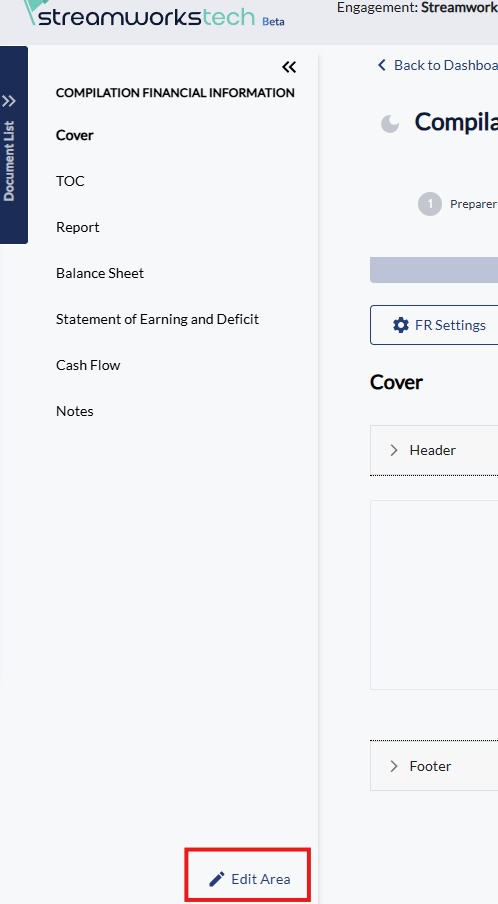
- You can add and remove pages of the Financial Information by clicking 'Edit Area' at the bottom of the contents page.
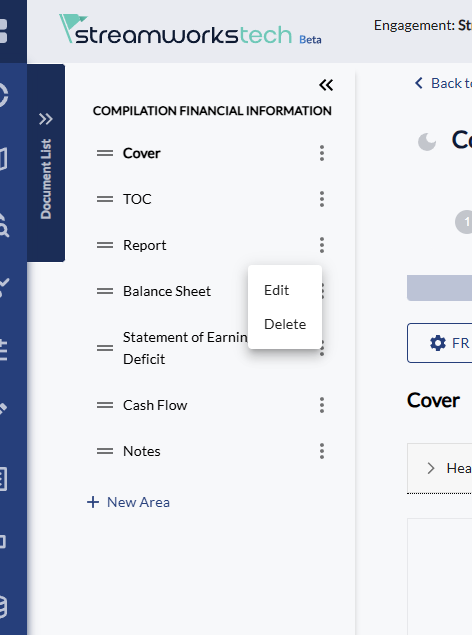
- You can then rearrange, remove and add new pages to your financial information. You can always re-add the pages removed that were preset.
Financial Statement Settings
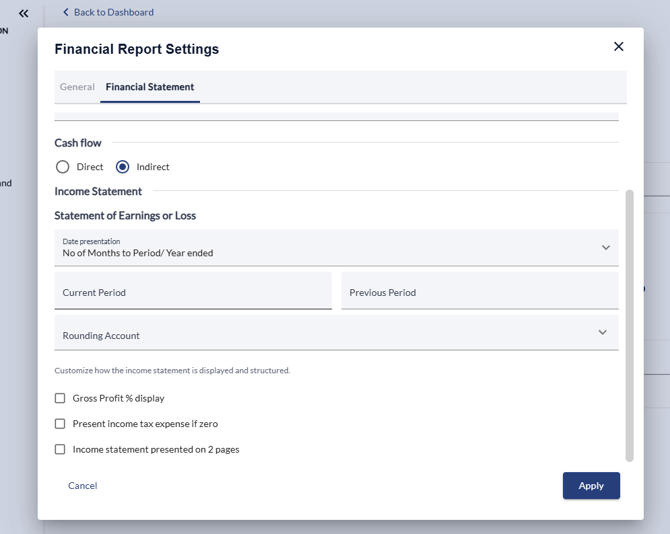
- Click the FR Settings button.
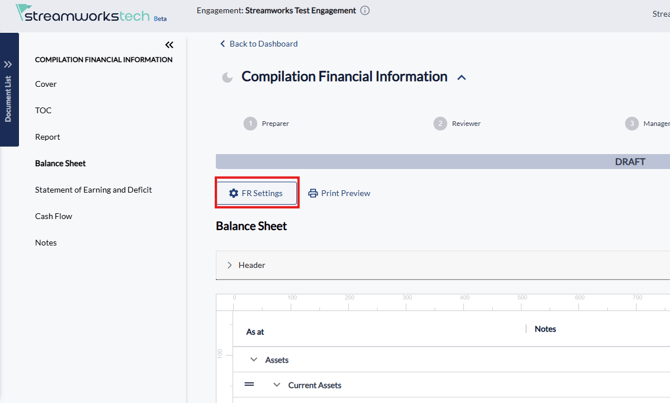
- From the pop up, you can adjust any Statement settings that suit your preferences for the statement.
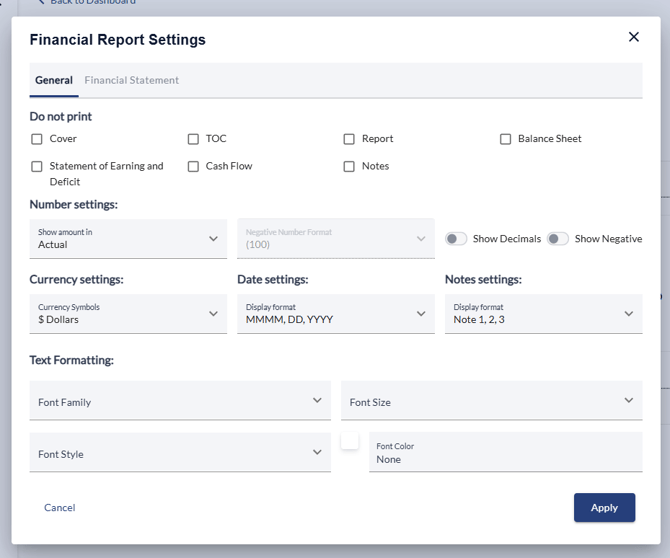
- You can access the General settings for the whole download, and choose settings specifically for the report itself.
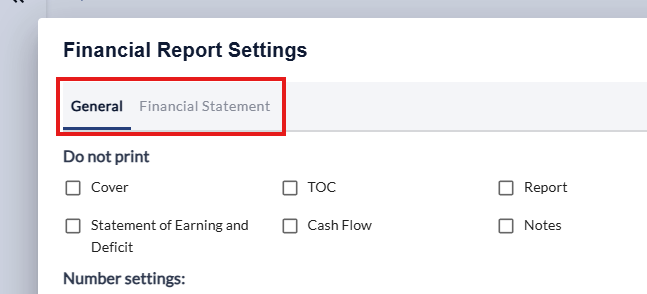
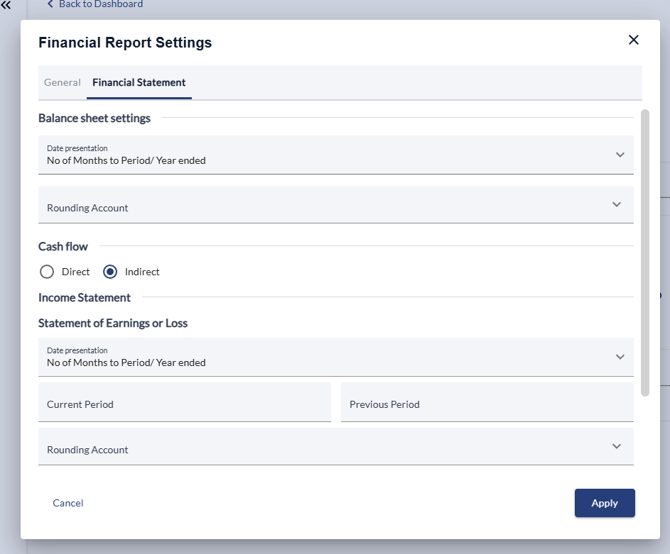
- From the Financial Statement Settings you can choose specifics like date presentations, income statements and whether to show income statements on a different page if you scroll down.
Editing Information
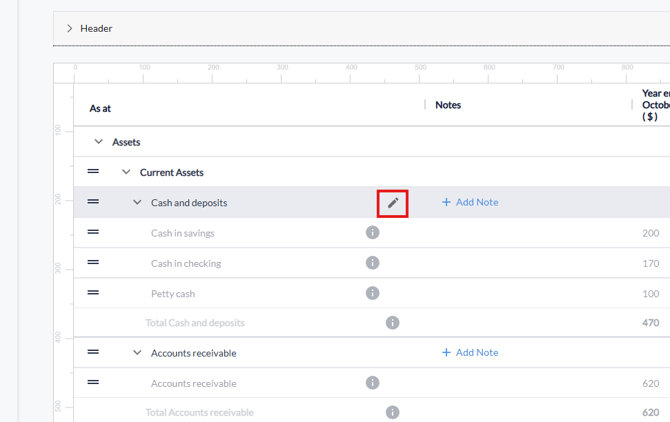
- You can edit any area with a 'Pencil Icon' next to it, for instance, you can edit the name of any accounts in the Financial Statement:
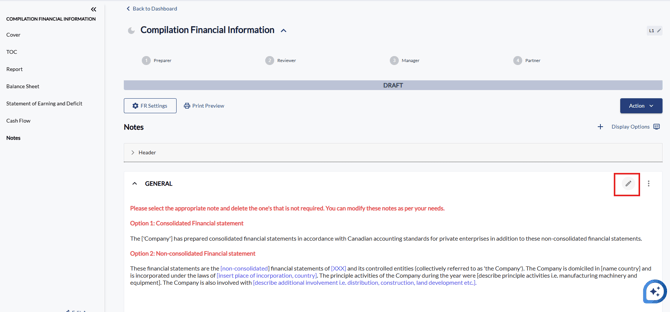
- As well, in the notes section, you can edit default Financial Statements further:
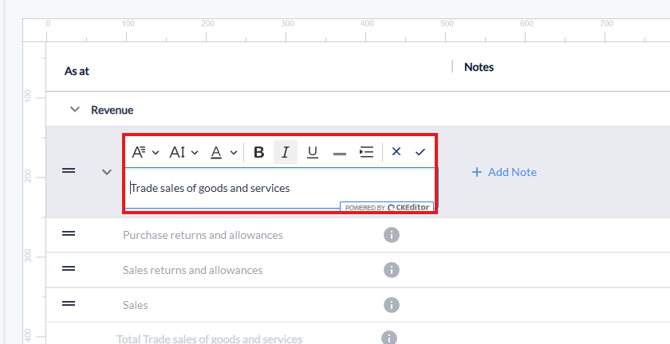
- Editing information in Financial Statements includes font changes, sizing, bolding, underlining, coloring, italics, double underlining indenting.
Managing Line Items
- On the Balance Sheet, you can open the Accounts breakdown to reflect in the final download.
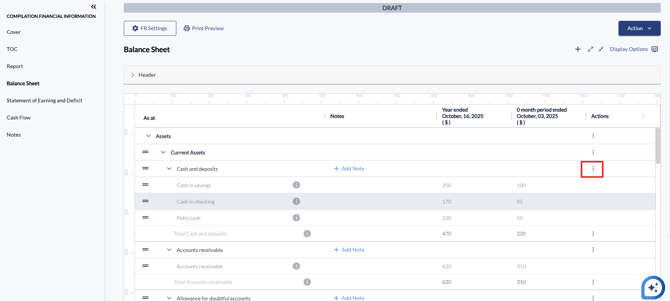
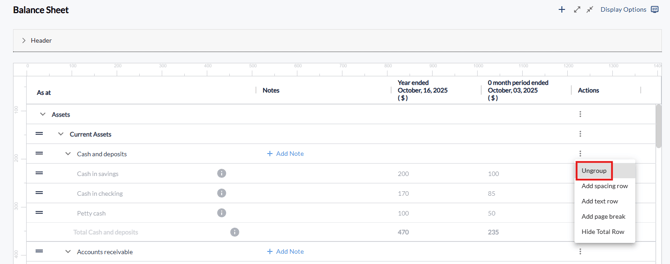
- After clicking the 3 dots, click the 'Ungroup' button.
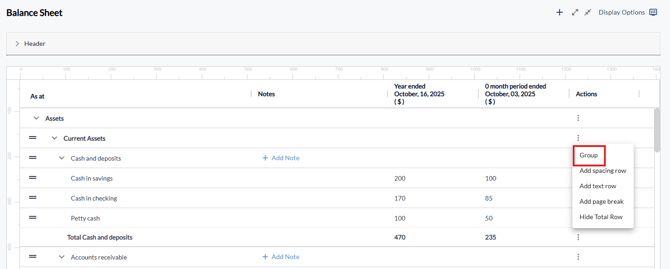
- You can also do the process again to group them again.
Downloading the Financial Statement
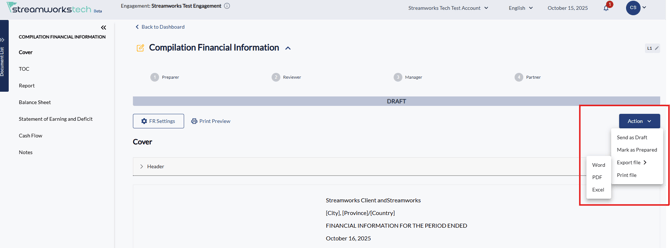
- Click the 'Actions' dropdown in the far right corner.
- Click the 'Export File' option.
- Select the File type you want to download the Statement as.