---
title: Review Notes Common Tool
description: How to open, delete and review review notes
---
[Skip to content](https://crm.streamworkstech.com/sqmknowledge/review-notes-common-tool#main-content)
English
Show submenu for translations

Open main navigation
Close main navigation
- English
Show submenu for translations
- [Contact us](https://share.hsforms.com/1PJtrC1B7Squ0Pompg3m5iAeaa0v)
[Contact us](https://share.hsforms.com/1PJtrC1B7Squ0Pompg3m5iAeaa0v)
How can we help you?
- There are no suggestions because the search field is empty.
1. [SQM Guide](https://crm.streamworkstech.com/sqmknowledge?hsLang=en)
2. [User Guide](https://crm.streamworkstech.com/sqmknowledge/user-guide?hsLang=en)
3. [Common Tools](https://crm.streamworkstech.com/sqmknowledge/user-guide?hsLang=en#common-tools)
# Review Notes Common Tool
### Key Functions
- Creating a Review Note
- Deleting a Review Note
- Signing off on a Review Note
### Creating a Review Note
1. Select 'Review Note' from the Common Tool dropdown.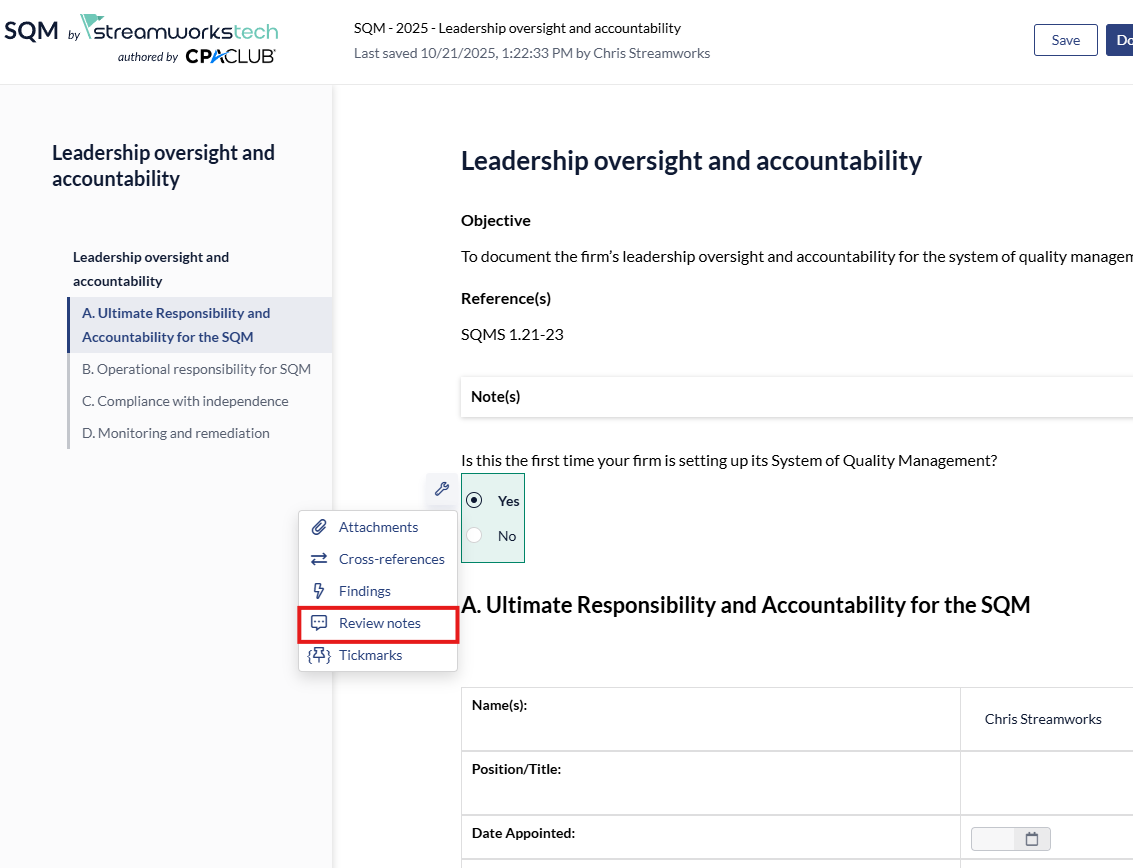
2. From the right panel, leave a note, set a priority level and assign a team member to the review note.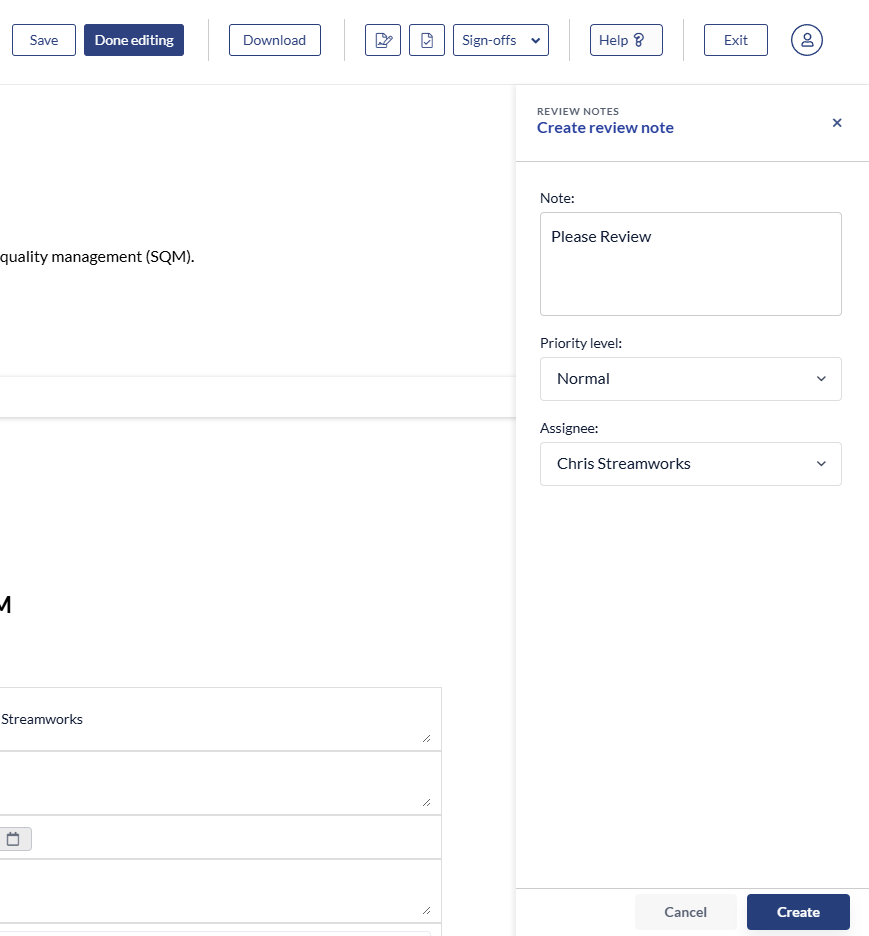
3. Click 'Create' to finish the process.
### Deleting a Review Note
1. Select the 'Review Note' icon from the right panel.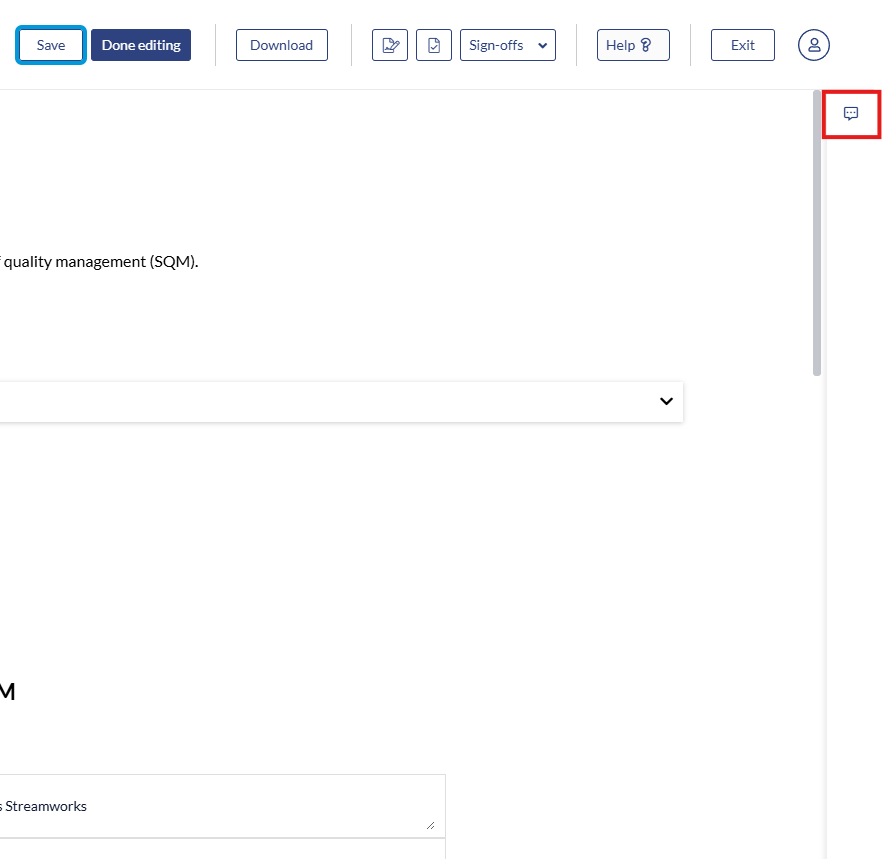
2. Click the 3 dot menu and select 'Delete' to remove the Review Note.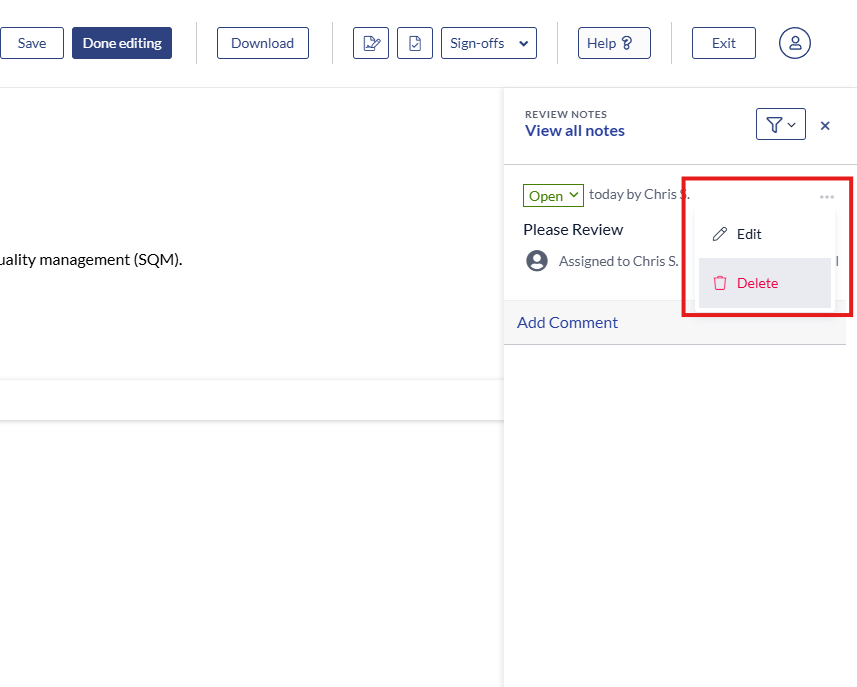
### Signing off on a Review Note
1. Any assigned Review Notes can be found from the 'Summaries' tab.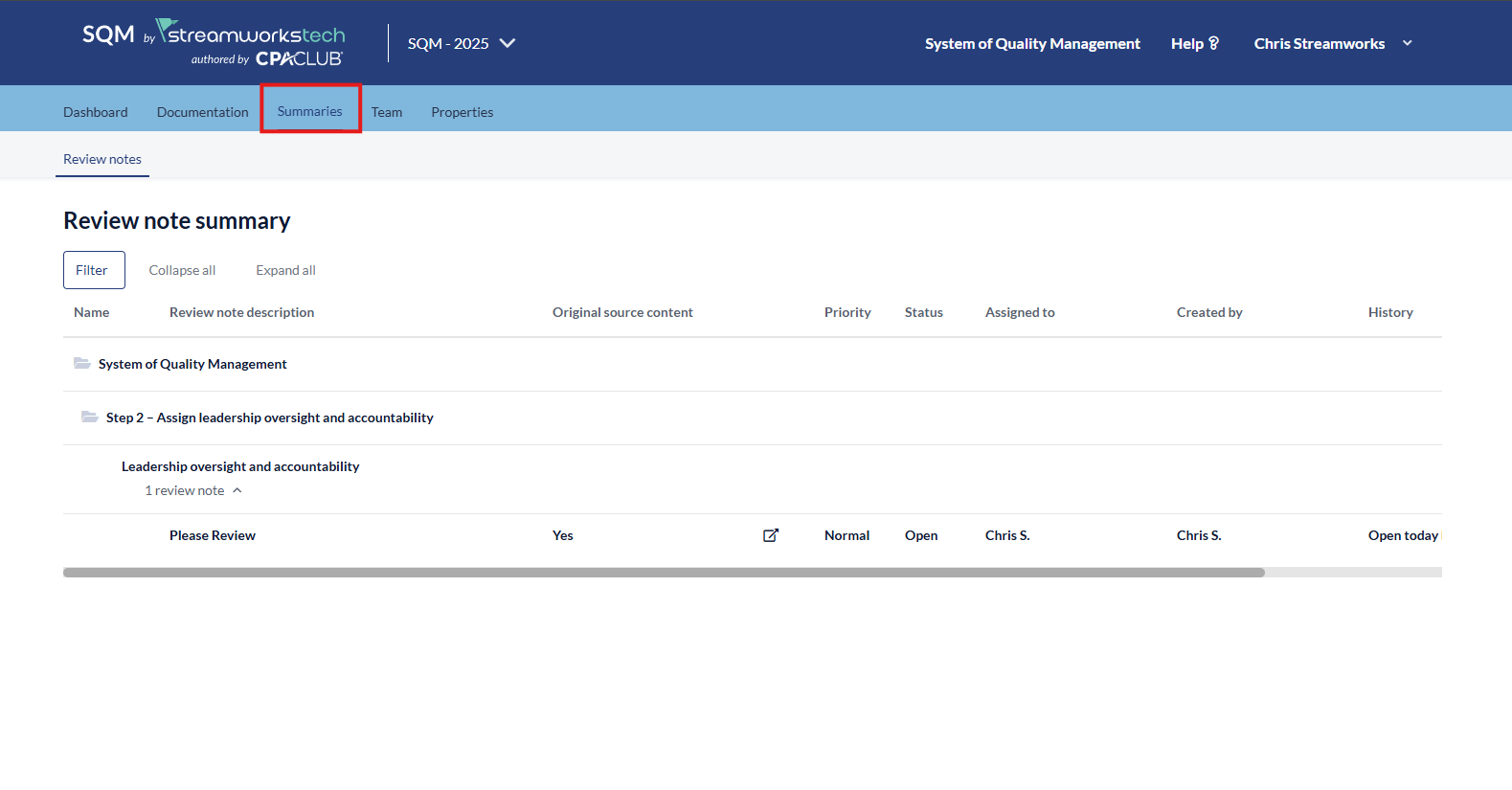
2. You can click the box and arrow icon to be taken to where the Review Note is embedded in the SQM.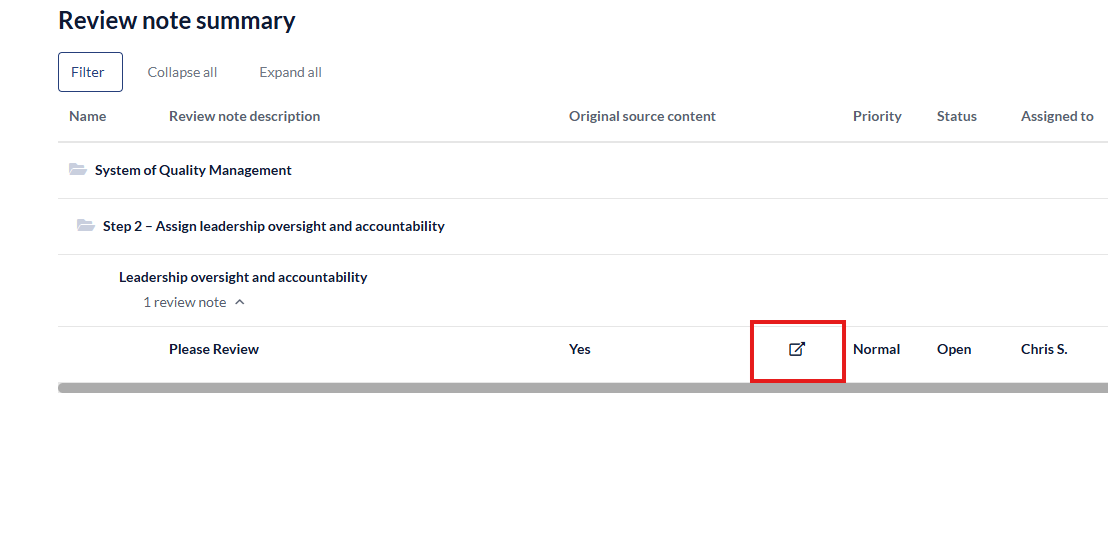
3. Once the 'Review Note' is reviewed, it can be closed with the dropdown menu.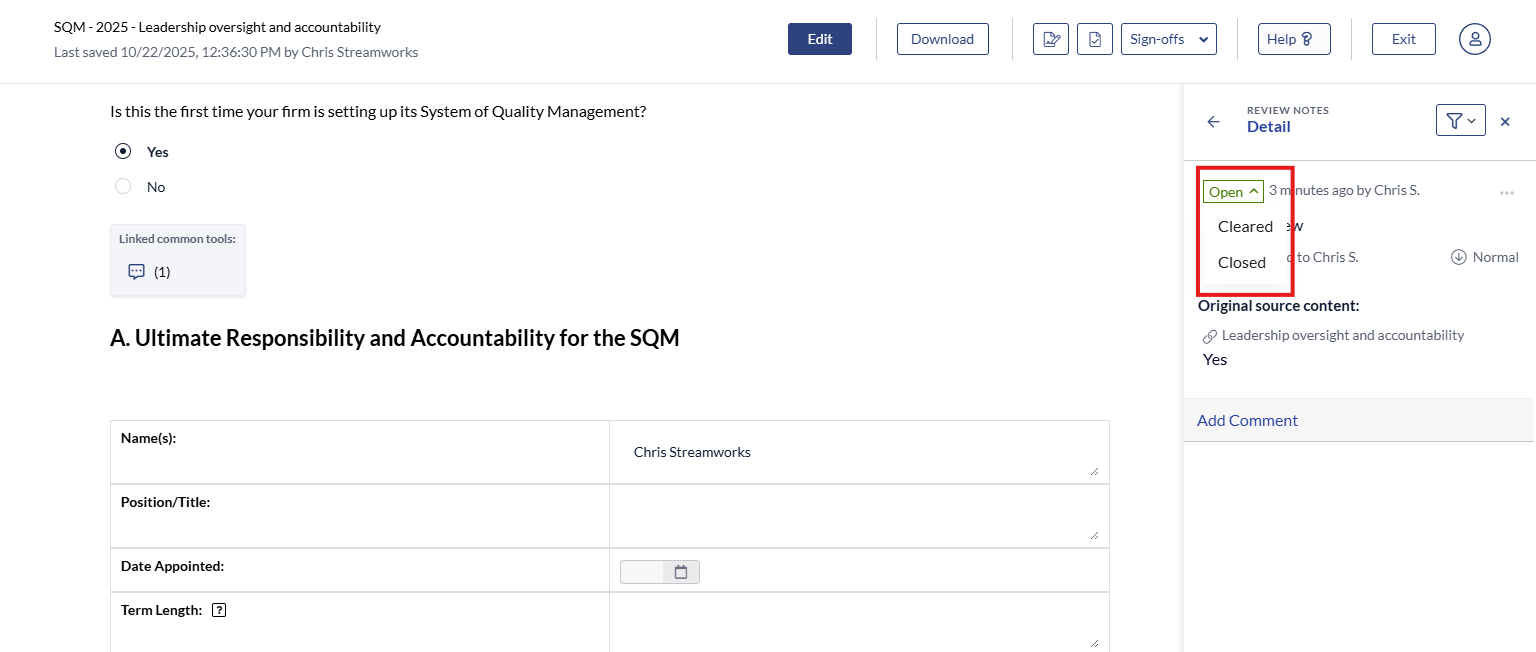
- [User Guide](https://crm.streamworkstech.com/sqmknowledge/user-guide?hsLang=en#main-content)
- [Getting Started](https://crm.streamworkstech.com/sqmknowledge/user-guide?hsLang=en#getting-started)
- [Form Functionality](https://crm.streamworkstech.com/sqmknowledge/user-guide?hsLang=en#form-functionality)
- [Application Functionality](https://crm.streamworkstech.com/sqmknowledge/user-guide?hsLang=en#application-functionality)
- [Common Tools](https://crm.streamworkstech.com/sqmknowledge/user-guide?hsLang=en#common-tools)
- [Support and Account Help](https://crm.streamworkstech.com/sqmknowledge/user-guide?hsLang=en#support-and-account-help)
[](https://streamworkstech.com/)
[mailto:email@email.com](mailto:email@email.com)
Copyright © 2026, Streamworks Tech Inc.