---
title: Importing your SQM
description: Importing an SQM
---
[Skip to content](https://crm.streamworkstech.com/sqmknowledge/importing-your-sqm#main-content)
English
Show submenu for translations

Open main navigation
Close main navigation
- English
Show submenu for translations
- [Contact us](https://share.hsforms.com/1PJtrC1B7Squ0Pompg3m5iAeaa0v)
[Contact us](https://share.hsforms.com/1PJtrC1B7Squ0Pompg3m5iAeaa0v)
How can we help you?
- There are no suggestions because the search field is empty.
1. [SQM Guide](https://crm.streamworkstech.com/sqmknowledge?hsLang=en)
2. [User Guide](https://crm.streamworkstech.com/sqmknowledge/user-guide?hsLang=en)
3. [Getting Started](https://crm.streamworkstech.com/sqmknowledge/user-guide?hsLang=en#getting-started)
# Importing your SQM
### Key Functions
- Importing your SQM from project creation
- Importing your SQM in the project
### Importing your SQM from project creation
You can import your SQM from project creation, to do so, you can [check out the steps at this guide](https://crm.streamworkstech.com/sqmknowledge/tailor-your-system?hsLang=en) here under **Tailoring your system from creation of the SQM.**
### Importing your SQM in the project
1. Click the 'Add New' dropdown.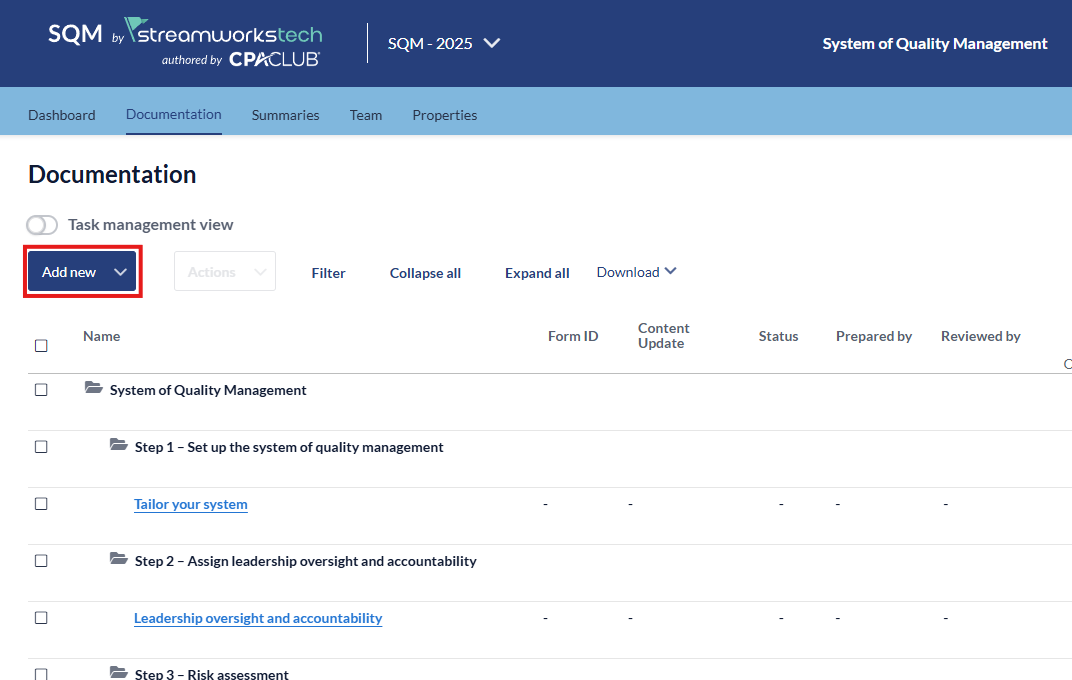
2. Select 'Import existing quality objectives, risks and responses' from the dropdown menu.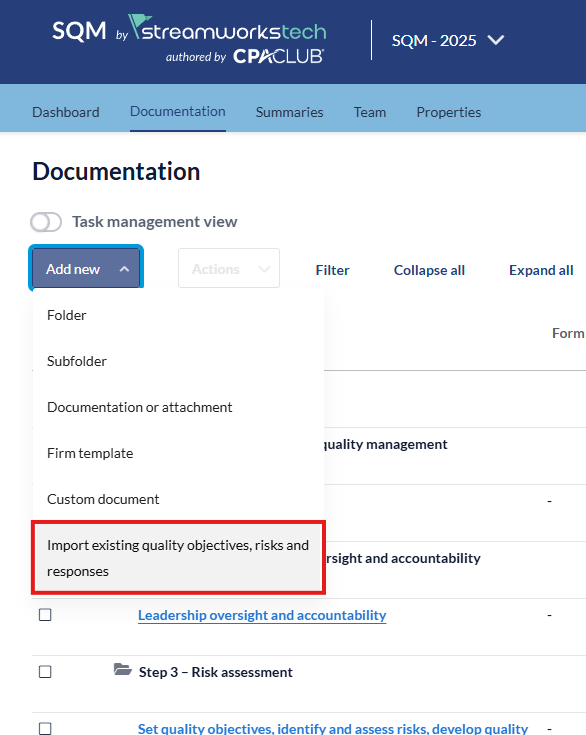
3. This will open a new tab, please read the disclaimer at the start before proceeding with this process.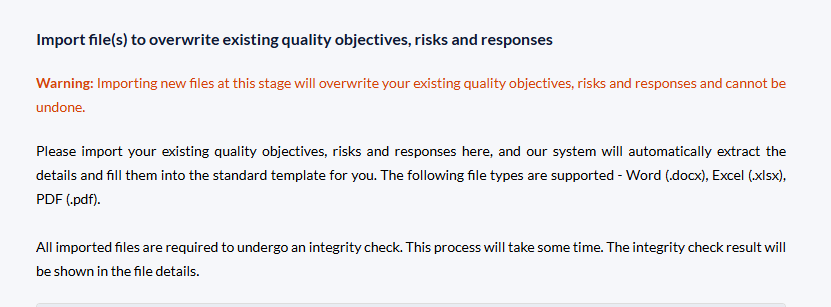
4. Upload the documents you want to into the section at the bottom.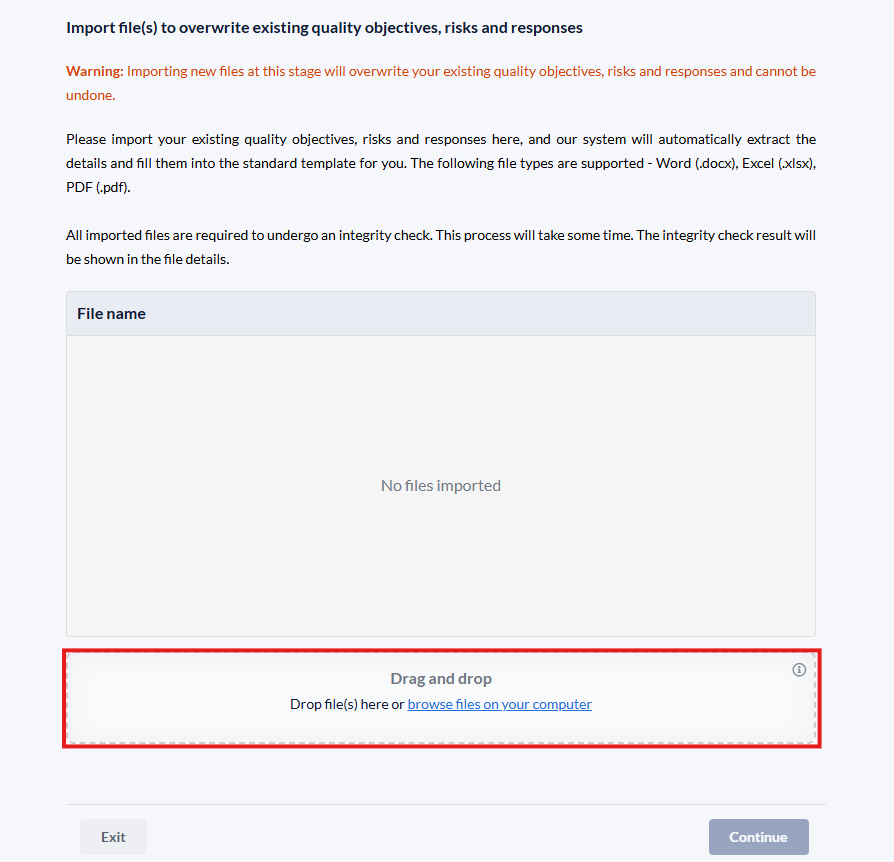
5. Once the files have been uploaded, click 'Continue' to start the process.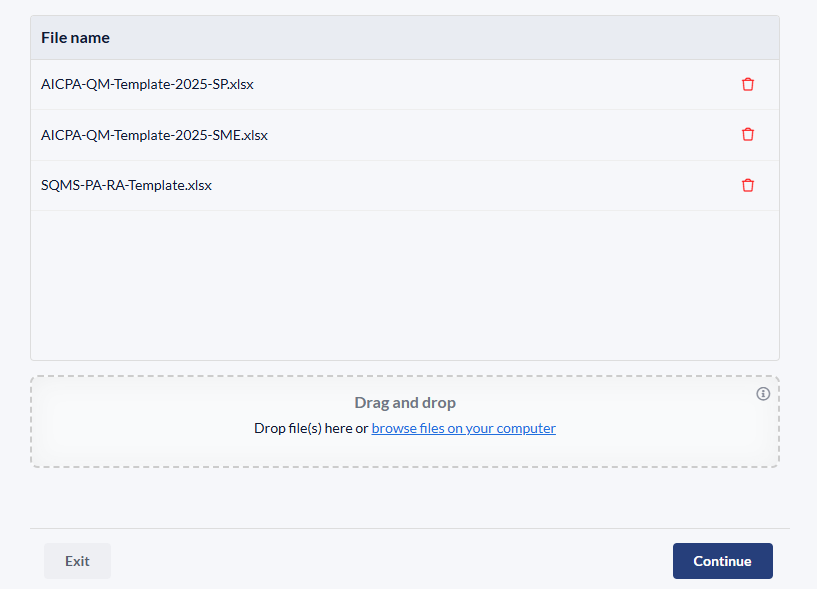
6. Click 'Proceed' after reading the disclaimer.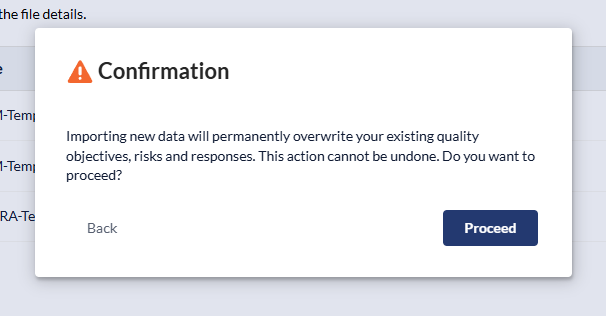
7. You will see this screen while the files are imported.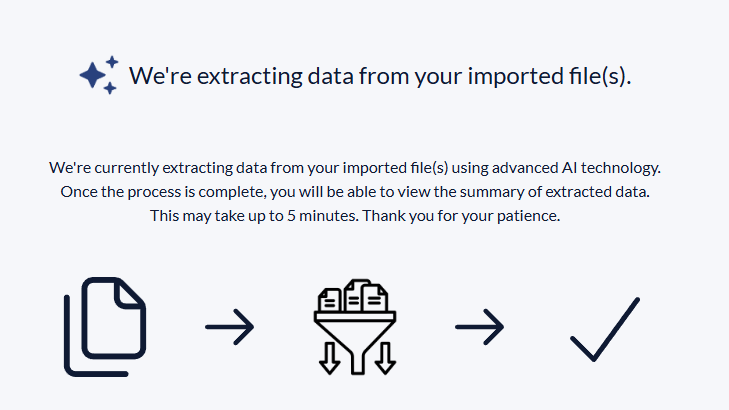
8. You will see a summary of the information imported via extraction.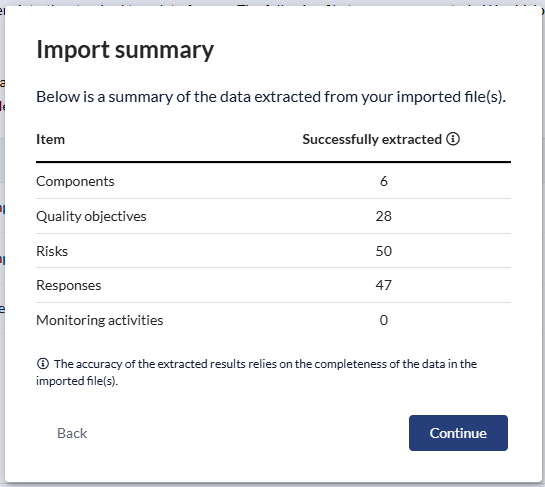
9. After extracting data, you can see a notification of where the import information has gone.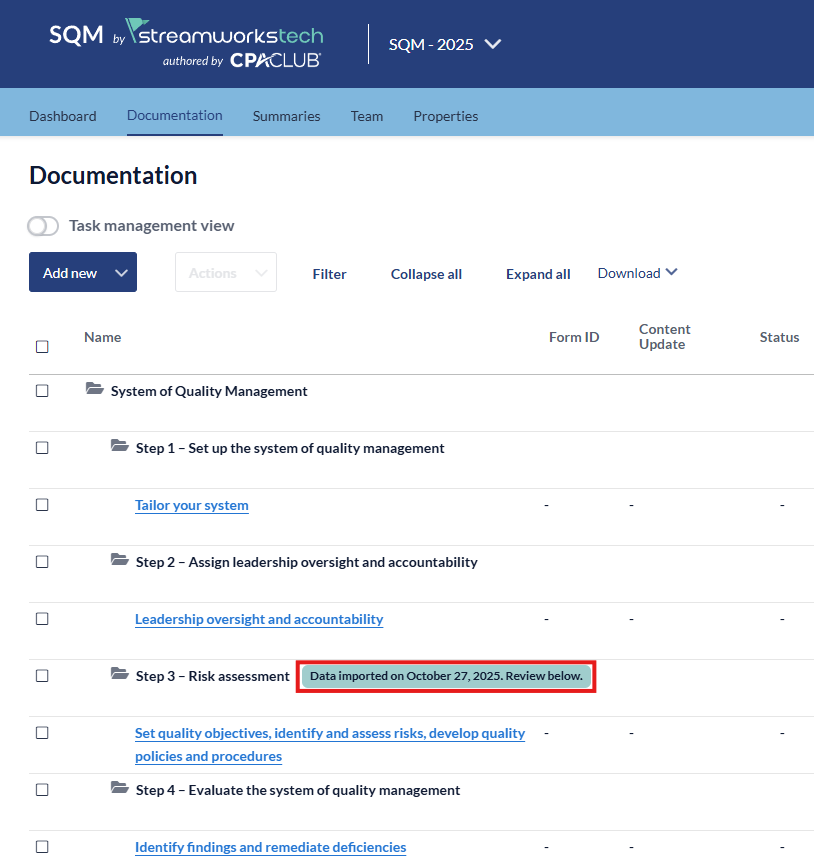
10. Please review all information in the platform to ensure the data has been successfully imported.
- [User Guide](https://crm.streamworkstech.com/sqmknowledge/user-guide?hsLang=en#main-content)
- [Getting Started](https://crm.streamworkstech.com/sqmknowledge/user-guide?hsLang=en#getting-started)
- [Form Functionality](https://crm.streamworkstech.com/sqmknowledge/user-guide?hsLang=en#form-functionality)
- [Application Functionality](https://crm.streamworkstech.com/sqmknowledge/user-guide?hsLang=en#application-functionality)
- [Common Tools](https://crm.streamworkstech.com/sqmknowledge/user-guide?hsLang=en#common-tools)
- [Support and Account Help](https://crm.streamworkstech.com/sqmknowledge/user-guide?hsLang=en#support-and-account-help)
[](https://streamworkstech.com/)
[mailto:email@email.com](mailto:email@email.com)
Copyright © 2026, Streamworks Tech Inc.