---
title: Firm Templates
description: Creating and adding firm templates
---
[Skip to content](https://crm.streamworkstech.com/sqmknowledge/firm-templates#main-content)
English
Show submenu for translations

Open main navigation
Close main navigation
- English
Show submenu for translations
- [Contact us](https://share.hsforms.com/1PJtrC1B7Squ0Pompg3m5iAeaa0v)
[Contact us](https://share.hsforms.com/1PJtrC1B7Squ0Pompg3m5iAeaa0v)
How can we help you?
- There are no suggestions because the search field is empty.
1. [SQM Guide](https://crm.streamworkstech.com/sqmknowledge?hsLang=en)
2. [User Guide](https://crm.streamworkstech.com/sqmknowledge/user-guide?hsLang=en)
3. [Application Functionality](https://crm.streamworkstech.com/sqmknowledge/user-guide?hsLang=en#application-functionality)
# Firm Templates
### Key Functions
- How to add Firm Templates into the account
- How to add Firm Templates into a project
To add Firm Templates into the account, the user must have the 'Template Creator' permission assigned to them. See this Manage Team guide to see how to update that.
### How to add Firm Templates into the account
1. Click the 'Templates' button at the top right of the taskbar.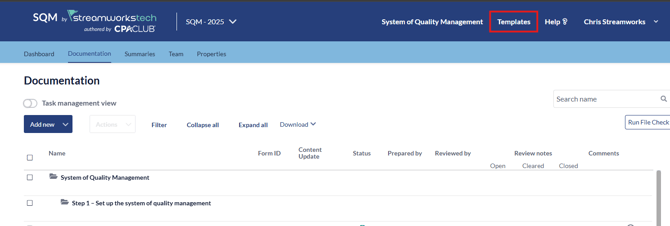
2. Click 'Create new template' to begin creating.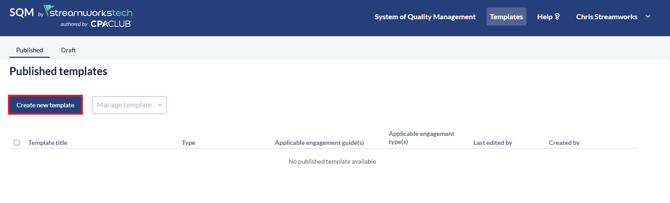
3. A popup will appear ready to be filled in.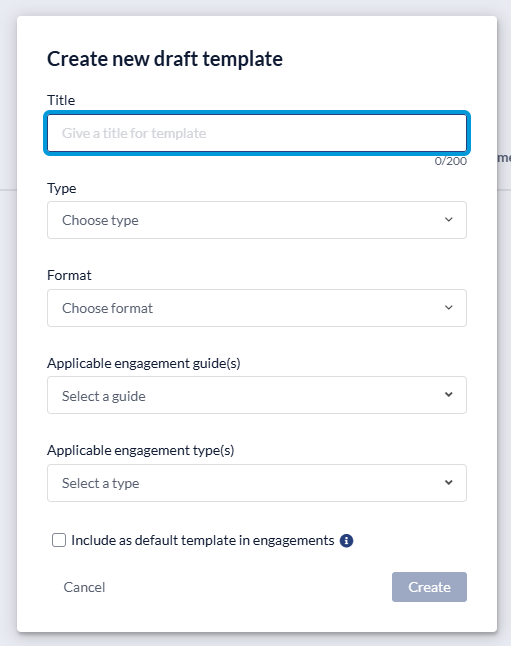
4. When filled in, click 'Create' to create the 'Draft'.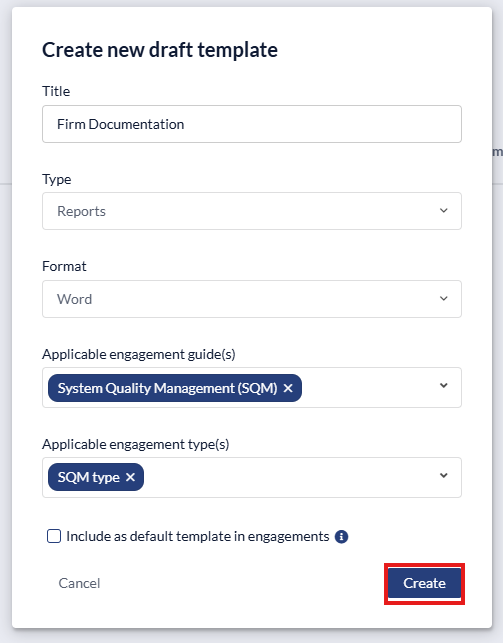
5. The template will appear in the 'draft' category ready for further editing and publishing. 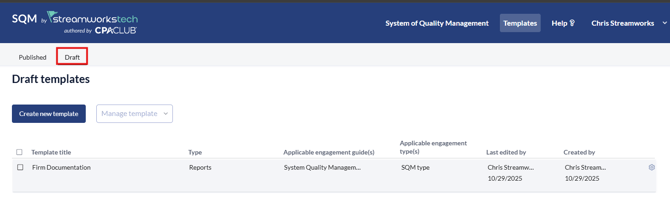
6. The 'Cog Icon' to the right can be clicked to bring up the template properties again.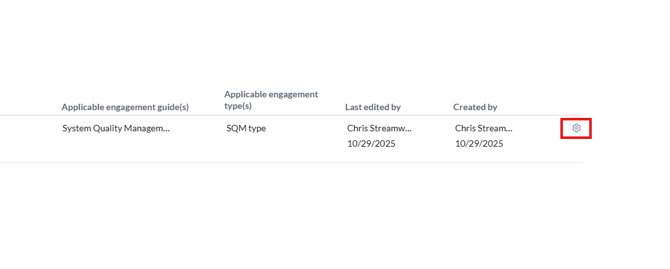
7. Click the template name to edit the details inside the template.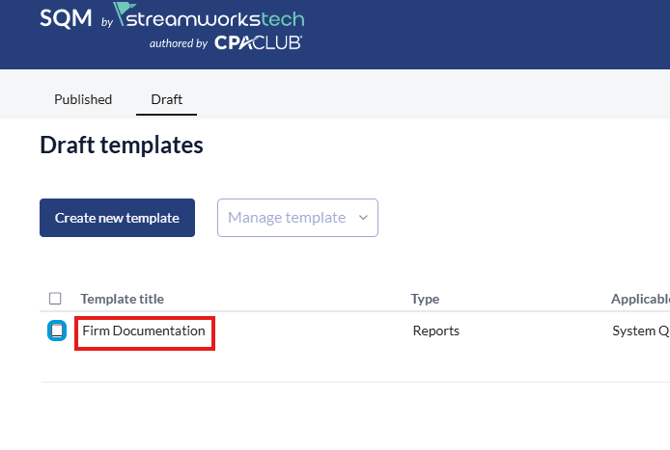
8. When in the template draft, click the 'Edit' button to make any changes to the document.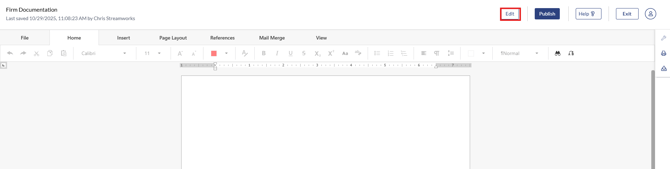
9. When the template is ready, click the 'Publish' button.
10. The template will now appear in the 'Published' section.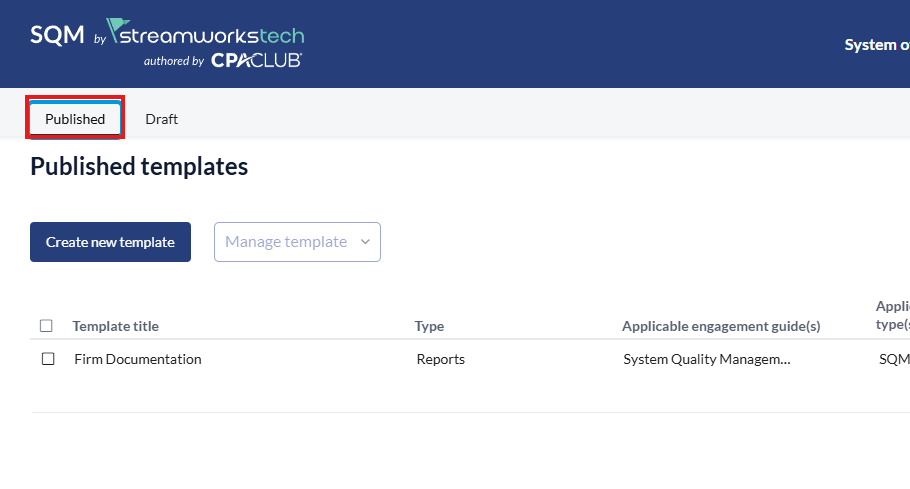
### How to add Firm Templates into a project
1. From the documents page, click the 'Add New' dropdown.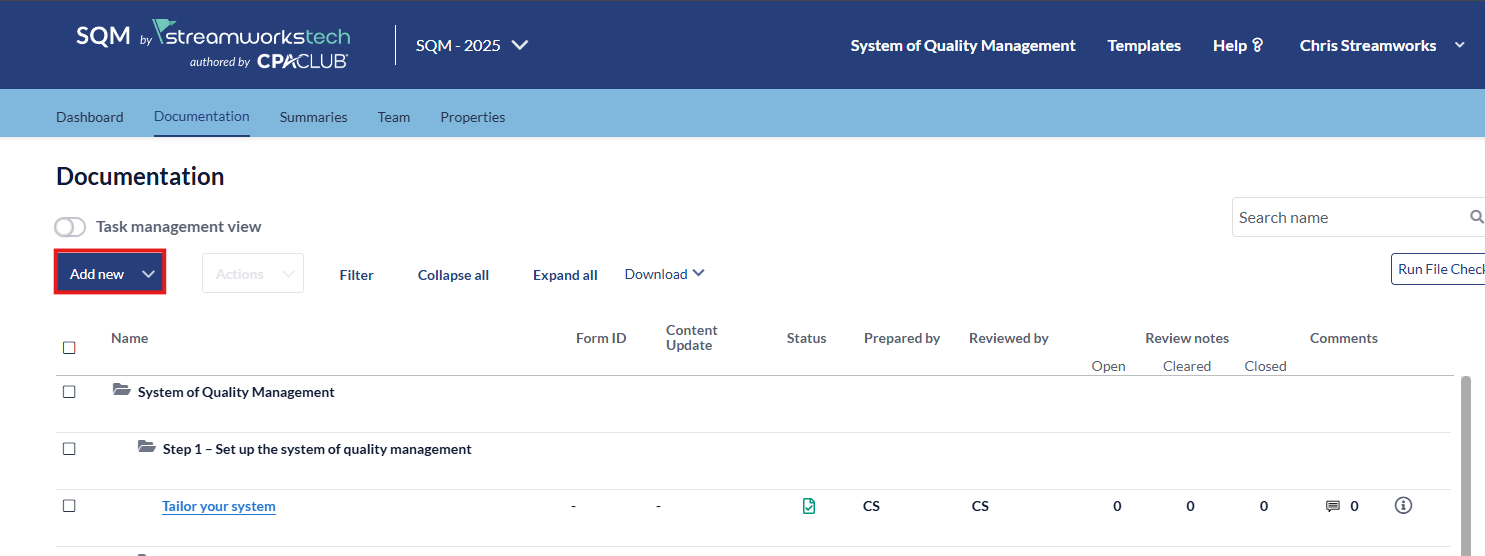
2. Select 'Firm Template' from the dropdown menu.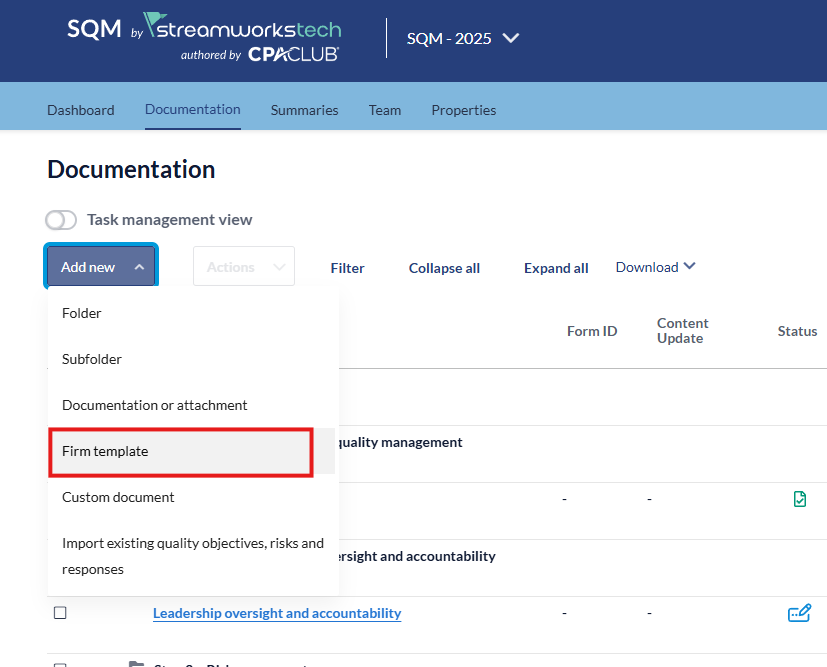
3. From the popup menu, select the template you want to add and click 'Import Template'.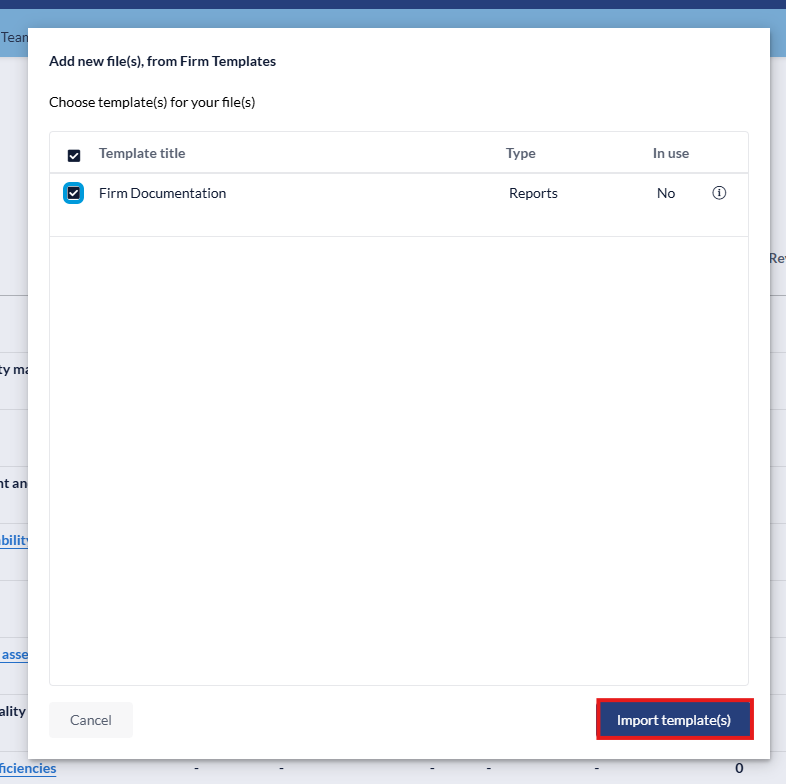
4. Select the folder you want the template placed in. You will also have the option to change the name to something relevant to the SQM project. Click 'Add File(s)' when ready.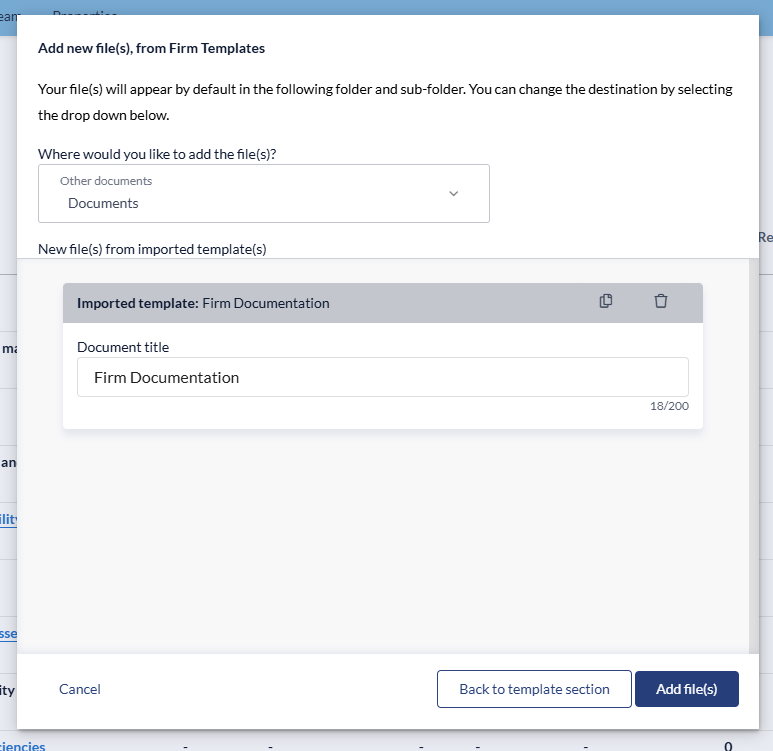
5. The document will now appear in the documents page ready to use.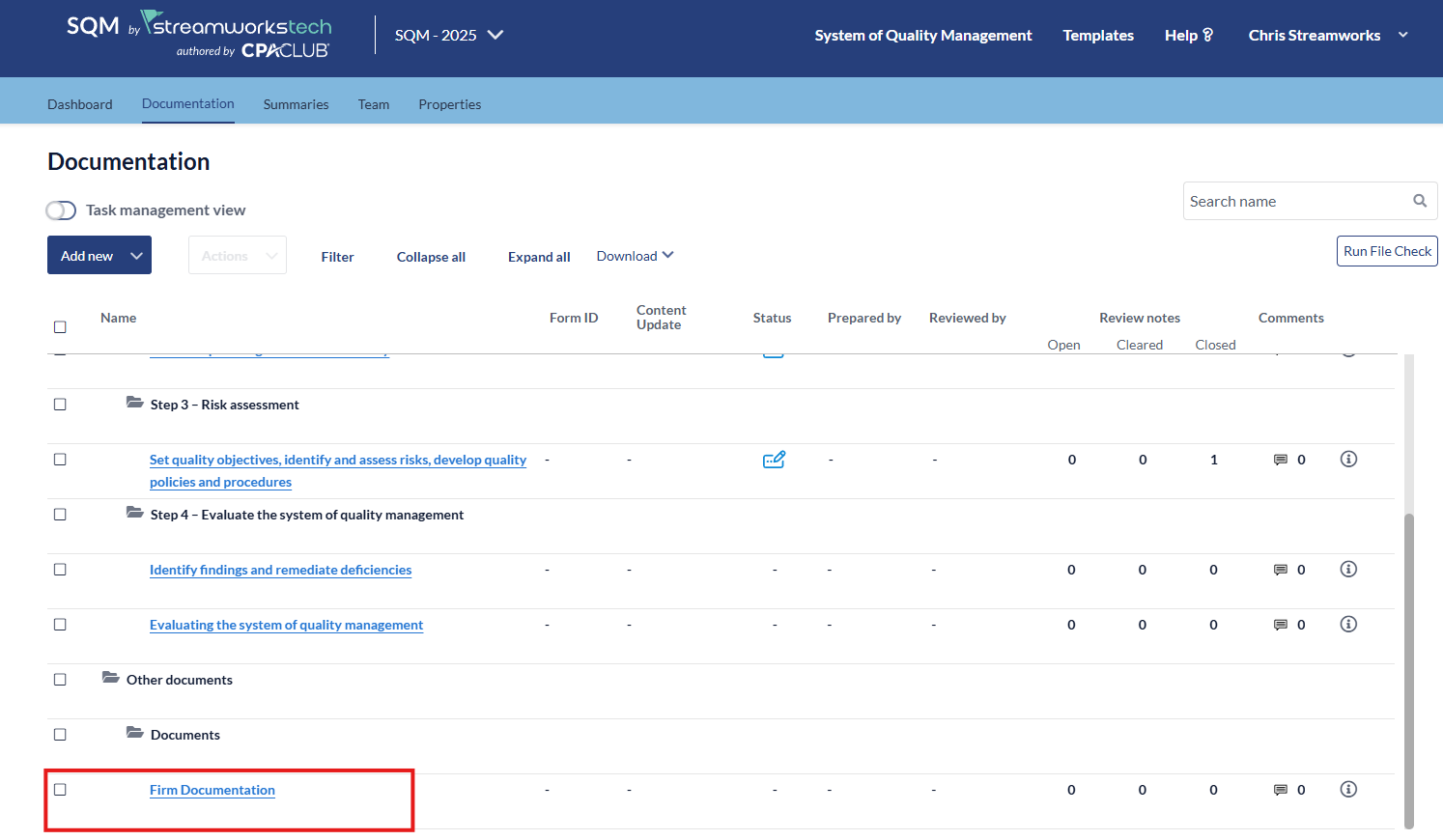
- [User Guide](https://crm.streamworkstech.com/sqmknowledge/user-guide?hsLang=en#main-content)
- [Getting Started](https://crm.streamworkstech.com/sqmknowledge/user-guide?hsLang=en#getting-started)
- [Form Functionality](https://crm.streamworkstech.com/sqmknowledge/user-guide?hsLang=en#form-functionality)
- [Application Functionality](https://crm.streamworkstech.com/sqmknowledge/user-guide?hsLang=en#application-functionality)
- [Common Tools](https://crm.streamworkstech.com/sqmknowledge/user-guide?hsLang=en#common-tools)
- [Support and Account Help](https://crm.streamworkstech.com/sqmknowledge/user-guide?hsLang=en#support-and-account-help)
[](https://streamworkstech.com/)
[mailto:email@email.com](mailto:email@email.com)
Copyright © 2026, Streamworks Tech Inc.