---
title: Findings Common Tool
description: Findings Common Tool
---
[Skip to content](https://crm.streamworkstech.com/sqmknowledge/findings-common-tool#main-content)
English
Show submenu for translations

Open main navigation
Close main navigation
- English
Show submenu for translations
- [Contact us](https://share.hsforms.com/1PJtrC1B7Squ0Pompg3m5iAeaa0v)
[Contact us](https://share.hsforms.com/1PJtrC1B7Squ0Pompg3m5iAeaa0v)
How can we help you?
- There are no suggestions because the search field is empty.
1. [SQM Guide](https://crm.streamworkstech.com/sqmknowledge?hsLang=en)
2. [User Guide](https://crm.streamworkstech.com/sqmknowledge/user-guide?hsLang=en)
3. [Common Tools](https://crm.streamworkstech.com/sqmknowledge/user-guide?hsLang=en#common-tools)
# Findings Common Tool
## How to Identify and Remediate Deficiencies
Findings added via this common tool will automatically populate the information in the form 'Identify and Remediate Deficiencies'.
### Key Functions
- Adding a Finding
- Deleting a Finding
- Reviewing the Findings in the Identify and Remediate Deficiencies form
### Adding a Finding
1. Select the 'Findings' option from the common tool menu.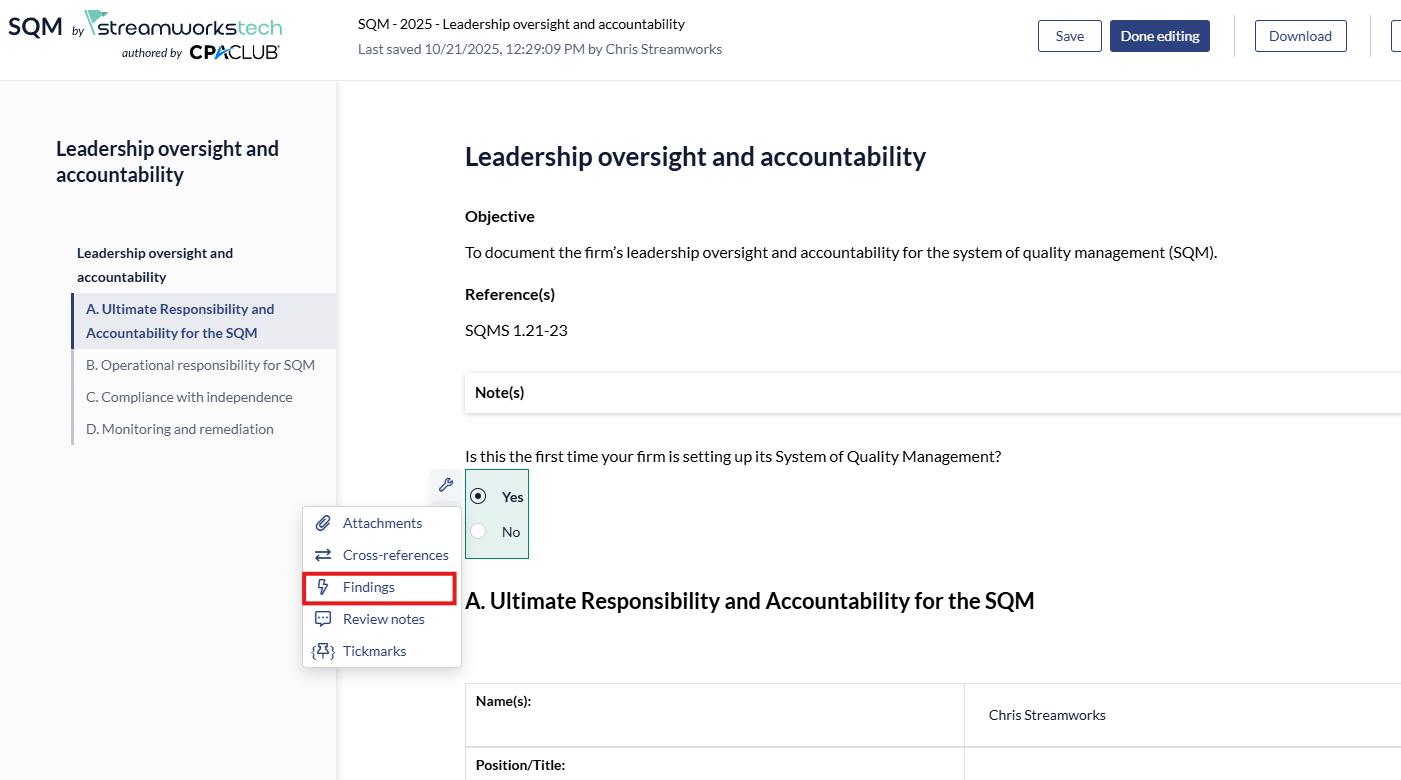
2. A panel will open to the right, fill in the necessary details about the finding and click 'Create'.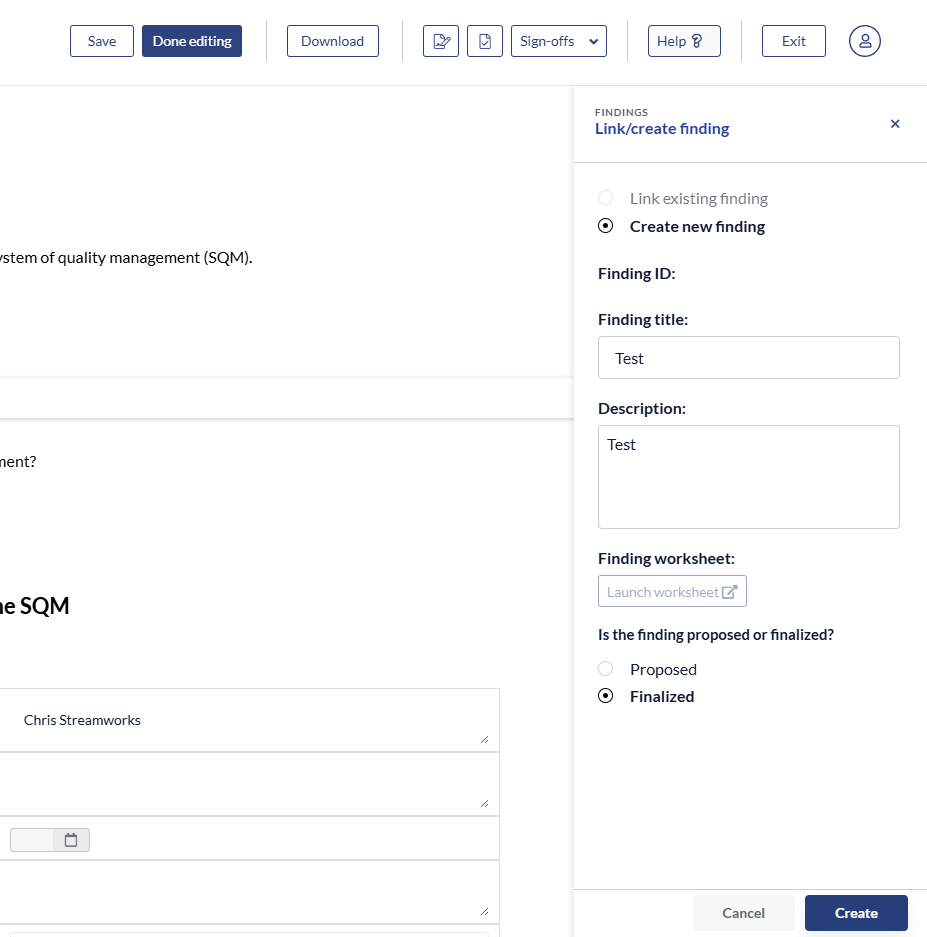
3. To add more information about the finding, click 'Launch Worksheet'.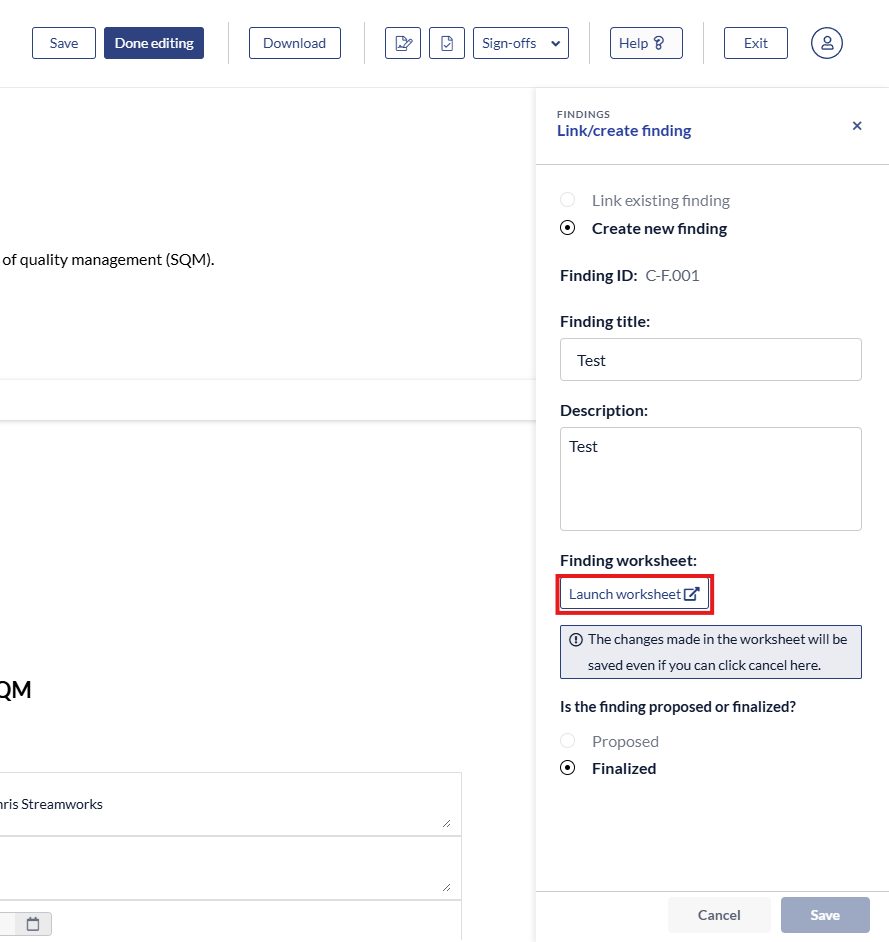
4. Fill in the necessary information in the popup and click 'Save' when done.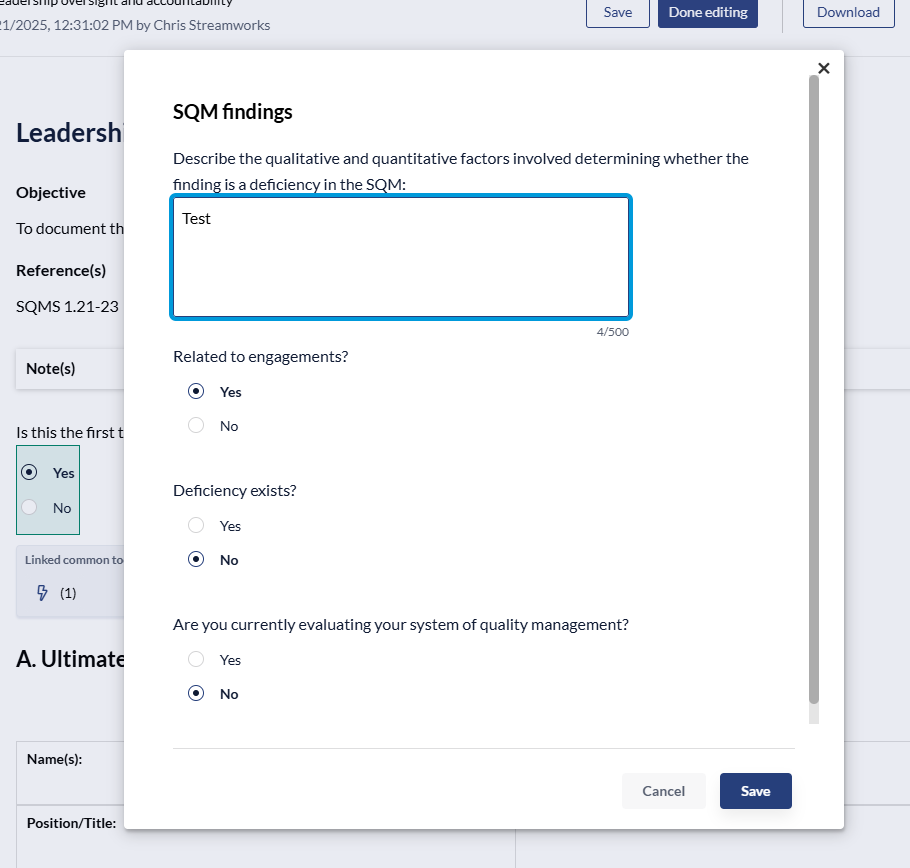
5. If you have a finding that applies to one or more other places in your SQM, you can open the Findings Common Tool and click 'Link to Existing' and select the appropriate Finding.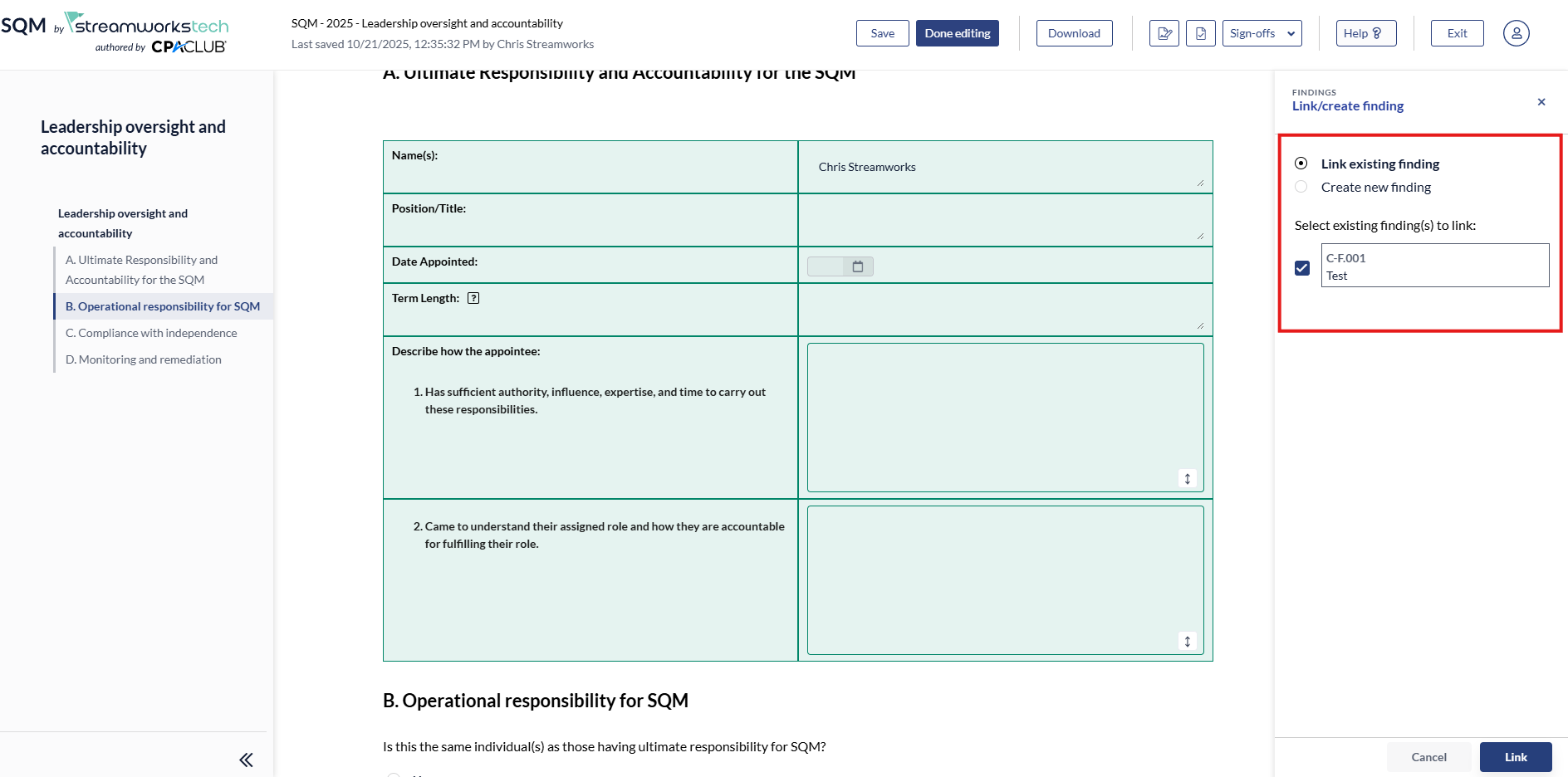
### Deleting a Finding
1. Click on the Finding Common Tool button from the side panel.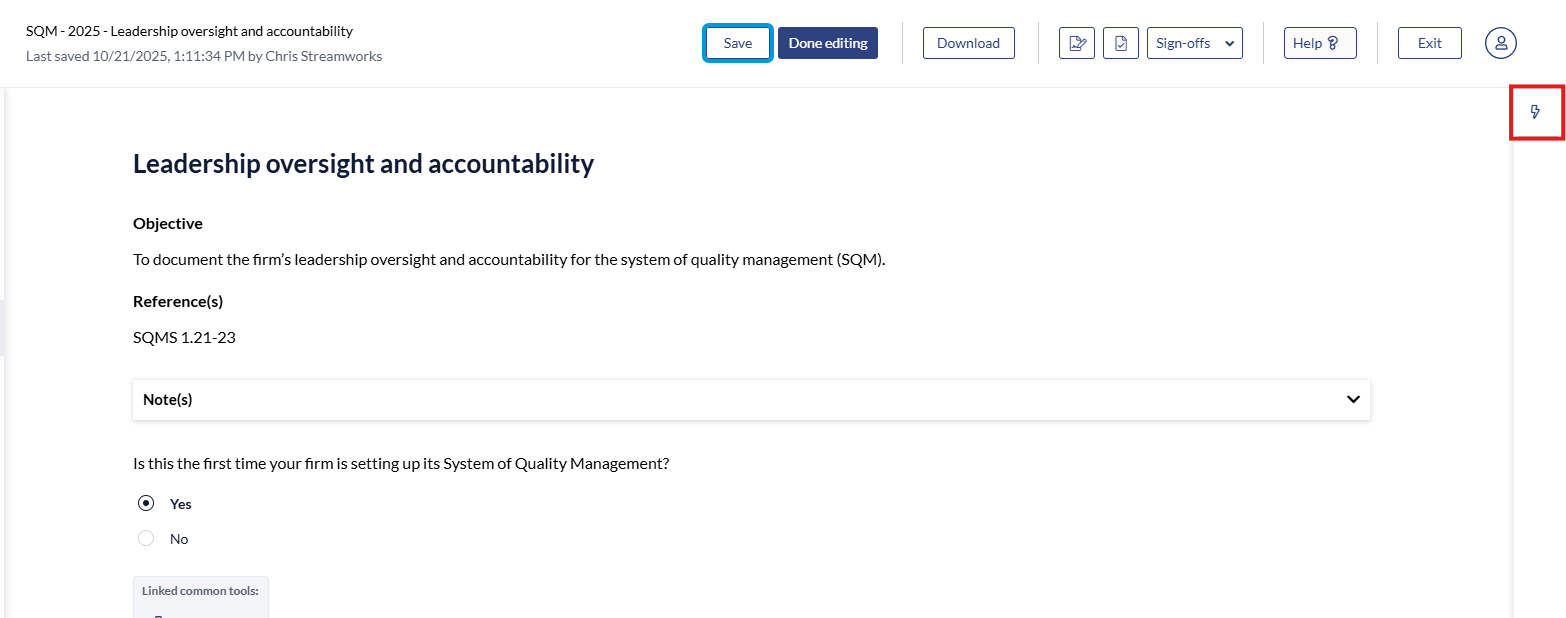
2. Click the 3 dots and select the 'Delete' option from the dropdown menu.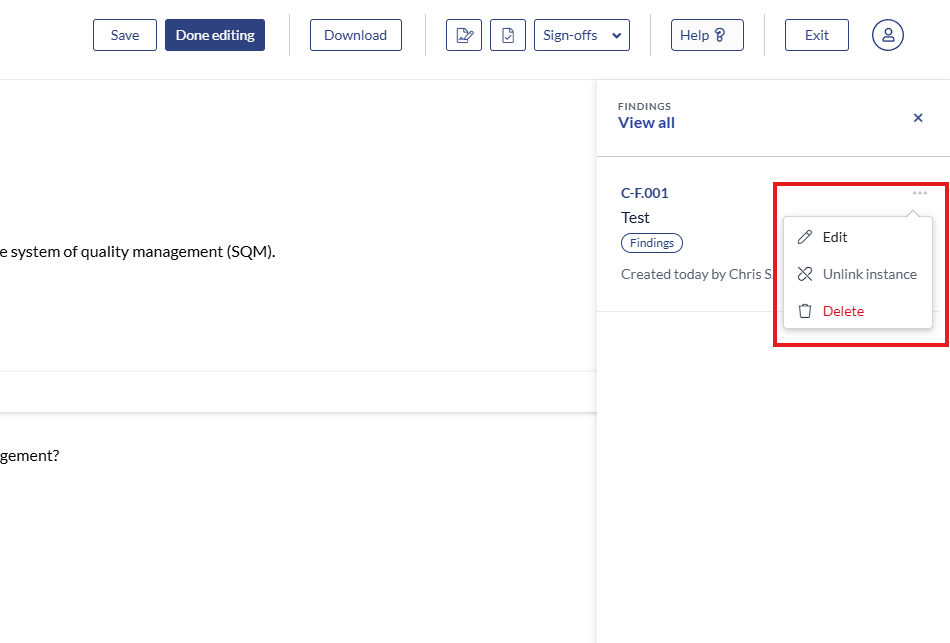
### Reviewing the Findings in the Identify and Remediate Deficiencies form
See this guide here on reviewing where the 'Finding' information is populated.
- [User Guide](https://crm.streamworkstech.com/sqmknowledge/user-guide?hsLang=en#main-content)
- [Getting Started](https://crm.streamworkstech.com/sqmknowledge/user-guide?hsLang=en#getting-started)
- [Form Functionality](https://crm.streamworkstech.com/sqmknowledge/user-guide?hsLang=en#form-functionality)
- [Application Functionality](https://crm.streamworkstech.com/sqmknowledge/user-guide?hsLang=en#application-functionality)
- [Common Tools](https://crm.streamworkstech.com/sqmknowledge/user-guide?hsLang=en#common-tools)
- [Support and Account Help](https://crm.streamworkstech.com/sqmknowledge/user-guide?hsLang=en#support-and-account-help)
[](https://streamworkstech.com/)
[mailto:email@email.com](mailto:email@email.com)
Copyright © 2026, Streamworks Tech Inc.