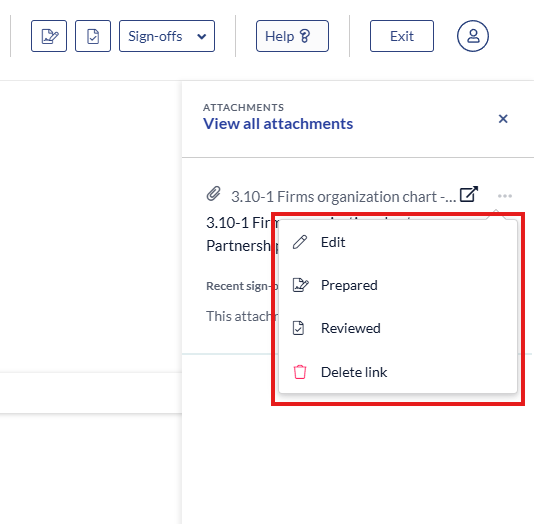
Key Functions
- Attaching using the common tool
- Deleting the attachment common tool
Attaching using the common tool
- Click the wrench icon next to the information you want to attach a document to.
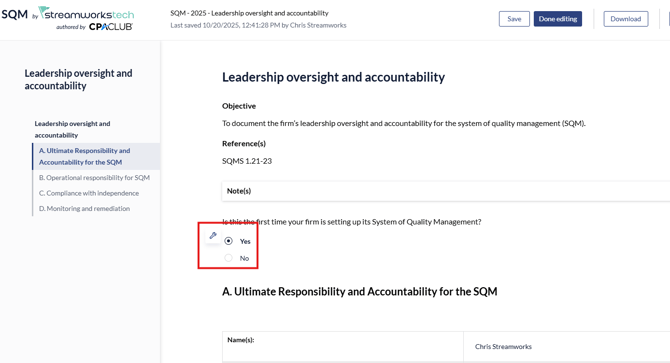
- Select the 'Attachment' option.
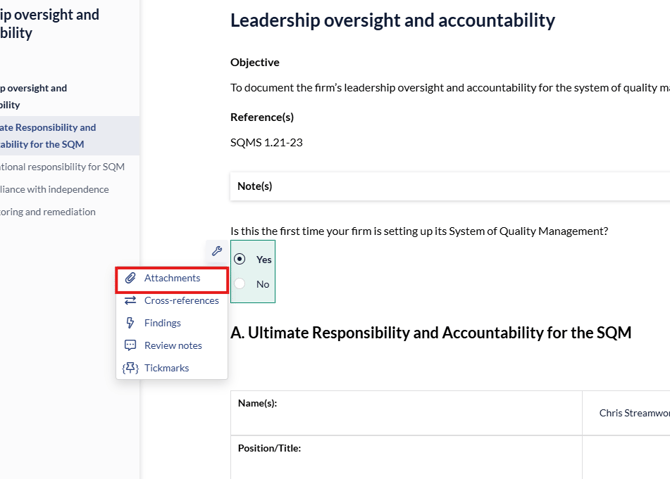
- A panel to the right of your screen will appear.
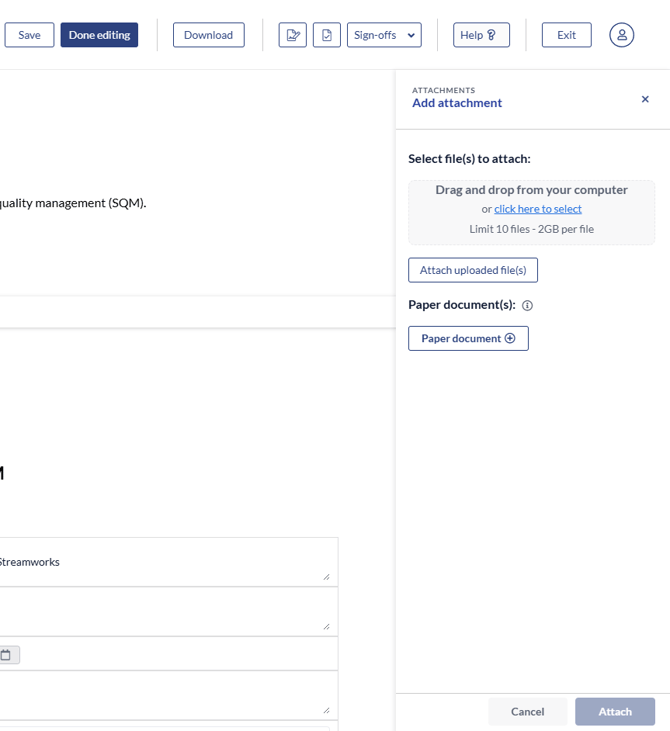
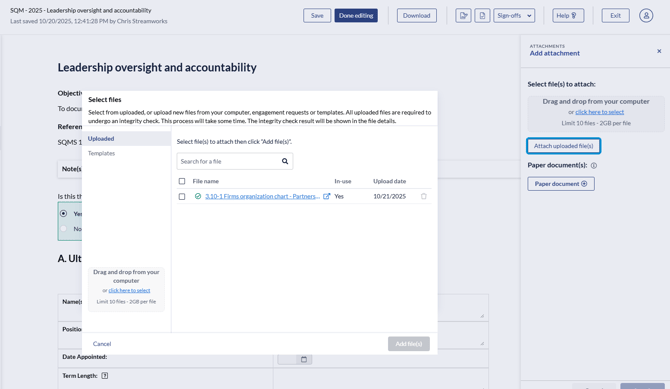
- Click the 'Attach uploading file(s)' button or drag and drop a file to the grey area. If you click the 'Attach uploaded file(s)' button, you will see the pop up menu to select your file.
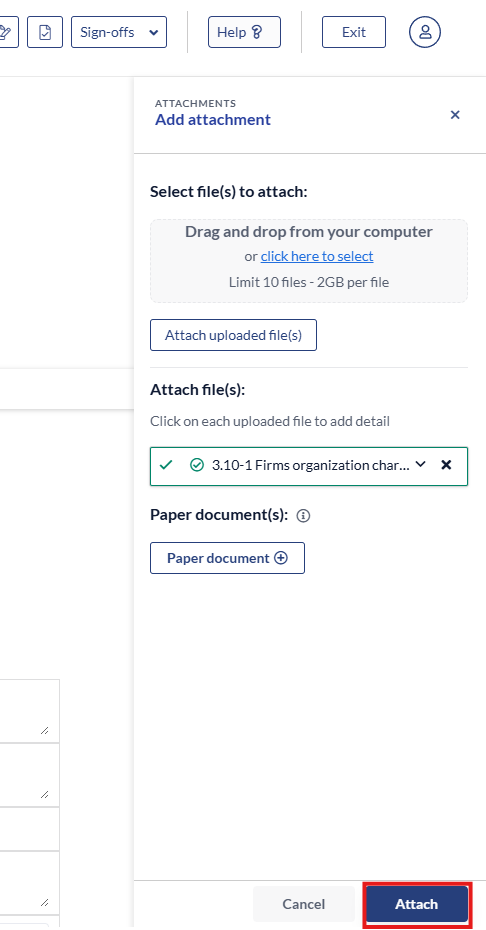
- After you have selected your file, click 'Attach' to complete the process.
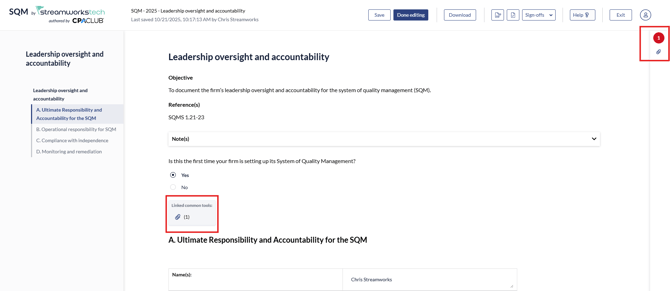
- You will see two visual indicators, one showing which section the common tool is attached to in the form, and another to the right. The red symbol will disappear after saving the form.
Deleting the attachment common tool
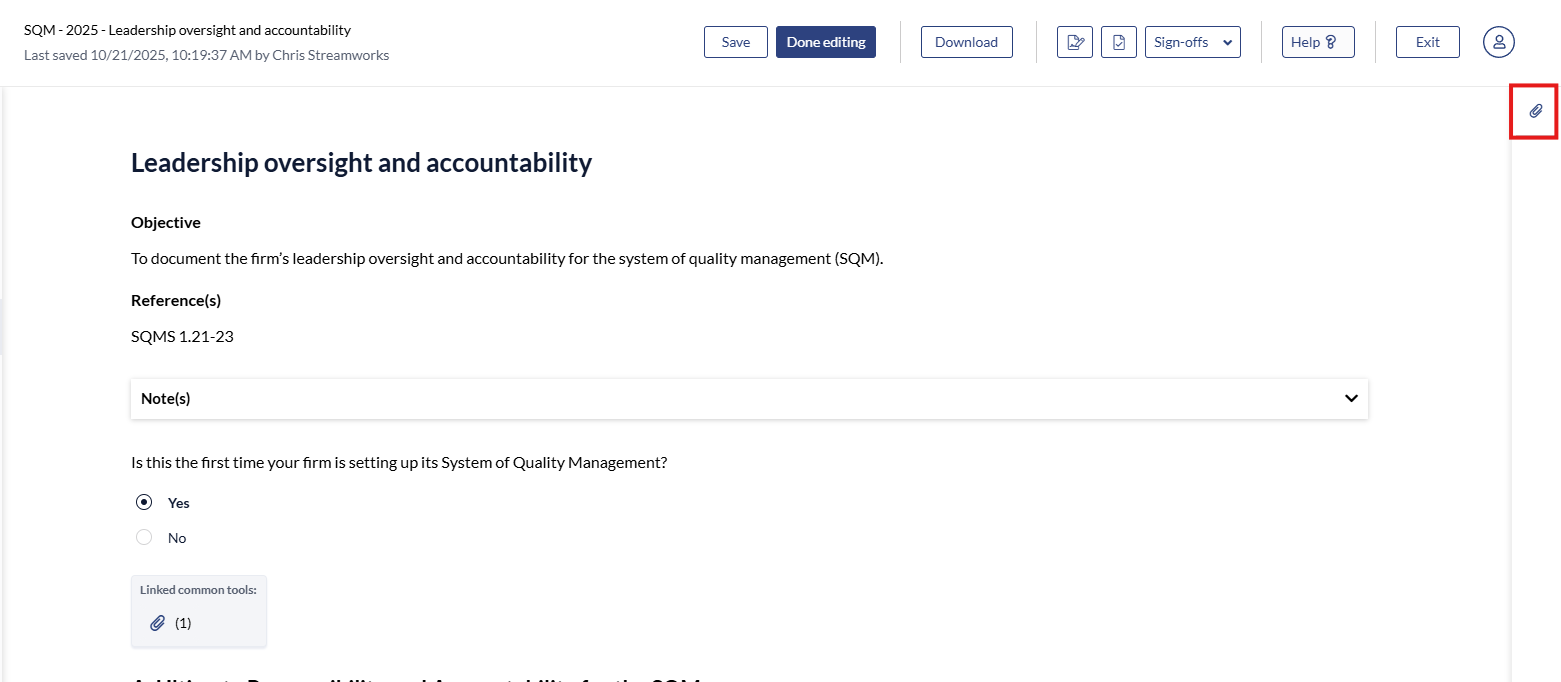
- Click the attachment common tool icon in the right panel.
- Click the 3 dots and select 'Delete link".