
Key Functions
- Assessing Responses
Assessing Responses
- After a Risk has been assessed for 'Impact' on the Component the 'Response' button will become available.
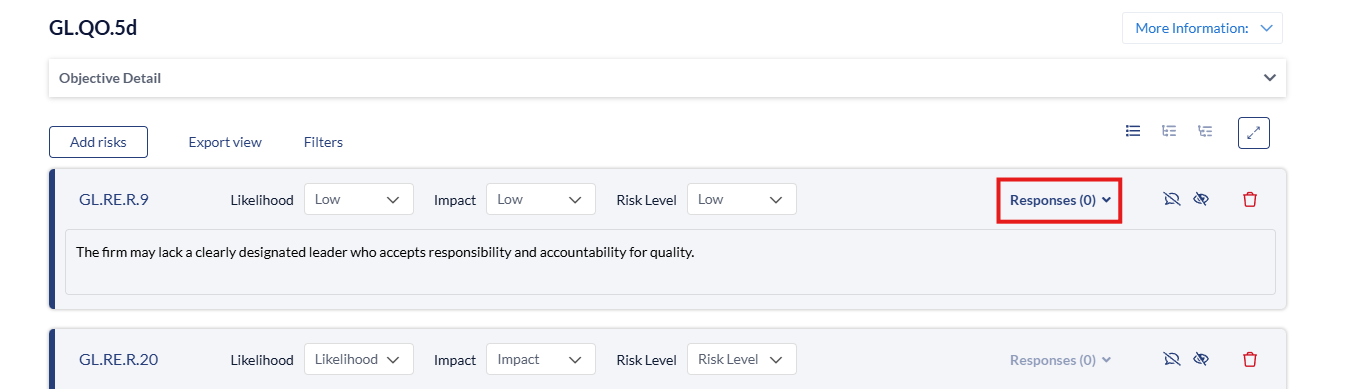
- When 'Responses' is clicked a drop down will appear for you to add and view responses.
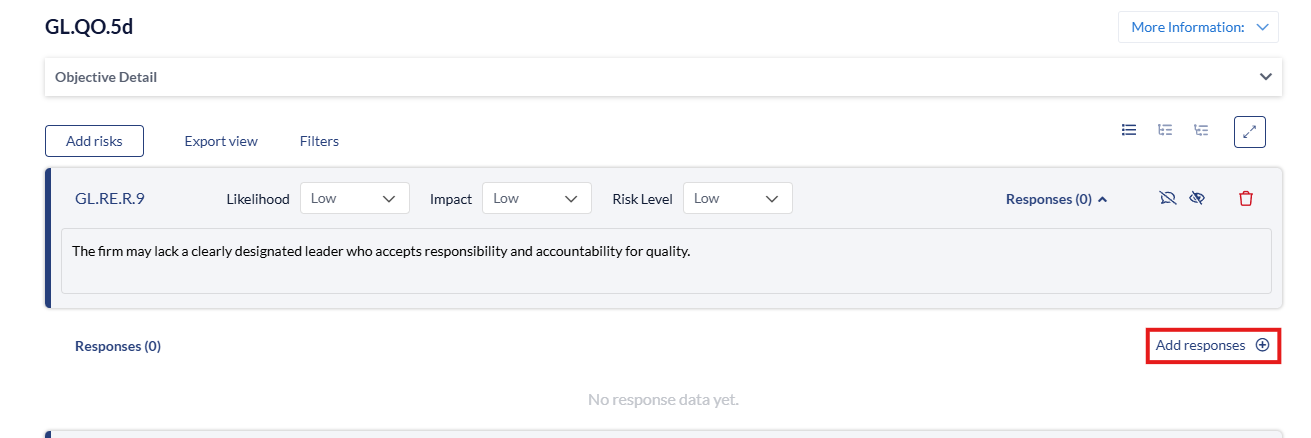
- When 'Add Responses' is clicked, you will see the library of Risks to be added.
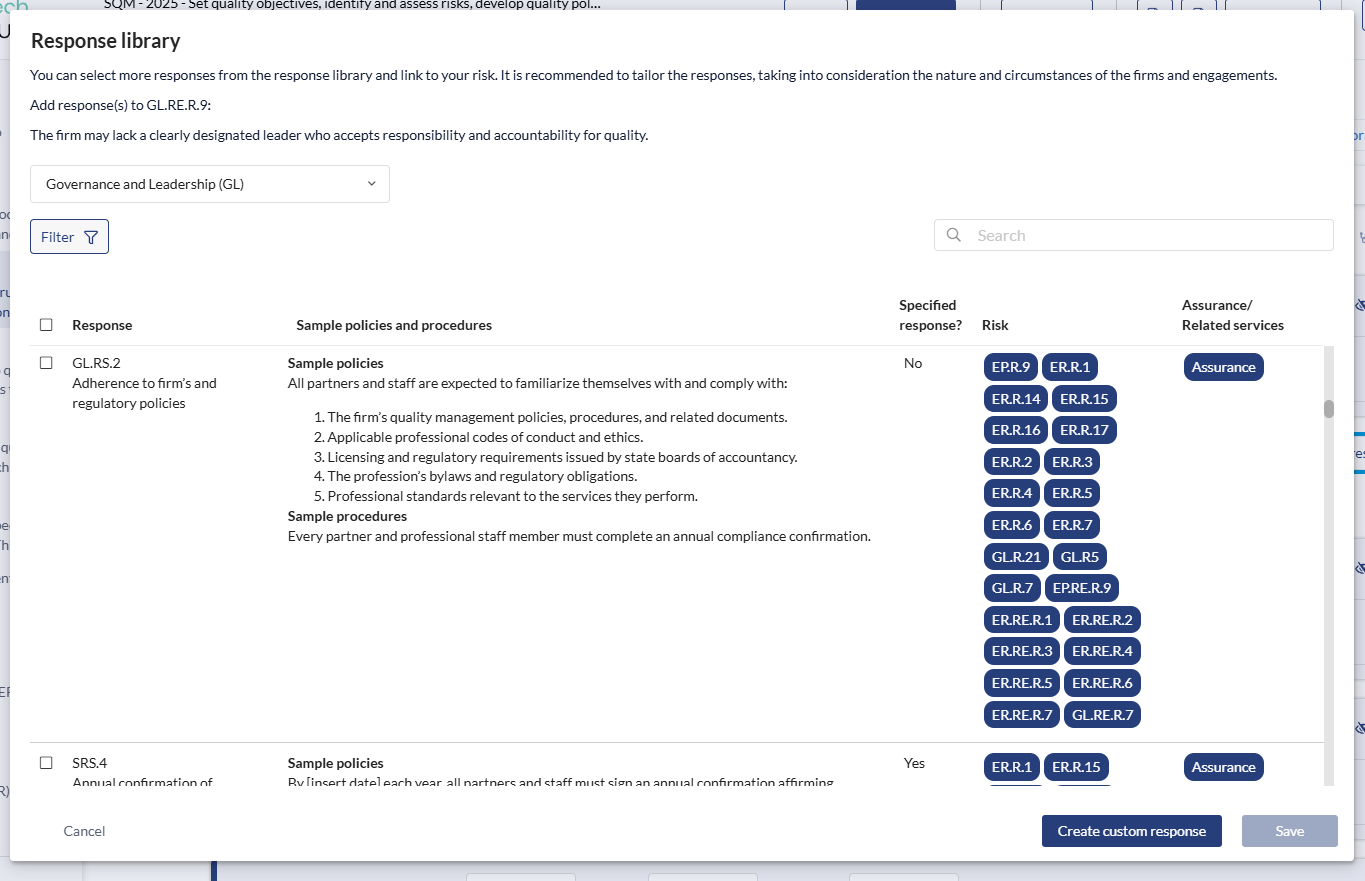
- You can click the checkbox next to the Response you want to add and click 'Save' to add them to the Risk. You can also add a 'Custom Response' that is blank.
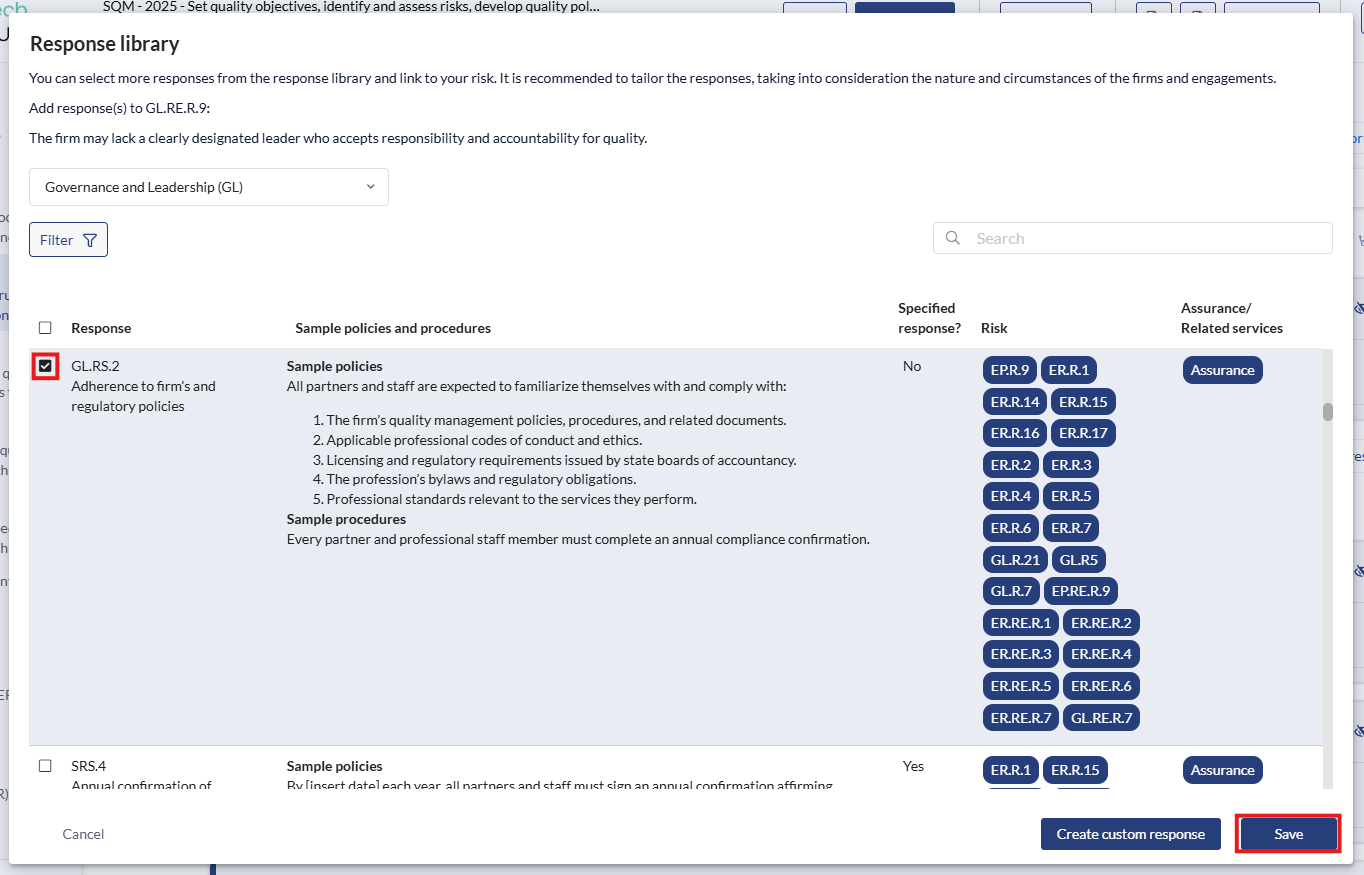
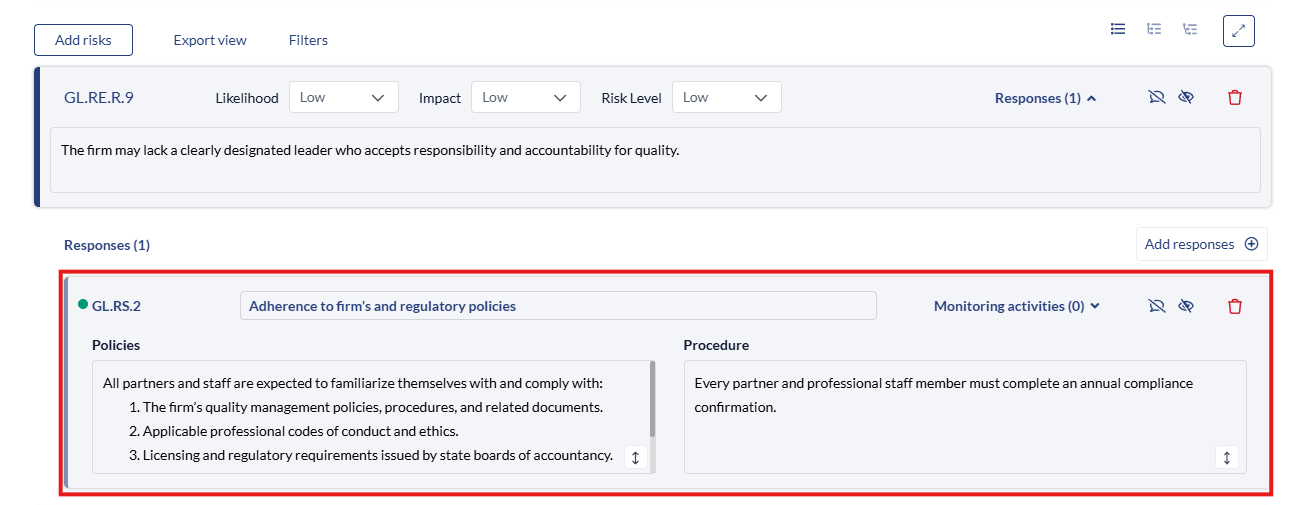
- The Response will populate underneath the Risk ready for editing and adding 'Monitoring Activities'.
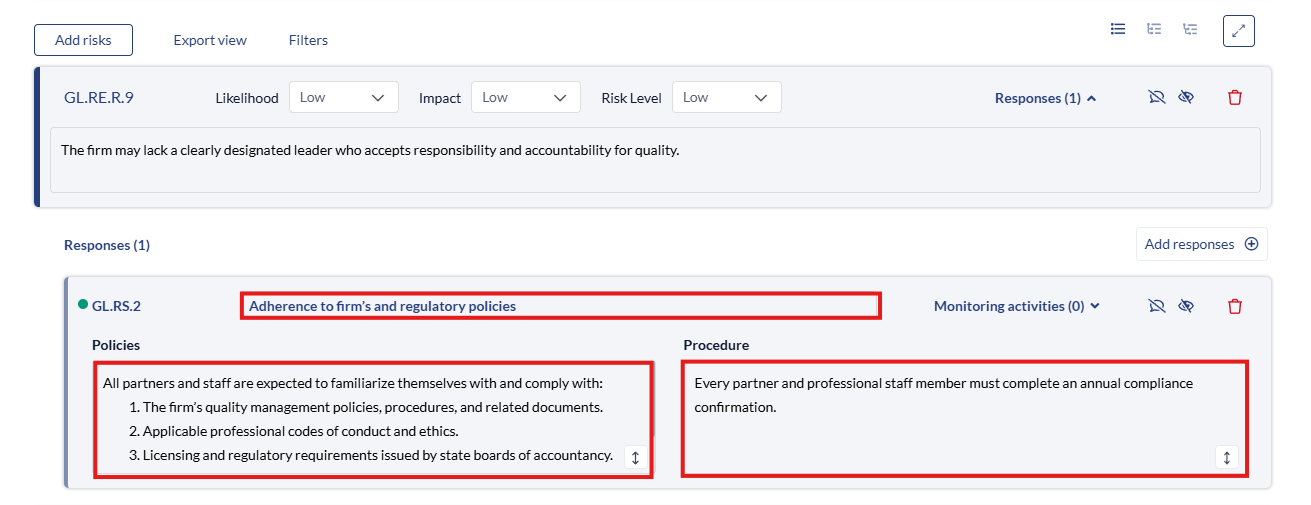
- The title of the Response, the Policy and Procedure can all be further edited.
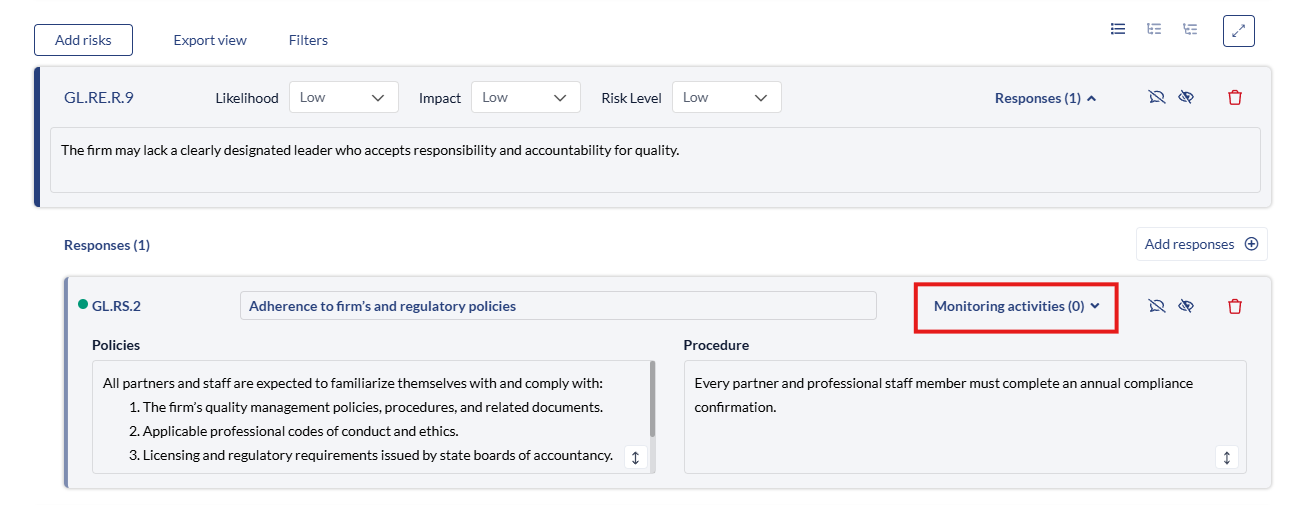
- You can then click the 'Monitoring Activities' button to open up the Responses dropdown and start associating the 'Monitoring Activities'.
To begin associating Monitoring Activities, you can go to this guide here.