
Overview:
The purpose of this document is to provide the Authorized Requester audit contact with a step-by-step guide, in order to effectively participate in an audit once selected by the Ministry, using the MTO Authorized Requester Program powered by Auvenir.
Onboarding:
Once being invited by the audit team, you will receive an invitation email from the system. Follow the steps mentioned in the email to complete Multi-Factor Authentication (MFA) setup to complete the onboarding process.
Below are the onboarding steps:
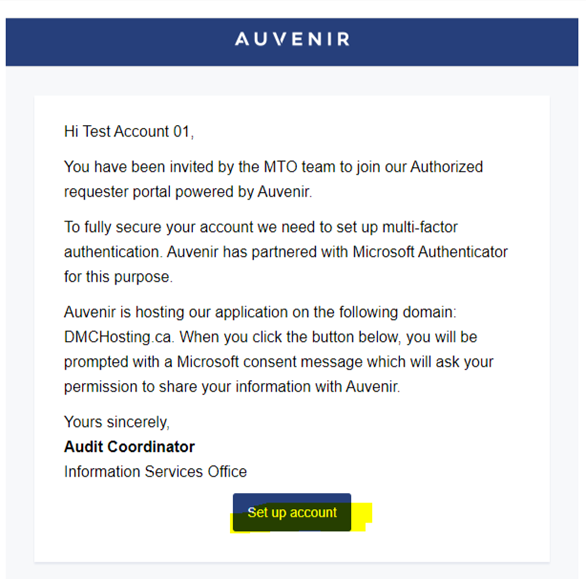
Step1: An invitation email will be sent to you after the audit team onboards you. Click the link ‘Set up account’ provided at the bottom of the email.
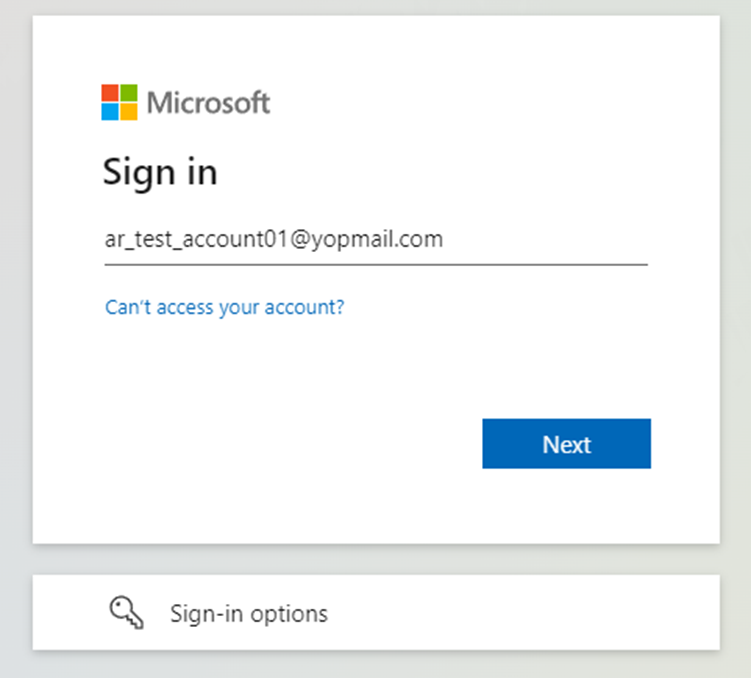
Step 2: Enter your email address on the Microsoft “Sign in” page.
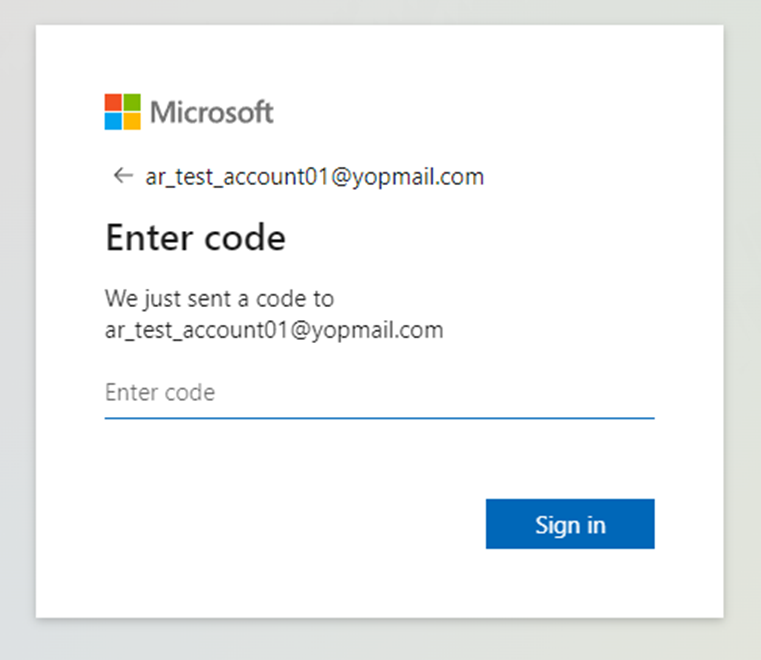
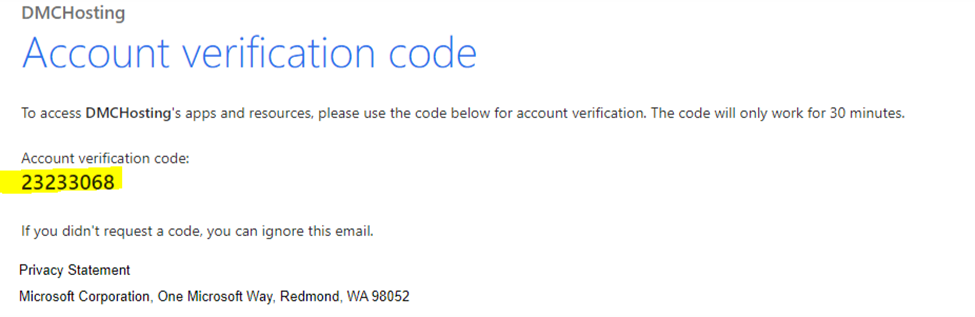
Step 3: For a new account, go through the multi-factor authentication set-up flow.
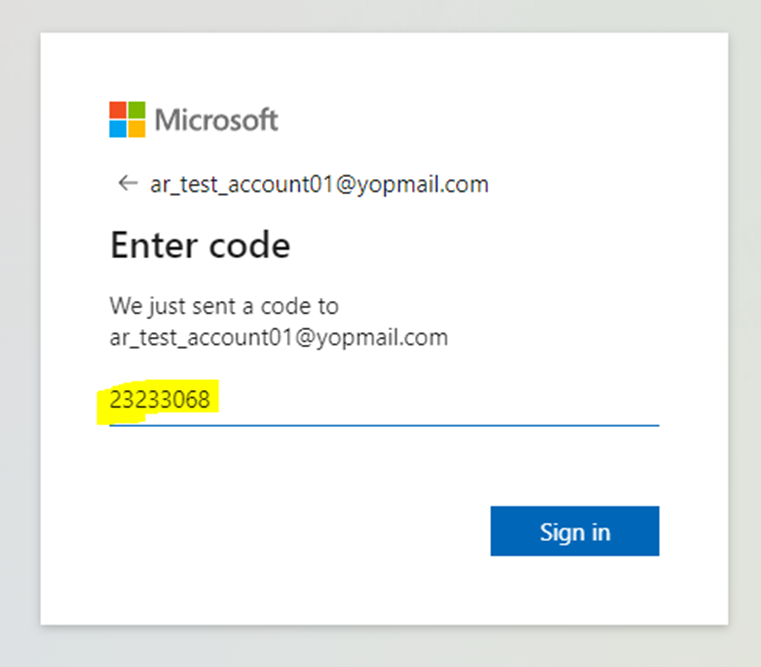
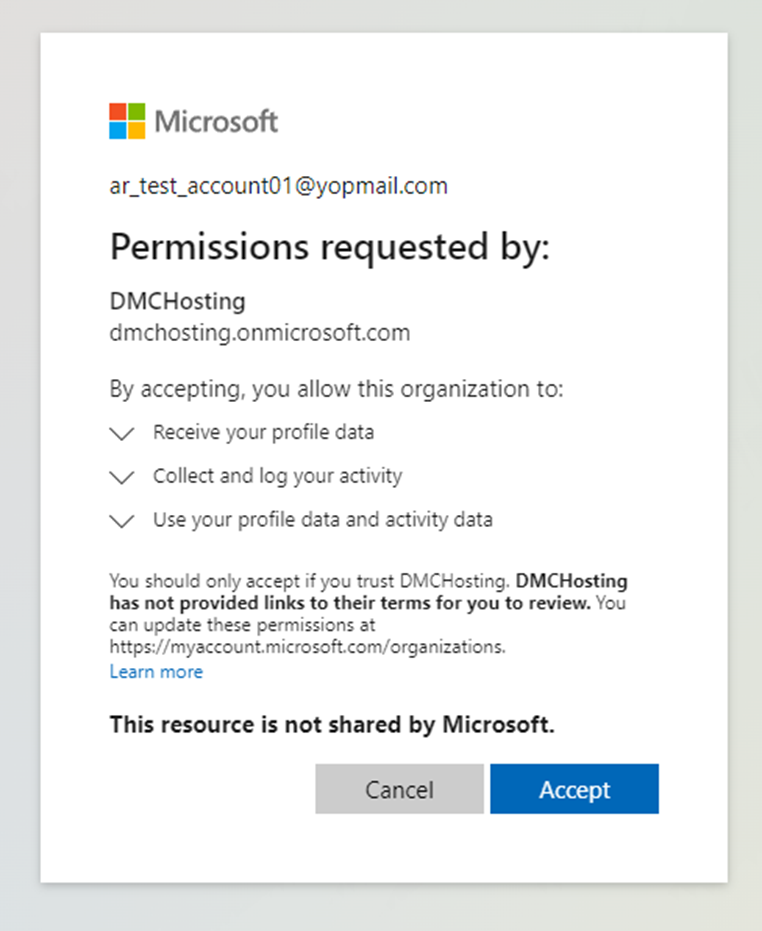
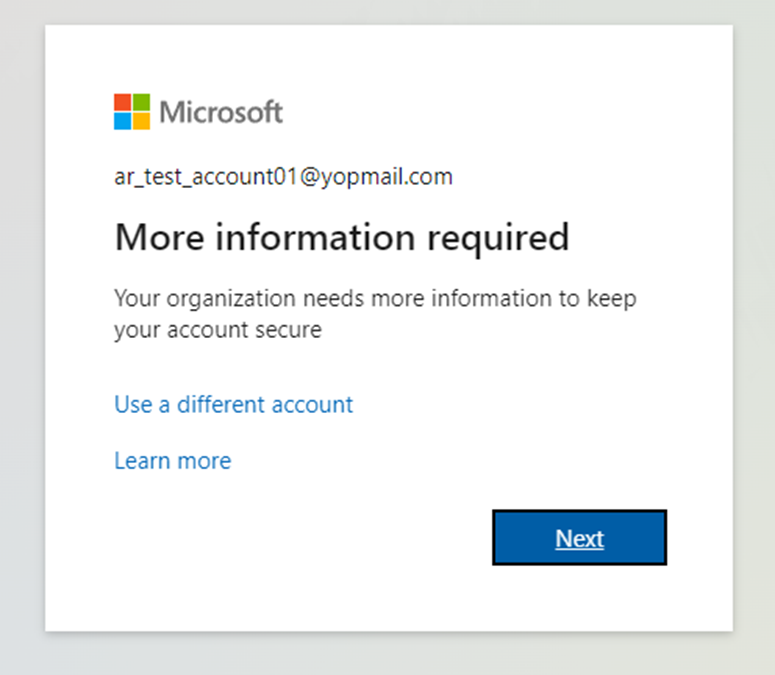
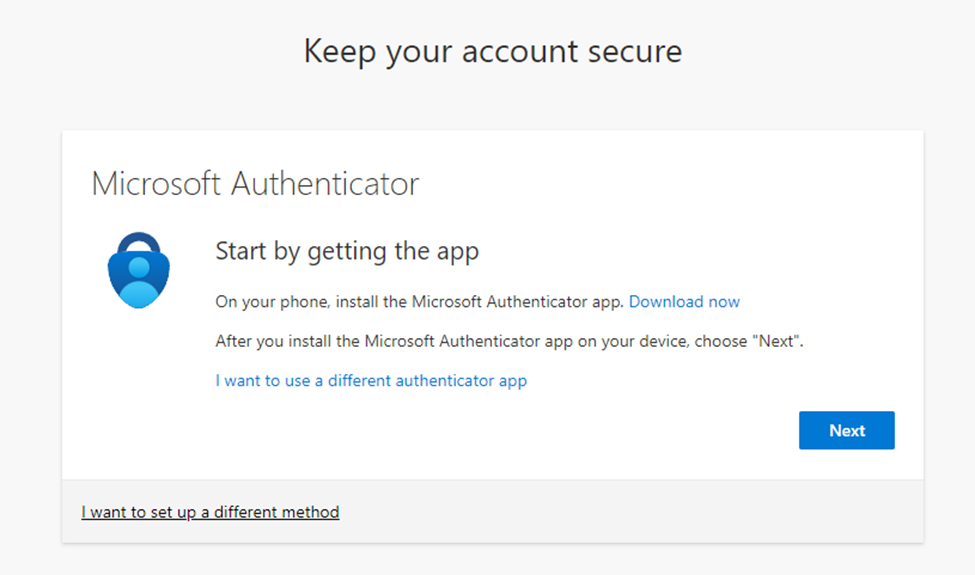
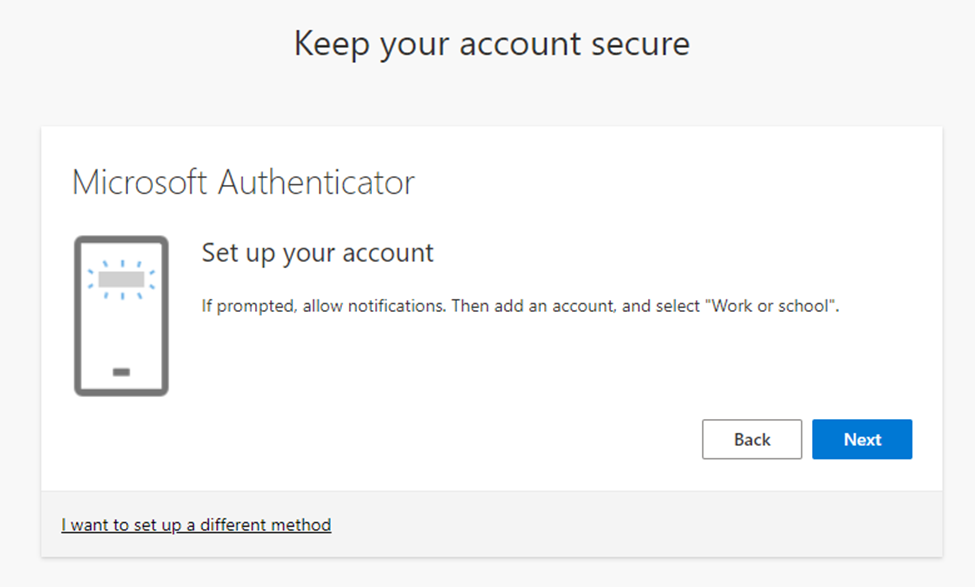
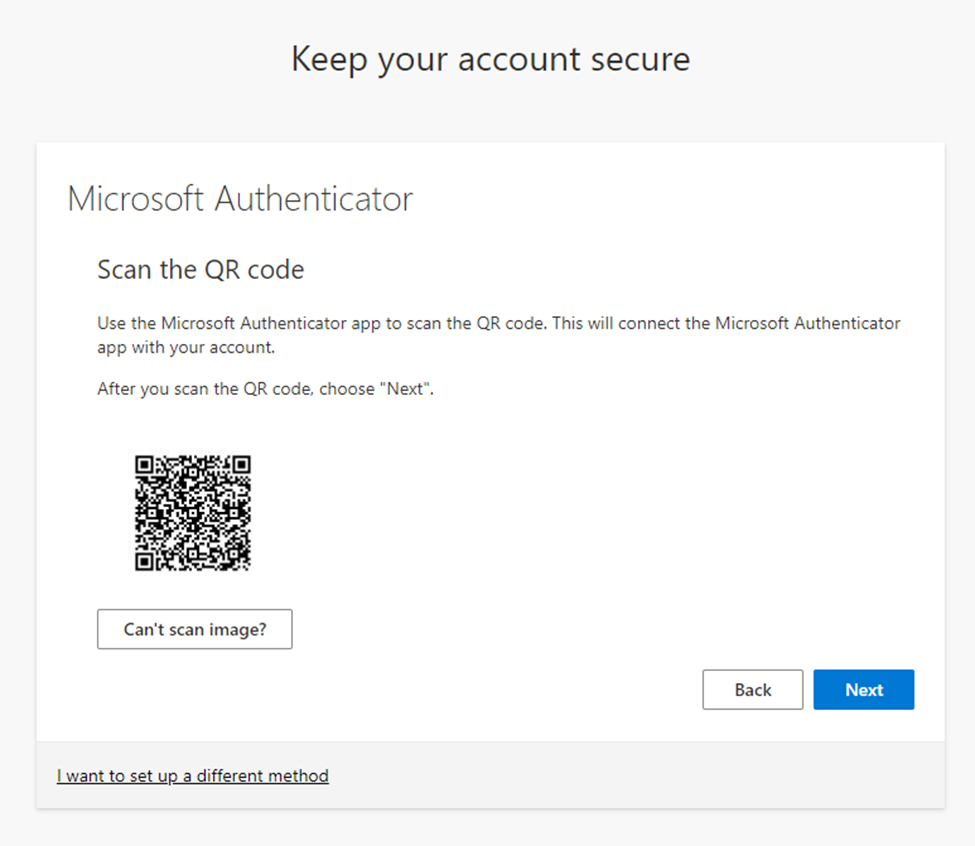
Step 4: Scan the provided QR code using the authentication app on your own device.
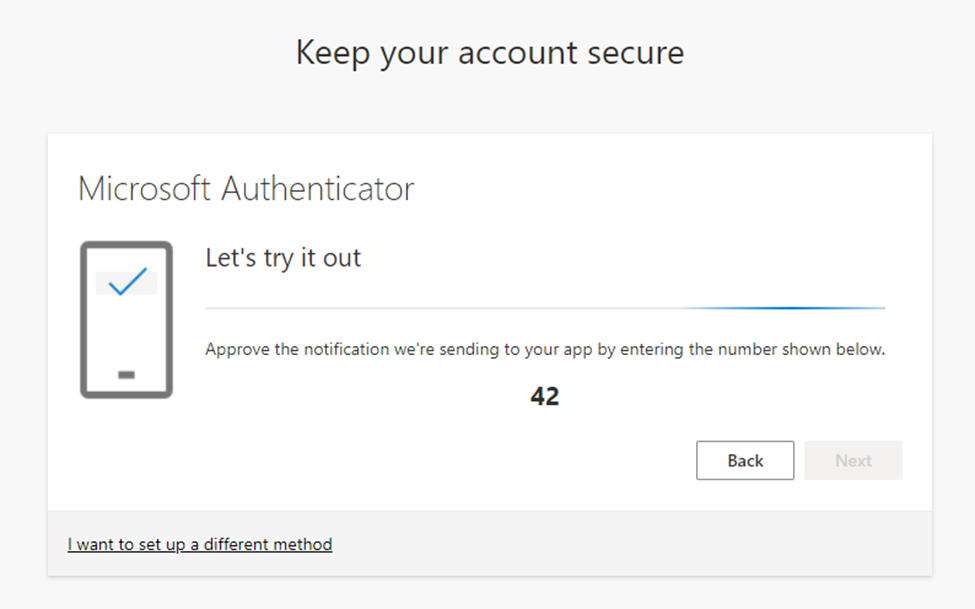
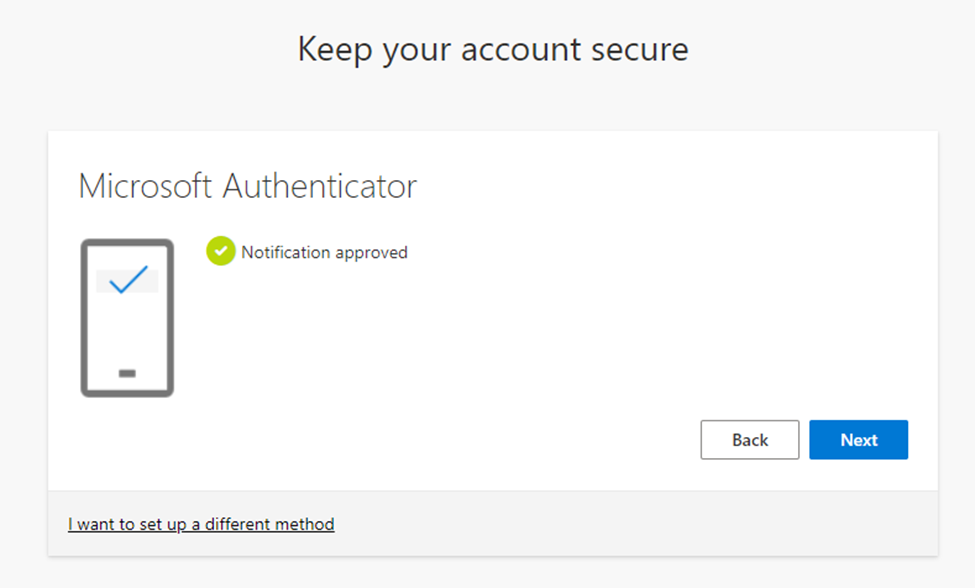
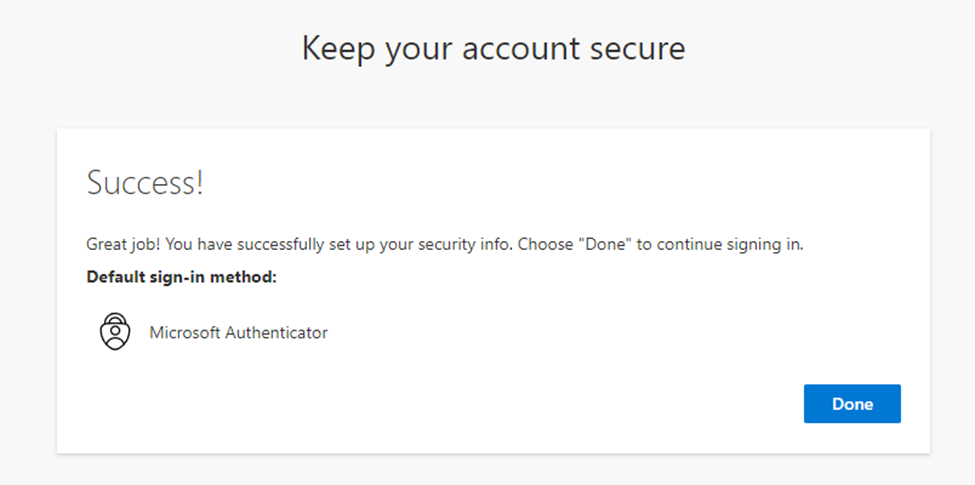
Step 5: After successfully setting up multi-factor authentication, you are allowed into the system. As a new user you will be presented with Auvenir’s Service Terms.
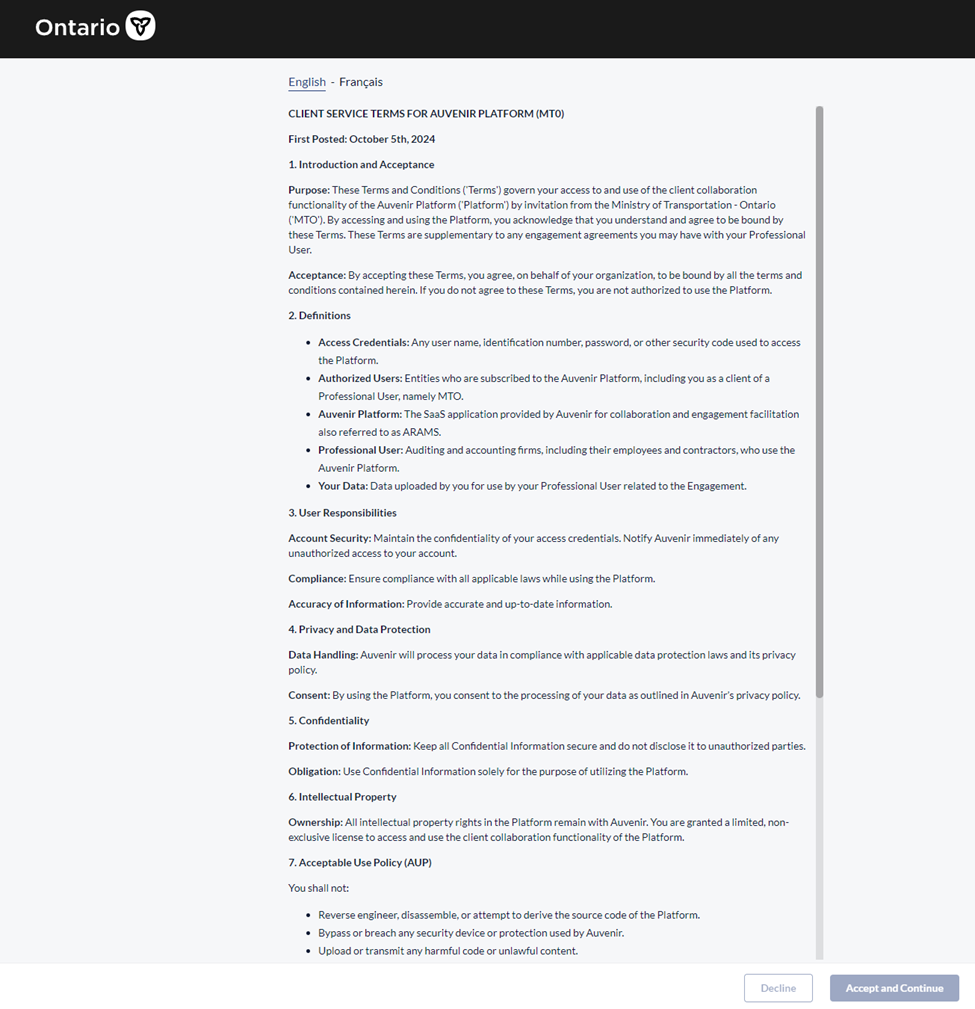
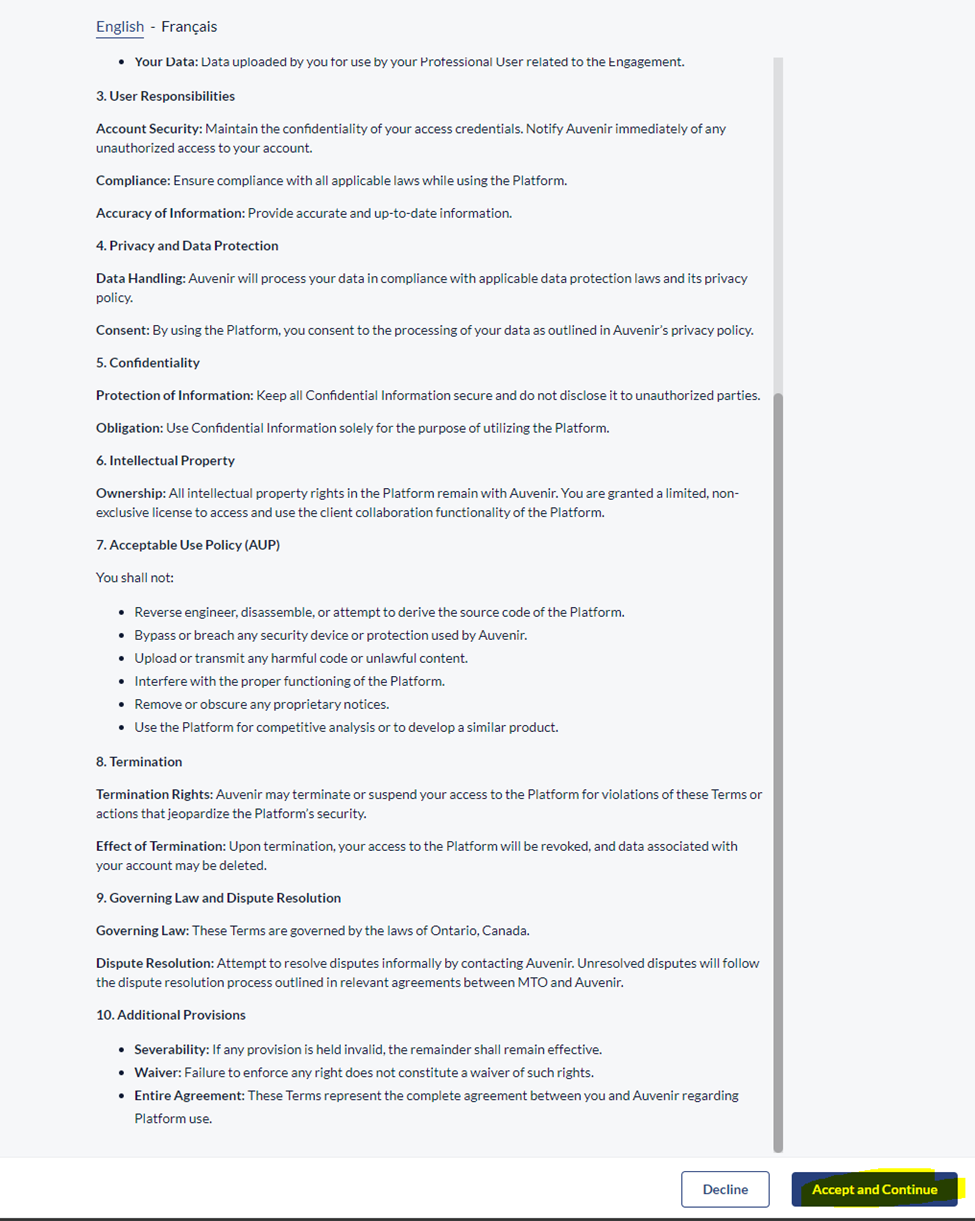
Step 6: Review the Service Terms. Once you scroll to the bottom, click the enabled ‘Accept and Continue’ button.
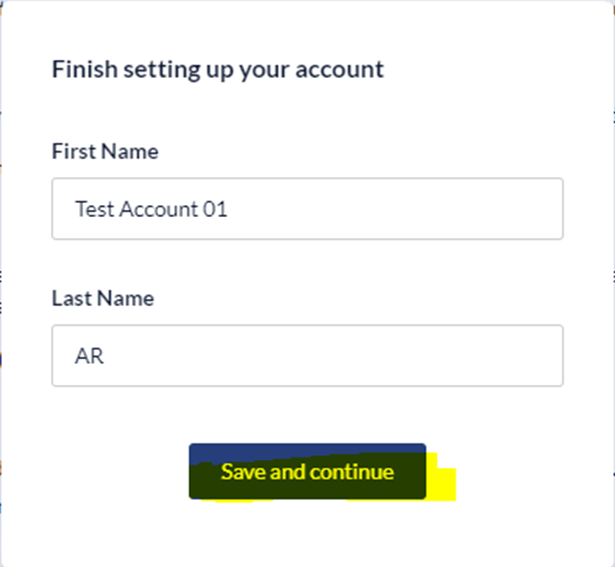
Step 7: Review the name associated with your account for one more time. Click ‘Save and continue’ to proceed into the application.
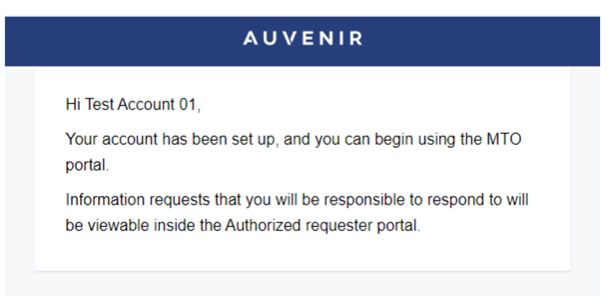
Once done, you will receive a second email from the system confirming that you can now access the Authorized Requester Portal within the MTO Authorized Requester Program.
Authorized requester portal:
Once you confirm your username, you will be navigated to the landing page of the Authorized Requester Portal. You have access to the following views.
- Request (default view): You will be able to view and work on responses to the requests assigned to you.
- Working papers: You will be able to view and work on the audit case files shared with you.
As you review and work through the requests assigned to you, you can:
- view the specific tasks assigned to you
- download any files attached to the requests
- upload any files requested from you
- view and reply to the comments left by the audit team
As you review and work through the audit documents shared with you, you can:
- switch between edit and view only mode. Note: our system allows one user to edit an audit document at a time. You will not be able to edit an audit document if another user has already started working on it. However, you can still review it in view-only mode. If someone else is editing the document, you will be presented with a system message on the UI indicating who is editing the document in case you want to reach out and coordinator with the other user.
- download any audit documents if needed, e.g., assertion certificate, action plan, findings letter.
- work on audit documents directly online, e.g., fill out the self-service risk assessment questionnaire.
Additional notes:
Should there be activity on the file you will receive an email notification from the system on a daily basis. The daily email provides you with status updates of the activities inside the Authorized Requester Portal. The purpose is to help you always stay on track of your assigned tasks and ensure timely communication with the MTO team and the 3rd-party vendor audit contact (if applicable).
At any time, you can go to the User Profile (at the top right corner under your username) and take the following actions:
- update your initial being used in the system (if applicable).
- switch the UI language between English and French.
- change the Locale setting for number and date format used in the system.
You will no longer be able to access the portal if MTO team performs one or more of the following actions:
- the audit case is “Closed” or put into an ‘in-active’ state.
- your agreement status is suspended or put into an ‘in-active’ state.
- your access to the portal is revoked.