
Key Functions
- Ability to view sign-off action buttons
- Ability to modify sections after signoffs
User Flow
Ability to view sign-off action buttons
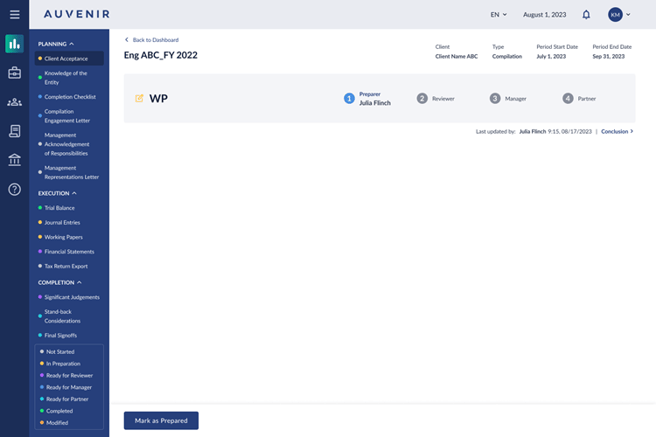
- The user workflow begins with statuses displayed at the top of each engagement step.
- Status functionality is available in the trial balance, financial report, work-papers, and selected templates.
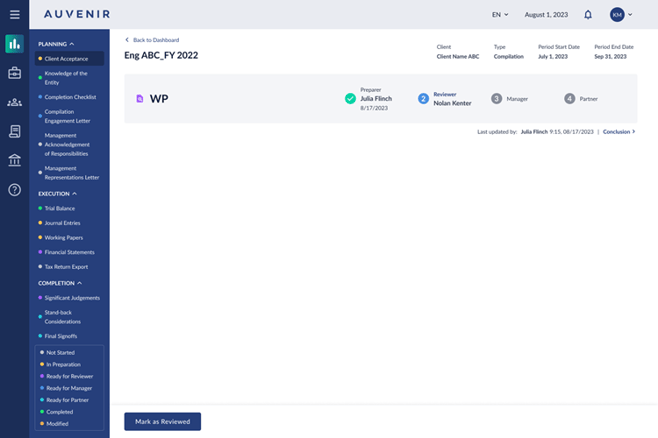
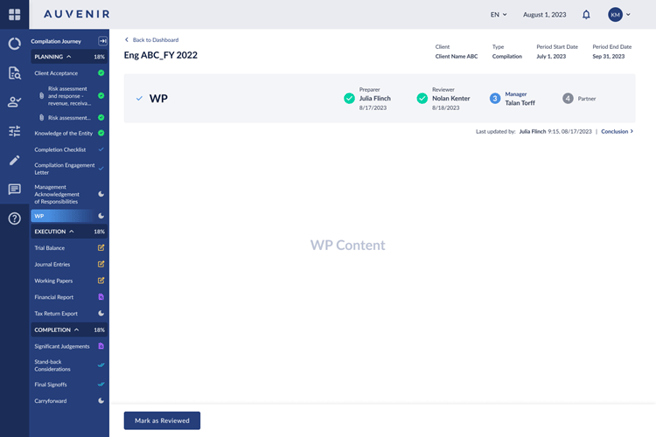
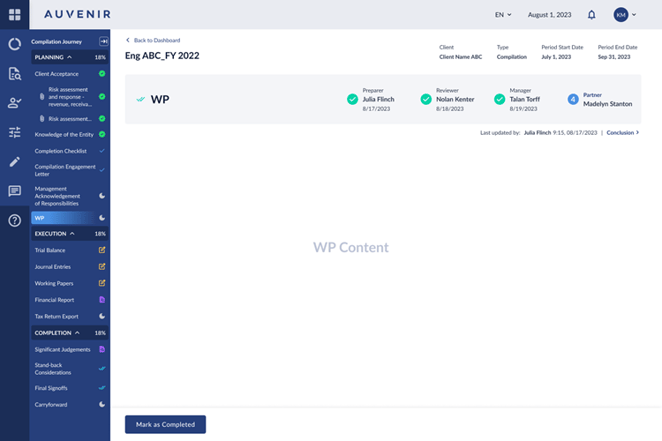
- Next to each status, there is an action button, its appearance depending on the engagement's progress and the signed-in user's role.
- For the preparer, the action button shows "Mark as Prepared".
- For the reviewer, it displays "Mark as Reviewed".
- For the manager, the option is "Mark as Manager reviewed".
- The Partner sees "Mark as Completed", signaling the final review step.
- The status area contains four subsections: preparer, reviewer, manager, and partner.
- When a user is assigned to a section, their name appears under the corresponding subsection in the status menu.
- Initially, if no action button is clicked and no users are assigned, the status shows the moon icon which means "Not started", and no names are listed under subsections.
- Upon assignment, the preparer's subsection lists the user's name, indicating their work is in progress. The moon icon becomes a yellow pen and pad.
- After the preparer marks the task as prepared, their subsection changes to a checkmark, and the date of completion is noted underneath. The icon changes to a purple document with magnifying glass.
- The reviewer follows a similar process, with their name under the reviewer subsection, changing to a checkmark and date upon completion. The icon changes to a single blue checkmark.
- The manager, upon clicking "Mark as Manager reviewed", completes their section in the same manner. The icon changes to a double blue checkmark.
- Finally, the partner marks the section as officially completed with "Mark as Completed". The icon changes to a green checkmark.
- Completion results in the disappearance of the action button and all four subsections being checked off.
- Once an action button is clicked, reverting to a previous step is not possible, e.g., a preparer cannot edit after marking as prepared.
Ability to modify sections after signoffs
- In certain scenarios, a section marked as completed may require modifications and needs to be unlocked, which can only be done by the partner or super admin.
- When a section gets put into editing mode again, otherwise known as "Modified After Review", the partner's subsection reverts from a checkmark to the blue number 4, removing the completion date. The icon changes to an orange document with pencil.
- The "Mark as Completed" button reappears next to the status for final re-completion.
- If the user is a super admin, they can click on all the action buttons, at any point in the engagement process compilation.