
Once you setup your account, follow these simple Five steps to unlock the functionality within CPA Streamworks and get started on your first Compilation engagement.
Step 1: Create an engagement.
- Click the "+ New engagement" button and follow the engagement creation workflow.
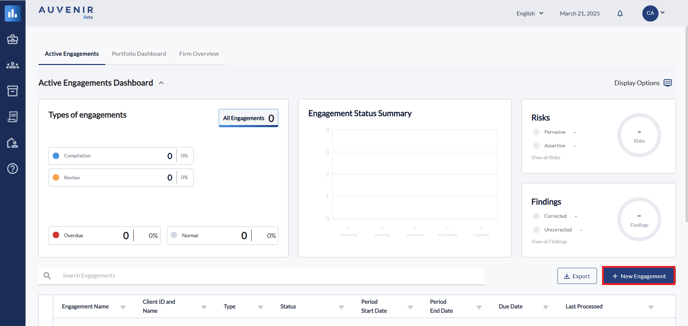
- Enter new engagement name, pick an engagement type, client name, operating name, and start, end, and due date. If migrating from CaseWare, slide the CaseWare Migration button to "On". Click "Next"
Step 2: Set-up an Engagement Structure
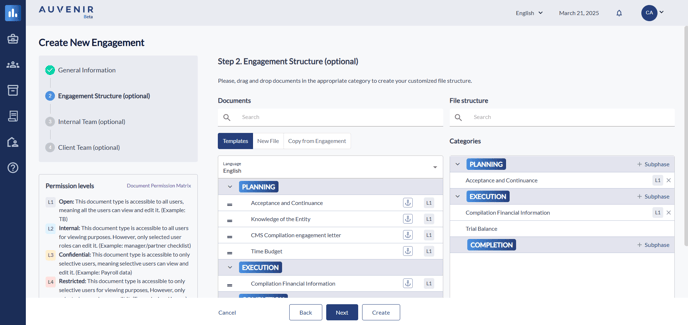
- Drag & drop the templates you would like to include in your Compilation engagement file or pick the templates from another engagement file or from your previous period file. Click "Next"
Step 3: Add your internal and external team members
- Add Internal Team and Client Team members by clicking on the tabs. Click "Create"
Step 4: Import Trial balance or Connect to the Accounting data
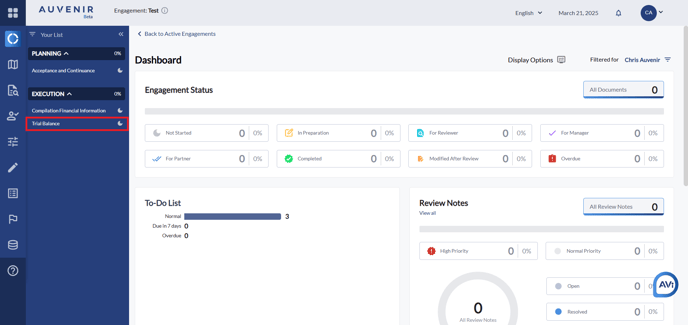
- Select the Trial Balance 'Execution' list
- Drag & drop an Excel TB file or Request data from the accounting software
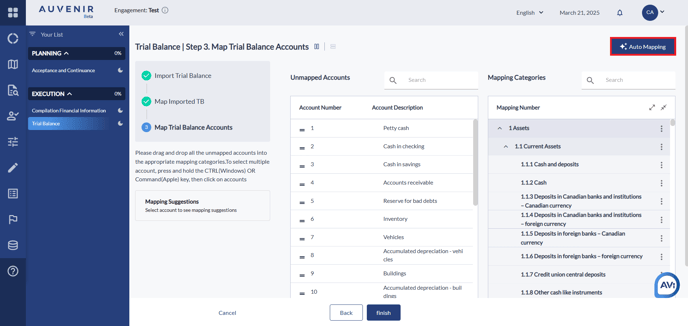
- You can manually map accounts by dragging and dropping them to the categories or click the Auto Mapping button in the top right.
- Enter necessary adjustments.
Step 5: Prepare the Financial Information (formerly Financial Statements)
- Select the Financial Information file from the 'Execution' list
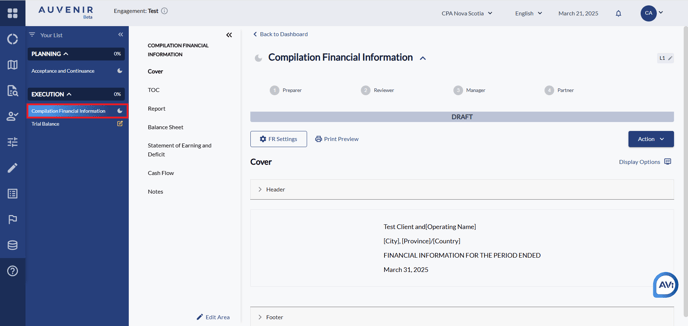
- Click on the pencil icon to edit the Cover, Table of Contents (TOC), and Report.
- Insert dynamic fields by clicking on insert field icon in the pencil edit mode.
- Review Balance sheet and Statement of earnings and Retained earnings tab.
- Click to "Create note" and create and edit notes as necessary.
NB: The system will automatically populate your engagement with a set of default working papers relevant to the engagement type you select.