
Key Functions
- Ability to search and manage archived engagements in a dedicated screen.
- Ability to receive an email notification two weeks before an archived engagement is automatically purged.
- Ability to configure archival and purge settings for engagements.
- Ability to configure when the application sends out reminder notifications for archiving.
- Once archived, user could view, download, and search within archived engagements in a read-only mode, with editing functions disabled.
- Ability to generate PDF.
User Flow
Ability to search and manage archived engagements in a dedicated screen
1. To archive an engagement, a super admin must, on the engagement screen, select an engagement's ellipses options, and click the archive button. The engagement can only be selected for archiving when the status of the engagement is set to “Complete” i.e., the Archive button will only be available for engagements with a 'Complete' status. By clicking on the Archive button, you will get a prompt that says, "Are you sure you want to archive the engagement?" with a yes and no button. Clicking yes will archive the engagement and show a success message. The archived engagement will no longer appear on the engagements grid and will start appearing on the Archived Engagements screen. Clicking no will bring you back to the engagement screen. You will stay on the engagement screen until they go to the archived section using the navigation panel even after the engagement is archived.
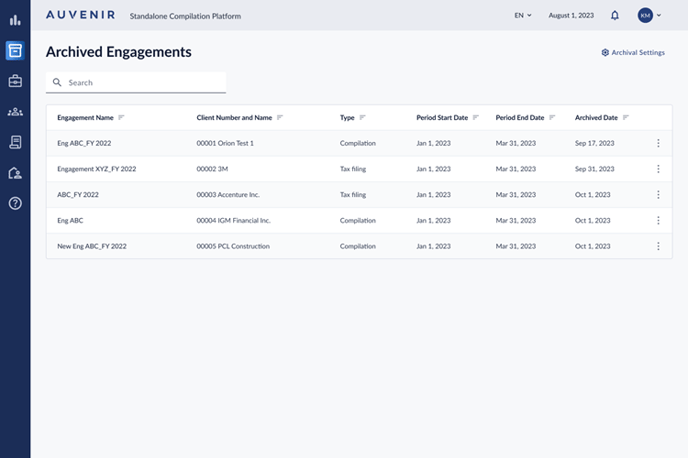
2. Page tile = Archived Engagements
3. Search function:
- The search bar should be prominently displayed on the page.
- The search bar should have placeholder text that says, "Search Engagements".
- The search should initiate automatically when you start typing in the search bar without the need to press enter or click a search button.
- As you type in the search bar, the search results should dynamically update to reflect the current query.
- Search results should dynamically filter out irrelevant results as you continue typing.
- The search function should specifically filter results based on the "engagement name".
- Engagements with names that match or closely match the query should be displayed prominently.
- If no engagements match the query, an appropriate message such as "No engagements found for your search" should be displayed.
- i. You should be able to clear their search by either deleting their query from the search bar or by using a "clear", "reset", or "X" button.
- The search should be case-insensitive, meaning searching for "EngagementA" or "engagementa" would yield the same results.
- The search function should be responsive and exhibit minimal delay, ensuring a smooth user experience.
- Archived Engagement table will pull values from the original engagement being archived (apart from archived date)
- Columns:
- i. Engagement Name
- Set the engagement name.
Ii. Client Number and Name
- Set Client number and Client name in same column
Iii. Type
- Set Engagement Type
Iv. Period Start Date
- Period End Date
- Archived Date
- Display ellipses button to show a contextual menu with options below
- Download File (Follow main step 4)
- User Access (Follow main step 5)
- Preview File - When user clicks on this option an In -app preview of the PDF file will open for the user to view.
- User clicks Download; the application downloads the Archived PDF file for that engagement.
- User clicks User Access, application opens User Access dialog box
- There is a search multi-selection dropdown to select one or more Users to allow them access to that particular engagement inside of this page. Super Admin can Add or delete Team members to an archived engagement.
- Click on the Cancel button, the dialog box is closed without changes.
- Click on the Save button; application must provide access to new users selected.
- Users with the Super admin role can see all archived engagements within a firm, while team members can only see archived engagements which they have been assigned to.
- After 7 years of an engagement being archived, the archived engagement will be automatically deleted based on the Archive settings defined in the application, as per the archiving standards.
Ability to receive an email notification two weeks before an archived engagement is automatically purged
- The application will purge an Archived engagement at the end of 7 years from the Archived Date of the engagement.
- Two weeks before the calculated purge date, the system will trigger an email notification to all users assigned to the archived engagement and all super admins with the following characteristics:
- Subject: "Notice: Engagement <Engagement Name> To Be Purged on <Purge Date> "
- Content: This email is to notify you that the engagement <Engagement Name> is scheduled to be purged from the archive on <purge date>. To retain a copy, please login to the Standard Compilation Platform to download the archive file before it is automatically deleted from your archived engagements.
- Upon purging, the system sends out a confirmation email with the following details:
- Subject: "Notice: Engagement <Engagement Name> Has Been Purged"
- Content: This email is to notify you that the engagement <Engagement Name> has been purged from the Archive."
- Once an engagement is purged it will no longer appear on the Archived Engagements screen
Ability to configure archival and purge settings for engagements
- On the archiving landing page, a gear icon is visibly placed at the top right, representing the settings for archives; however, only users with super admin roles have the privilege to view and interact with this icon.
- Upon clicking the gear icon, super admins are navigated to a distinct screen titled "Archival Settings".
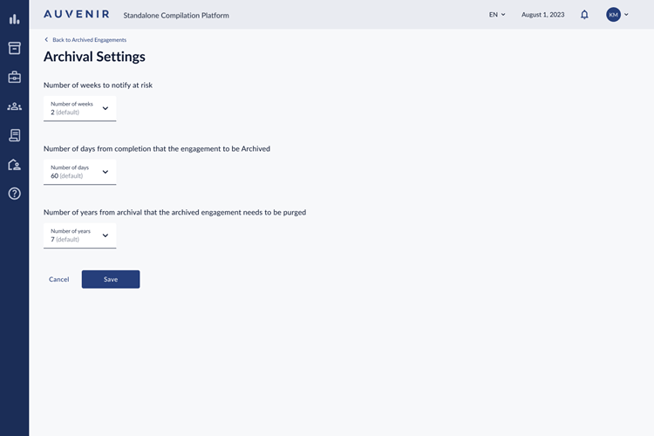
- Under "Archival Settings", there are two main configurable options with associated dropdown menus:
- The first setting, labeled "Number of days from the Financial Statement Report date of the engagement to be Archived", shows the date by which archival engagements should happen based on the duration from their "completed" status. Super admins can select from six preset periods: 15, 30, 45, 60, 90, or 120 days (about 4 months), with the default set to 60 days (about 2 months). The word 'days' is displayed to the right of the dropdown menu for clarity. If the user does not archive their engagement by the time set here, that engagement will show an "At Risk" icon against its name on the Engagements grid on the All-engagements screen
- The second setting, termed 'Number of years from archival that the archived engagement needs to be purged', allows super admins to set the period after which archived engagements are automatically purged. The dropdown provides options ranging from 1 to 10 years, with a default setting of 7 years. The word 'years' is positioned to the right of this dropdown menu, providing clear context. This setting will dictate the number of years after archiving that an engagement will be purged from the application.
- Below the settings options, there are two buttons: 'Cancel' and 'Save'. If a user attempts to navigate away or clicks 'Cancel' after making changes, a confirmation dialog box appears with the message "Do you wish to save changes?", accompanied by 'Yes' and 'No' options.
- If the user clicks 'Yes', the system saves all changes, confirms the action, and then returns the super admin to the previous screen.
- If the user clicks 'No', the system discards all unsaved changes and navigates back to the previous screen without altering any settings.
- Clicking the 'Save' button will immediately save all changes, provide a confirmation message or indicator, and return the super admin to the previous screen.
- The system should validate the super admin’s permissions before allowing access to these settings, maintaining system security and data integrity.
- This Archive settings screen can also be accessed from the Firm Profile-> General Information screen. This icon will be available on both screens Archive dashboard and Firm Profile-> General Information, and the information will be synced/same irrespective of where the user accesses it from.
Ability to configure when the application sends out reminder notifications for archiving
- Users can configure when the application sends out reminder notifications for archiving so that the user is able to archive the engagement before the due date for archival.
- In the Archival Settings page, there will be an option called 'Numbers of Weeks to Notify at Risk', which indicates the number of weeks before the archival date when reminders for archival are sent to the super admin and partner. If an engagement is classified as 'At Risk,' notification emails will be automatically sent to the super admin and partner daily until the engagement is archived. The 'At Risk' icon will be displayed next to the engagement name on the Engagements grid on the 'All Engagements' screen, and the engagement will also be included in the filter. Users can select between 1, 2 ,3 and 4 weeks in this dropdown with 2 weeks being the default value.
- The subject of the email send out before the archival due date per the value selected in the option above will be “Notice: Engagement <Engagement Name> is due for Archival.”
- The content of the email will be “This email is to notify you that the engagement <Engagement Name> is due for archival on <Archival Date> and currently at risk due to it not being compliant with archival standards, please archive your engagement as soon as possible.” There should be a button to direct the user to the Application Dashboard page, and then they can archive the engagement.
- This email will be to all users that were previously assigned to this engagement before archiving.
Once archived, user could view, download, and search within archived engagements in a read-only mode, with editing functions disabled.
- The user should be able to access the archived engagements section, which is in a read-only mode, clearly indicating its archival status.
- The user should view detailed information upon selecting an archived engagement, like a standard engagement view, encompassing the engagement's history, communications, and associated documents.
- The user should have options in the ellipsis's menu of each archived engagement, including the ability to download the file, configure user access permissions, and preview the file's contents.
- The user should be able to click on any archived engagement to see all details inside the engagement, including past activities and document histories.
- In the left navigation panel within an engagement, the only sections available to the user should be "Engagement Dashboard", "Client Requests", "Review Notes Summary", and "Help".
- The user should notice that within the engagement, any actionable button, such as those performing tasks or editing the engagement, will be greyed out and inaccessible.
- For example, in the "Client Requests" section, the "Add Request" and "Delete" buttons should be disabled, and the user should be unable to change any statuses in the client requests.
- However, the user should still be able to perform read-only functions within the engagement, including searching for documents and requests, reading and downloading data or files, and generally browsing around the engagement.
- At the top of each section, there should be a red banner that displays the following text: "Archived - Read Only Mode", which indicates the changed status of the document.
- If the user is a super admin, they can access all archived engagements. However, team members can only access the archived engagements they were previously assigned to. No role is able to edit.
Ability to generate PDF
The contents of the PDF generated will be as under
- Compilation Journey screen snapshot
- All workpapers
- All Attachment
- Trial Balance and Adjustments
- Financial Statements package
- Cross reference, Tickmark
- Sign-off trail on each document is shown