
Key Functions
- Ability to view all review note details, filter and export
User Flow
Ability to view all review note details, filter and export
- The user should be able to access the "Review Notes Summary" screen from either the left navigation panel within an engagement by clicking on the "Review Notes Summary" icon, or from the Engagement Dashboard, clicking on the "view all" hyperlink in the review notes section.
- Upon arrival on the screen, the user sees a small button at the top labeled "Back to Active Engagements."
- When the "Back to Active Engagements" button is clicked, the user is redirected to the main dashboard where all active engagements are listed.
- Below the "back" button, the user views the name of the current engagement they are reviewing.
- Next to the engagement name, on the right, the user sees the client name, type, period start date, and period end date.
- Below the engagement details, is the header labeled "Review Notes Summary."
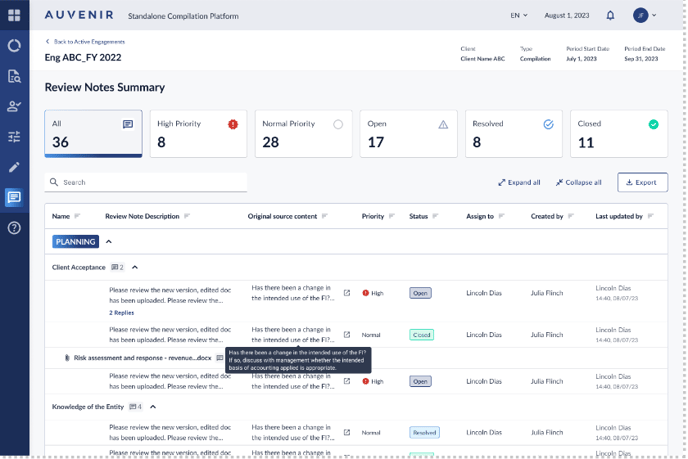
- Under this header, the user finds six clickable tiles, each symbolizing different categories of review notes.
- Each tile has a unique icon and a number indicating the count of review notes in that category: "All" with a message icon, "High Priority" with a red exclamation icon, "Normal Priority" with a gray circle, "Open" with a gray triangle, "Closed" with a blue checkmark, and "Resolved" with a green checkmark.
- The user can click on any of the tiles, which sets a filter on a table appearing below these tiles.
- Beneath the tiles, there is a search bar on the left, allowing users to perform text searches within the table.
- To the right of the search bar, there are three buttons: "Expand All," "Collapse All," and "Export.". By Default this screen will be expanded.
- The "Expand All" button, when clicked, expands and reveals all rows under the headers in its full form within the table.
- The "Collapse All" button restores the grid to its compressed form to only show headers like Planning Execution and Completion when clicked.
- Clicking the "Export" button download the table's contents.
- The table below these controls contains columns for name, review note description, original source content, priority, status, assign to, created by, and last updated by.
- The table features three types of rows: the header row, section row, and review note row.
- The header row categories include "Planning," "Execution," or "Completion," each with a blue box with white text and a collapsibility indicator.
- Each header row encompasses various section rows which show the Working paper name or Trial balance under which the review note was added, each indicating the number of review notes with a message icon.
- Section rows contain content only for the "name" column.
- Within each section row are review note rows, with details corresponding to all columns except "name."
- Some section rows represent attachments, with the attachment name and review note count displayed.
- For review notes with replies, a button indicating the number of replies ("X replies") appears.
- Each item in "original source content" is hyperlinked, directing users to the source material when clicked. It will show the Step name from Workpapers and Account description from Trial balance. Review Note description will show the desc ription for the Review note added.
- The "priority" column shows either "high" (with a red exclamation mark) or "normal."
- The "status" column indicates whether a note is open, closed, or resolved.
- The "last updated by" column includes the person's name along with the time and date of the last update.
- Clicking on the "status" column reveals a popup with additional filtering options, including checkboxes for "open," "closed," and "resolved," and a "select all" option at the top. Clicking on either "created by" or "assigned to" columns reveals a similar popup with filtering options for all the names that are assigned to this engagement.
- Deselecting these options immediately starts filtering the table's view by status.
- Above the search bar but beneath the tiles, filtering breadcrumbs appear, showing "filtered for" followed by the selected filters, each with an option to remove the filter individually and a "clear all" button on the side.
- Next to the filter breadcrumbs, text displays "found X items," where X represents the count of items matching the active filters.
- When the "Export" button is clicked, the user is prompted to download an exported file of the table's current view, formatted as an Excel file.