
Key Functions
- Navigation and ability to view and manage all Document Requests for Clients
- Ability to Add Document Requests
- Ability to Edit, Delete Document Request details
- Ability to view and respond to the messages within Document Requests section
User Flow
Navigation and ability to view and manage all Document Requests for Clients
- You should be able to access the "Client Requests" screen from either the left navigation panel within an engagement by clicking on the "Client Requests" icon, or from the Engagement Dashboard, clicking on the "View all" hyperlink in the Client Requests section.
- The screen will display the list of all pre-existing requests along with their ID, Description, Status, Creation Date, Due date, Internal Team, Client Team, and Files/Messages. Sorting, Filtering, hiding options are available as part of default grid options.
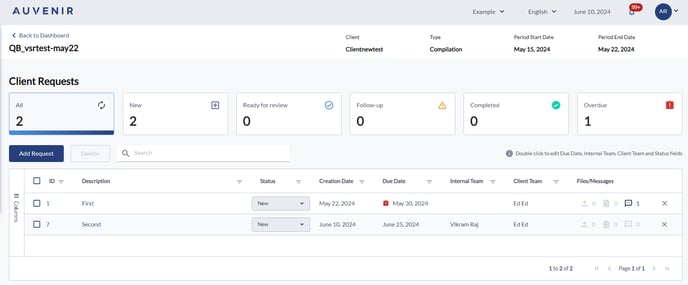
- There will be a global search bar to search and filter by any field.
- Additionally, there will be an "Add request" button to request documents from Clients.
- There will also be a "Delete" option available to the user, to be able to delete existing requests.
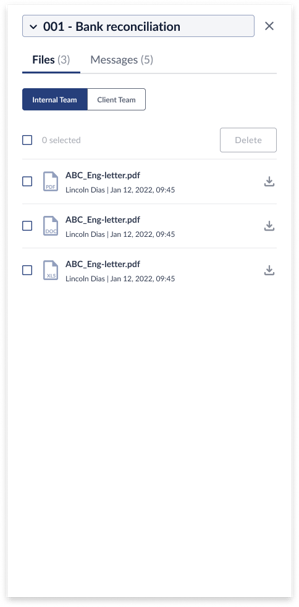
- When you click on an Internal Files column of a specific row, it opens a pop-up will Internal Files and Client files. In the first tab, you will be able to view all files, upload new files, download existing files and delete all/specific files.
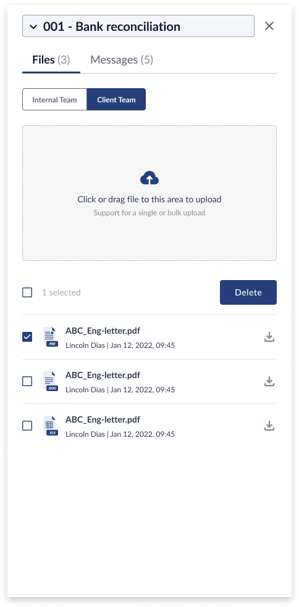
- When you click on a Client Files column of a specific row, it opens a pop-up will Internal Files and Client files. in the second tab, you will be able to view all client files, upload new files, download existing files and delete all/specific files.
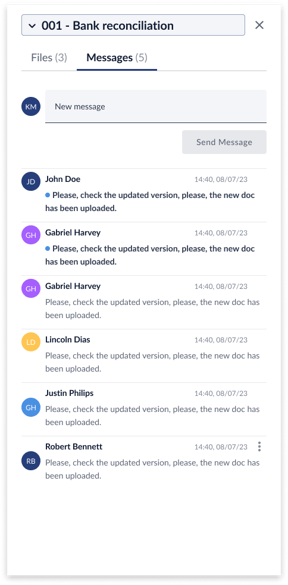
- When you click on the "Messages" column, it opens a pop-up to display all messages sent to Clients and received from Clients. You have the ability to add new messages, response to message, change statuses, edit and delete messages sent by them. For all messages, details like Username, user role, time stamp and date will be displayed.
Ability to Add Document Requests
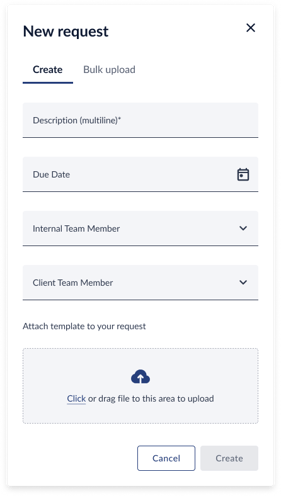
- When you click on the "Add Request" button, it takes you to a new screen with two tabs: Create and Bulk upload.
- Create tab: The following fields have to be filled in by the user, Description, Due date, Internal team member, Client team member, Attach template to your request. There will be a Cancel button to discard change and save button to save the changes.
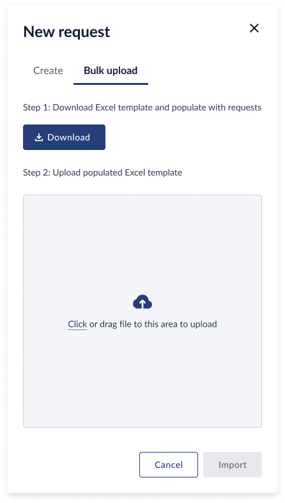
- Bulk upload: user has the ability to download a template, add multiple rows and fill in the following fields including, Description, Due date, Internal team member, Client team member and upload back into the system. This option gives the ability to add multiple requests in one go. For each request, you will be able to attach files to the platform. There will be Cancel button to discard change and Import button to upload the changes.
Ability to Edit, Delete Document Request details
- The user has to double click to be able to edit the following fields: Description, Status, Due date, Internal Team, Client Team.
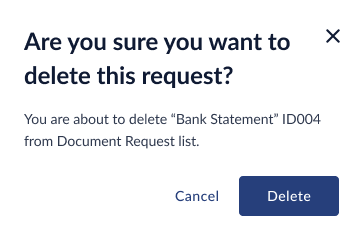
- There will be a delete icon on each row to delete the entire request. Before deletion, a warning pop-up will be displayed on-screen, "Are you sure you want to delete this request", The user can confirm by selecting "Delete" or alternatively select "Cancel". User has the option to multi-select rows and delete all requests.
- The user also has the ability to delete specific documents. To do so, the user has to click on Internal Files, Client Files and select all or specific files to delete.
- The user also has the ability to delete specific messages. To do so, the user has to click on Messages and can delete the ones sent by them.
Ability to view and respond to the messages within Document Requests section
- Upon the user's selection of the message's icon within the message's column, a drawer should automatically appear.
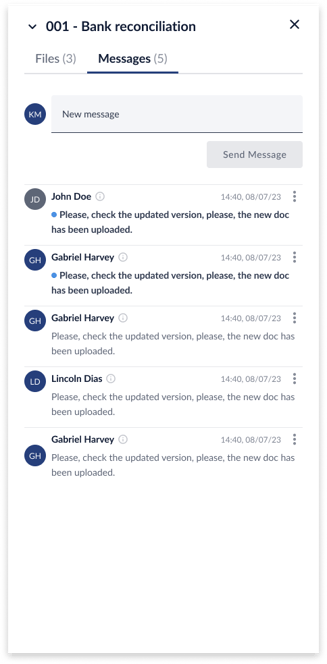
- Within this newly opened drawer, the messages tab must be highlighted, indicating that the user has entered the messages tab. The panel will only show messages specific to the row on which user clicked to access this panel.
- Directly below the highlighted tab, a dedicated area must be provided for users to input or write their messages.
- Initially, the "send message" button below the input area must be deactivated.
- Once the user enters any content into the message input box, the "send message" button should become active.
- Clicking on the active "send message" button will result in the user's message being added to the list of messages displayed underneath.
- There will be ellipse for all messages added by self and on clicking ellipses icon, two options must be presented: "edit" and "delete message."
- If the User clicks on edit, the message will turn into an editable text field, and two buttons appear below the message, to cancel and save. The save button remains greyed out until any edits are made. Clicking on save will save any edits, and clicking on cancel will revert any edits back to the original message content.
- Each message in this section displays the sender's name, date & timestamp, message content, and ellipses on the right. Unread messages are bolded and have a blue dot before the message content.