
Key Functions
- Navigation and ability to view and edit the general information of the firm.
- Ability to upload, view, and manage the company logo to personalize the firm's profile.
- Ability to create, view, and manage the firm's electronic signature for official documentation.
User Flow
Navigation and ability to view and edit the general information of the firm.
- User can access the Firm profile screen by clicking on the Firm Profile option in the Left navigation bar/menu. Only Super Admins will have access to this screen and Team members will not be able to access it.
- There will be 5 tabs available on the top of the screen - Information, Logo, Firm E-sign, Manage Subscription, Archival settings
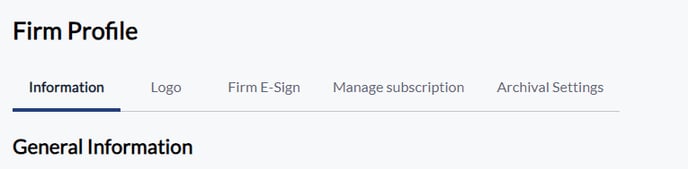
- Upon clicking the Information tab in the Firm Profile section top navigation, the user will be presented with the Information screen with the title "General Information."
- To the right of the "General Information" title, there should be an "Edit" button. On accessing the screen, it will be read-only, Super Admins can edit this screen by clicking on the Edit button which will be available for this role only.
- Directly below the title, a 3x5 grid of text fields should be displayed.
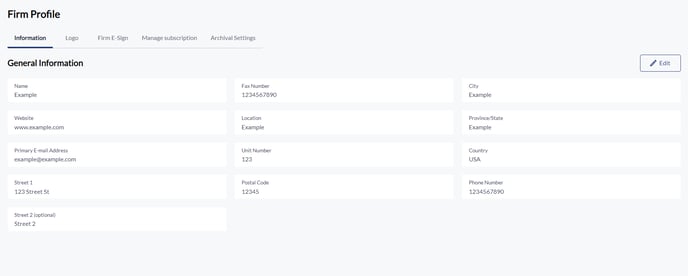
- The text fields in the 3x5 grid should be, in order from left to right: Name, Fax Number, City, Website, Location, Province/State, Primary Email Address, Unit Number, Country, Email Domain, Street 1, Postal Code, Phone Number, Street 2 (optional), "Is Active" with options: "Yes" and "No".
- Once the "Edit" button is clicked, two additional buttons labeled "Cancel" and "Save" should appear below the 3x5 grid.
- If a user clicks the "Save" button after making changes, all the modifications should be saved.
- Upon successful saving, a status message should be displayed on the top right corner stating, "Success: Saved successfully!"
- After the "Save" action, the fields will revert to a non-editable state, and the "Cancel" and "Save" buttons will disappear.
- If a user clicks the "Cancel" button, no changes will be saved and the fields will revert to their previous values, also becoming non-editable. If the user made changes first then clicked Cancel, they are presented with a dialog box that asks "Are you sure you want to leave? You have unsaved changes on the page that will be lost if you proceed" with a "Continue without saving/Save" option. Clicking "Continue without saving" will bring back the non-editable view without saving any changes and "Save" will take the user to above points 6 and 7.
Ability to upload, view, and manage the company logo to personalize the firm's profile.
- Upon accessing the Logo tab in the Firm Profile section, the user will see the title "Firm's Logo."
- Below the "Firm's Logo" title, there should be descriptive text stating, "Import your company logo as .jpg, .png, .gif format."

3. Under this text, a button labeled "Import Logo" should be visible.
4. When the "Import Logo" button is clicked, a dialog box titled "Import Logo" will be triggered. Below there will be a text stating "Import your company logo as .jpg, .png, .gif format."
5. Within this dialog box, there should be an area where users can either drag and drop a file or click on the box to select and upload a file.
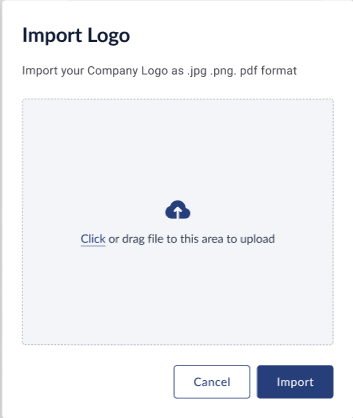
6. The dialog box should also contain two buttons: "Cancel" and "Import." If the user clicks "Cancel", the dialog should disappear.
7. After uploading a file and clicking the "Import" button, the chosen logo file should be uploaded and subsequently displayed below the "Firm Logo" subtitle.
8. Directly beneath the displayed logo, the file with its file name along with its extension type should be visible.

9. Once a logo has been imported, the initial "Import Logo" button should change to two separate buttons: "Clear" and "Import New Logo."
10. Clicking on the "Clear" button will remove the imported logo, revert to the original view, and the file name with extension type will disappear.
11. When the "Import New Logo" button is clicked, it will trigger the same "Import Logo" dialog box as described in above points 4 to 7.
12. If a user tries to upload a file with file type other than .jpg, .png or .gif an error message will be displayed stating "File type not supported, please try again."
Ability to create, view, and manage the firm's electronic signature for official documentation
- When the user accesses the "Firm E-Sign" tab, they should see the screen title "Firm's E-Sign."
- Below the sub header, a subtext should read, "Use your mouse or trackpad to draw signature here."
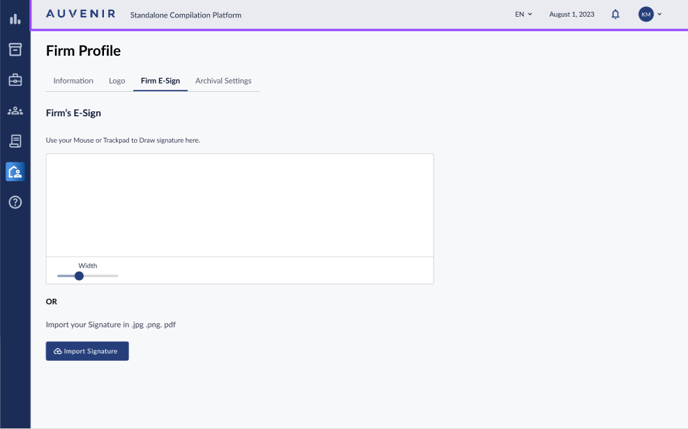
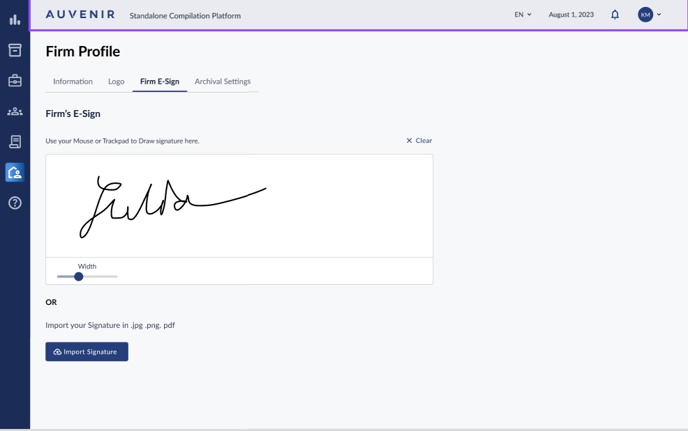
4. As soon as the user begins drawing their signature within this field, "Clear" and "Done" buttons should appear at the top of the field.
5. On clicking the "Clear" button, any drawn signature within the field should be erased. On clicking the "Done" button, the e-signature will be saved, and a status message should be displayed on the top right corner stating, "Success: Saved successfully!" The "Done" button will then disappear, while the "Clear" option remains. The signature will only be saved by clicking on the Done button, if user exits the screen without clicking on Done the signature will be lost.
6. Beneath the signature field, there should be a slider that allows users to adjust the width of the stroke for the e-signature.
7. Directly below the text area, a text should be displayed with the bolded word "OR" followed by the text "Import your signature in .jpg .png .gif format."
8. Underneath this text, a button labeled "Import Signature" should be present.
9. Clicking the "Import Signature" button will trigger a dialog with the heading "Import Signature.", followed by the text "Import your Company Signature as .jpg .png .gif format."
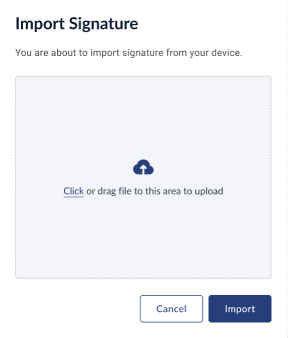
10. Within this dialog, there should be an area for users to either click or drag a file to initiate the upload process.
11. This dialog should also have two buttons at the bottom labeled "Cancel" and "Import."
12. The moment the user imports a file, or as soon as the user drags a file, the text "Import your Company's signature as .jpg .png .gif format" gets removed.
13. Upon successfully importing a signature file, the signature field/text area at the top should display a preview of the uploaded signature.
14. Directly below the displayed signature, the imported file's name with its extension type should be visible.
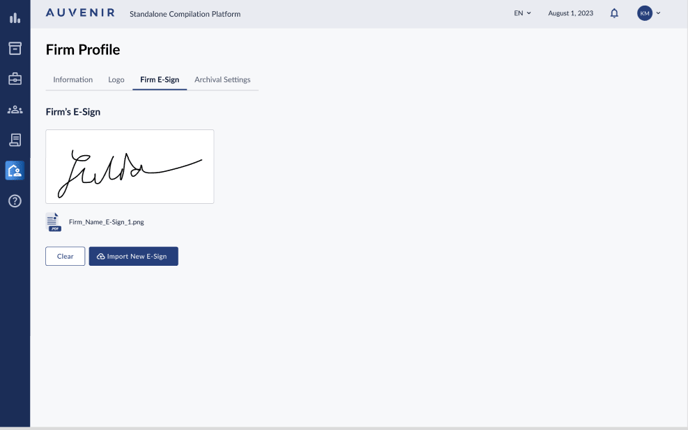
15. Once a signature is imported, the "Import Signature" button should be replaced with two new buttons: "Clear" and "Import New Signature."
16. Clicking the "Clear" button will revert the tab to its original view (before any signature was drawn or imported). The "Clear" button will not appear when the text area is blank.
17. The "Import New Signature" button, when clicked, will retrigger the "Import Signature" dialog box as described above in points 9 to 11.
18. If a user tries to upload a file with file type other than .jpg, .png or .gif, an error message will be displayed indicating "File type not supported, please try again."
Ability to View Archival Settings
- The user can view archival settings by clicking on the Archival Settings Tab.
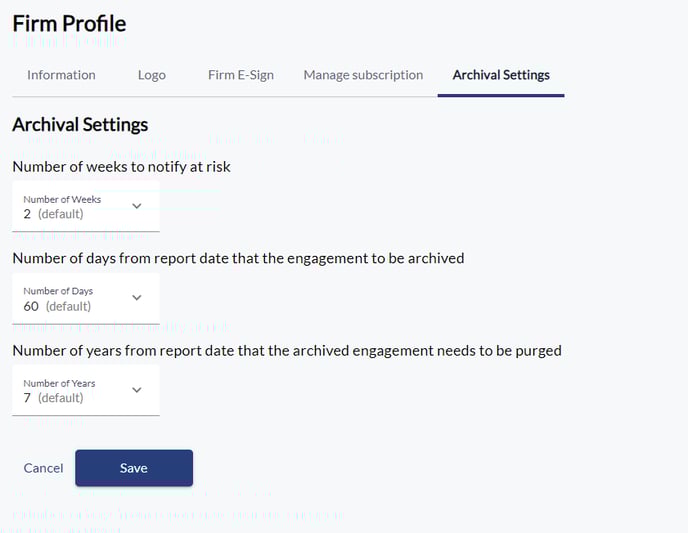
- The user can select from the dropdown values to adjust settings for notifications and archiving rules.
Ability to manage subscription
1. The user can manage their subscription by clicking on the corresponding tab:
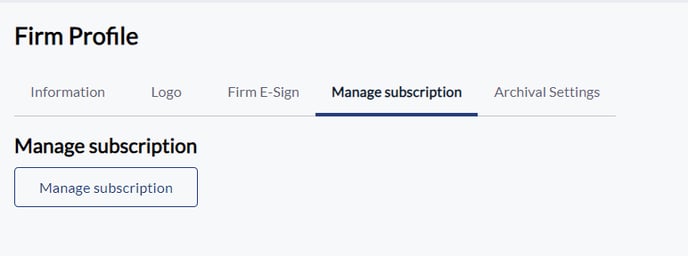
Clicking on the button below will bring the user to StaxBill to upgrade or cancel their subscription, as well as manage billing info.