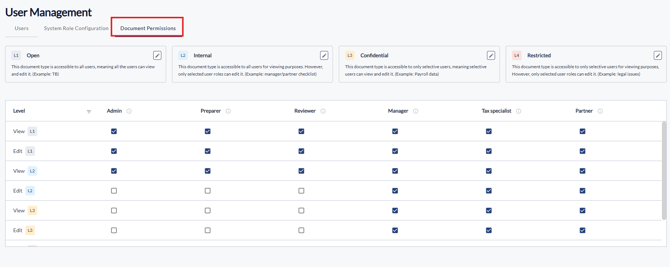
Key Functions
- Updating User Roles at Creation
- Updating User Roles in the Engagement
- Updating User Permissions in the Settings
Video Guide
Updating User Roles at Creation
- In Engagement creation you will be able to assign user roles.
- When you get to 'Step 3' of the steps you will see 'Internal Team'. (Note that this step is optional, you can update this in the Engagement as well.
- Select all 'Roles' you want for specific users and click 'Next' or 'Create' to finalize.
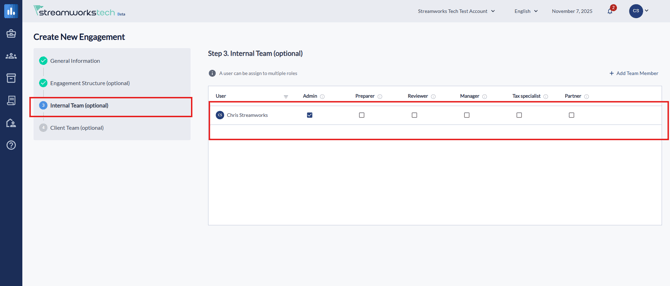
- It is recommended for the Admin of the engagement to select all roles for themselves to see all documents.
Updating User Roles in the Engagement
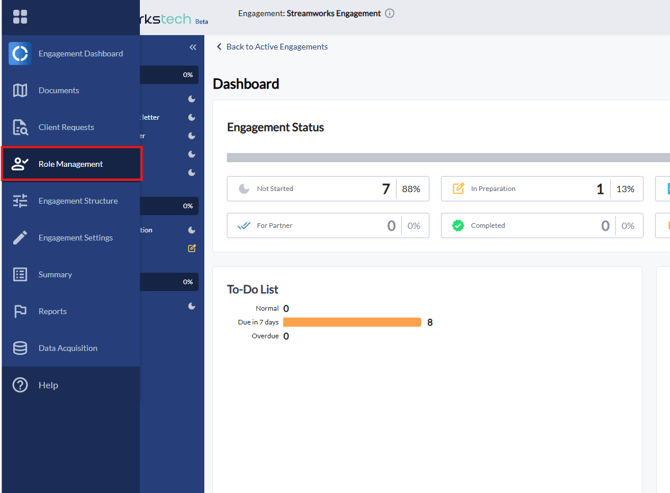
- From the Engagement click 'Role Management' from the left navigation panel.
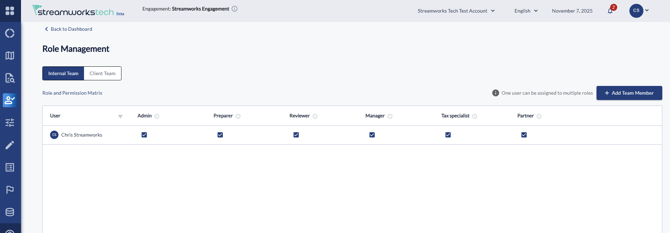
- From here, update any roles you need for users.
Updating User Permissions in the Settings
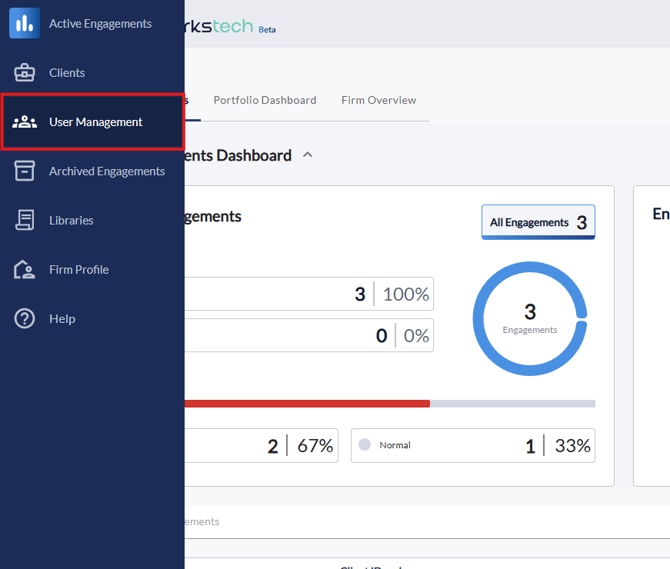
- Go to 'User Management' from the left navigation panel.
- Select 'System Role Configuration' from the menu. Here you can update 'Basic' permissions, 'Template Library' permissions and 'Engagement Roles' permissions.
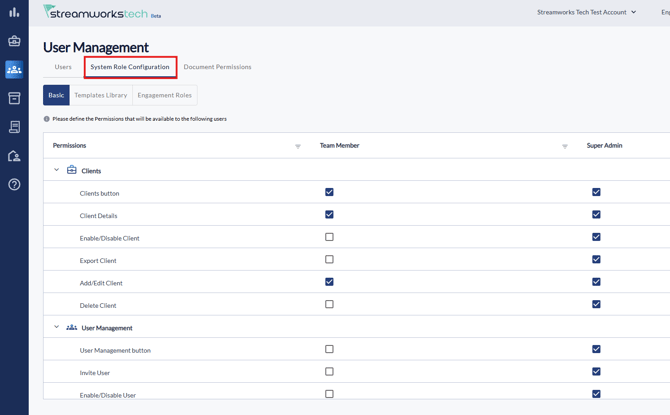
- These configurations will directly effect specific roles permissions and which documents they can see or interact with.
- You can also go to 'Document Permissions' for further permission editing.