
Body
Key Functions
- Ability to create a folder in PBC library tab
- Ability to view the details added in grid and edit them
User Flow
Ability to create a folder in PBC library tab
- On clicking the “PBC” tab, user will be able to view “Search box”, “Add Folder” and “Add Request” (disabled) option.
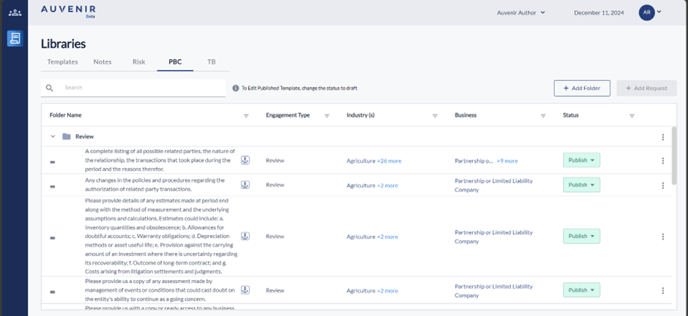
- Add Folder – When a user clicks on the Add folder button, it will open a pop up.
- The pop up contains a empty field for user to enter the Folder name.
- Users will have the option to ‘Cancel’ or ‘Add’.
- Clicking ‘Cancel’ will discard if any information is added. Clicking on ‘Add’ will repurpose in the PBC library grid.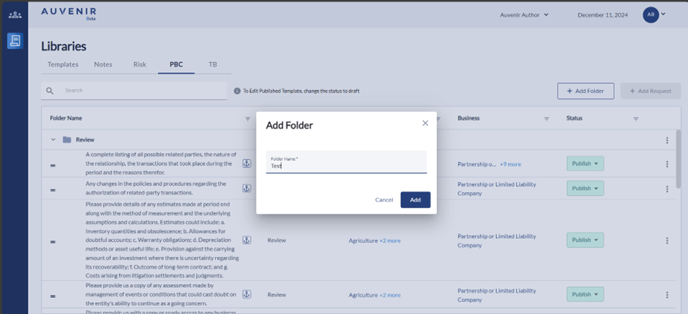
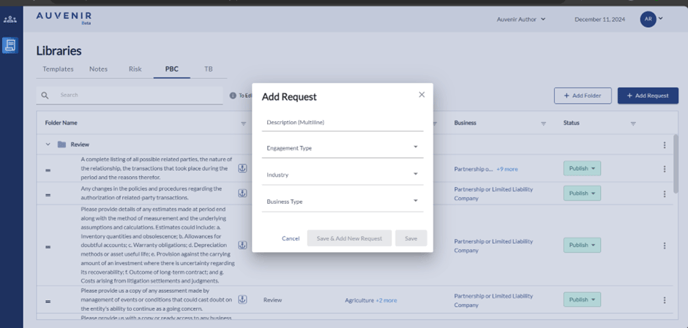
- “Add Request” tab is disabled by default and only enable when user select a folder to add the request into and below details will appear.
- The pop up contains 4 fields for user to enter the information
- Description: - Editable free text area allowing the user to enter the description.
- Engagement type: Dropdown listing all the engagement type where user can select any one of the options.
- Industry: - Dropdown field with option having checkbox allowing user to multi-select or single select by checking the checkbox
- Business type: - Dropdown field with option having checkbox allowing user to multi-select or single select by checking the checkbox
- Once the details are filled in the field, user will click on the button ‘Confirm’, now all the details added in ‘Add request’ will repurpose in PBC library grid.
- Clicking on ‘Save & Add new request’ will follow the above ‘Confirm’ functionality, in addition it will open a new Add request pop up with empty fields for user to create another request
- Clicking on ‘Cancel’ will make no changes
- PBC grid contain 5 columns as below:
- Folder Name – Filter option to filter Folder Name.
- Engagement type - Filter option to filter the desired type of engagement.
- Industry(s) - Filter option to filter the desired industry.
- Business - Filter option to filter the desired business.
- Status - The "Status" column has a dropdown with three options: "publish," "draft," or "inactiv” “Publish” option enables the PBC to be available for All Firms or user selected firms with an anchor tag. “Draft” status basically means the document is currently being edited and will enable the user to create/edit the PBC. By default, the PBC will be in “draft” mode. While selecting “Inactive” option the PBC will be inactive and cannot be used in any firm.
- Each folder row will have an accordion arrow to collapse/expand the request added under the folder. The type of engagement, industry and type of business will be blank for the folders.
- The Folder row will have ellipse icon, which will have following option:
- Add Request: Allowing the user to add request directly to the folder. Clicking will initiate the add request pop up which was covered in add request user story
- Rename: Clicking on Rename option will open a pop up with the existing folder name prepopulated, along with save and cancel.
- On clicking “Delete” option warning to user ‘Are you sure you want to delete the “Folder 1” folder? Along with Delete and cancel button.
- Every request row will have an equal symbol, where click & hold will give the option for user to rearrange the row.
- On clicking on the ellipse option user can “edit” or “Delete” the PBC created