
Key Functions
- Ability to add, review, and track cross-references
- One-to-one, one-to-many and many-to-many cross-references
User Flow
Ability to add, review, and track cross-references
- In the engagement process, each step and each row of the Trial Balance will feature icons on the right for Review Notes, Files, Cross-Reference, Tickmark, and a 'Plus/Add' icon.
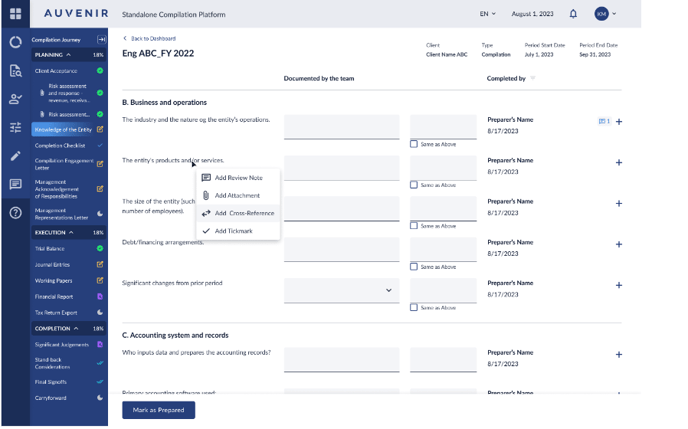
- Each icon displays a count of items under its category for that step/row; for example, the Cross-Reference icon shows how many cross-references are linked to that step and is hidden if there are none.
- The user should be able to start the cross-referencing process within a workpaper or between workpapers and the Trial Balance by right clicking the desired area and selecting "Add cross reference" from a popup menu, or by clicking the 'Plus/Add' icon and selecting "Add Cross Reference" from the drop-down menu.
- Once "Add cross reference" is clicked, a slide over panel titled "Add cross reference X" opens, with "X" being the next sequential number of cross-references created.
- The system should generate and assign a cross-reference number, and two radio buttons, 'set destination' and 'set link location,' appear, with the latter inactive until the second step.
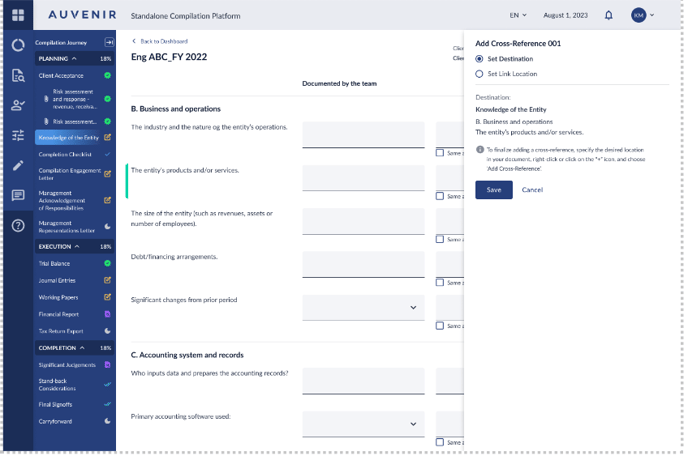
- The original document name and initially selected content for cross-referencing (or "Trial Balance" and account description if from Trial Balance) are displayed on the panel.
- An informative statement instructs users to specify a location in their document for the cross-reference, right-click, and select 'Add Cross-Reference’ to finalize the process.
- A "Save" button keeps the cross-reference information from step 1 in memory, while a "Cancel" button exits the process without saving. If the user clicks cancel, a popup appears to confirm that they would like to cancel adding the cross reference. Clicking Yes will cancel adding the cross reference.
- After saving, the user should navigate to the part of the engagement where they want to link the cross-reference, right-click or click the plus icon to add it, and a slideover with 'set link location' active appears.
- In the slideover, users can select the destination for the cross-reference from a list of previously linked or new unlinked cross-references added in step 1. New unlinked cross references will have the appropriate icon to indicate that it is unlinked.
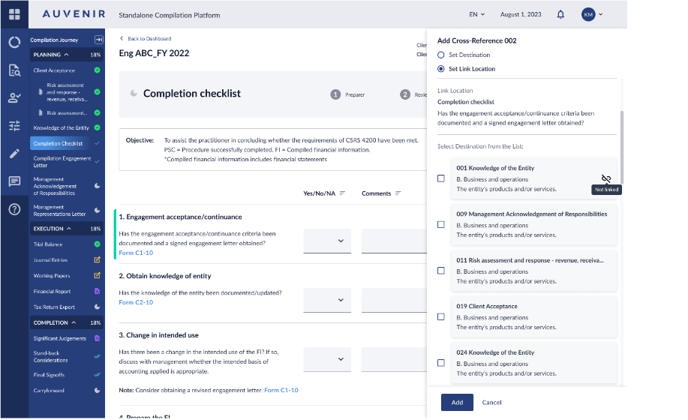
- Selecting a destination completes the cross-reference, and the corresponding icon now appears next to each section involved in the cross-referencing. If the user cancels at this point, the first cross reference will be held in memory until a second cross reference is initiated.
- Clicking the cross-reference icon opens a slide over with four tabs, the "cross ref" tab highlighted, showing a count of the cross-references for that step or account.
- Below the tabs, instructions for creating a new Cross-Reference are given, along with a list of existing cross-references, each with a unique number, creator's name, role, date, and time, plus an "X" button to delete.
- When a cross-reference is deleted, it's removed from both the origin and target.
- Each listed cross-reference includes a "linked reference" button that takes users to the linked section in the engagement, highlighting the linked area.
- Clicking on a cross-reference expands the section to show full details, displaying the target when clicked on the origin and the origin details when clicked on the target.
One-to-many, many-to-one and many-to-many cross-references
Cross references can be mapped in the following ways: one to many, many to one, and many to many.
- One-to-many: this means that one source can have multiple links, e.g. Content from "knowledge of the entity" can be linked to content from both "Completion Checklist" and "Management Representations Letter".
- Many-to-one: this means that multiple sources can have one link, e.g. Content from "knowledge of the entity" and "Completion Checklist" can be linked to "Management Representations Letter".
- Many-to-many: this means that multiple sources can have multple links, e.g Content from "knowledge of the entity" and "Completion Checklist" can be linked to both "Management Representations Letter" and "Client Acceptance."