
Body
Key Functions
- Ability to View, Add, Edit and Delete Notes.
User Flow
Ability to View, Add, Edit and Delete Notes
- On clicking the Notes tab, user will be able to view “Search box” and “Create New” button.
- Search text box will allow the user to search required details from any field.
- On clicking on “Create New” tab, two options will appear as “Notes” and “Sub notes”.
- When the user selects the “Notes” option, it will navigate to another screen with a tittle “New Note” and the user is able to select required option from the dropdown for Industry, Framework, Language and status.
- On clicking on plus button for Add category, another pop up will appear to select the respective categories.
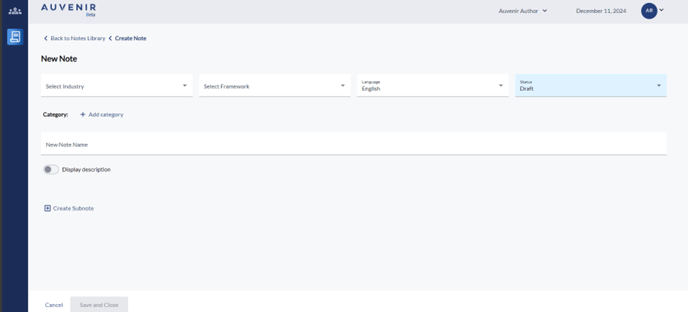
- User can be able to add name of notes in the text area for “New Note Name”
- User can be able to create subnotes under main notes.
- On clicking “Cancel” button user can cancel the changes made and “save and close” helps the user save the notes created.
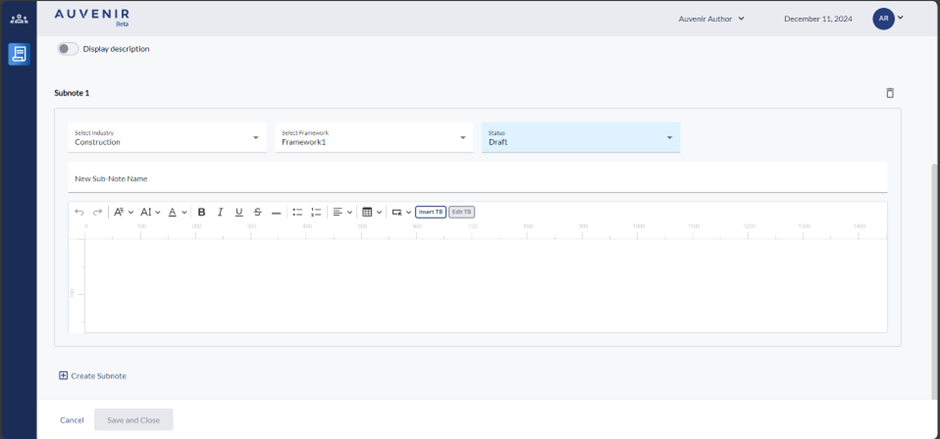
- Upon clicking 'Create Subnote,' a new pop-up screen will appear. This screen includes dropdown such as 'Select Industry,' 'Select Framework,' and 'Status’, pre-populated with data from the main notes.' Users can enter the subnote name in the 'New Subnote Name' text area and provide additional details in the text box below.
- The “Notes” grid will have column as Note Name, Industry, Framework, Language, category, status, Last edit Date. The "Status" column has a dropdown with three options: "publish," "draft," or "inactiv” “Published” option enables the notes to be available for All Firms or user selected firms with an anchor tag ”. “Draft” status basically means the document is currently being edited and will enable the user to create/edit the notes. By default, the notes will be in “draft” mode. While selecting “Inactive” option the notes will be inactive and cannot be used in any firm.
- On clicking on the ellipse option user can view the options like “Duplicate”- which will allow the user to create the copy of required notes “Create sub-note” - which helps the user to create new subnotes and “Delete” – which will allow the user to delete the notes once created.